
Quick Answer: The most common meaning of “There was an error” is that Grok has been unable to load, refresh, or complete your request. First, go back to Home, refresh the page, restart the app and the browser, log in again, check the internet, disable VPN, clear cache, and update the app.
Instead of your chat, you see a dark screen with the Grok logo, a message on the screen saying “There was an error” and a button to Return to Home. This may occur when starting Grok, loading a chat, typing a prompt or returning to the home screen.
This error is not really specific, making it more irritating. It is not explicitly stated whether the issue is with your browser, app, account, Internet connection or with Grok’s service. It may be just a quick load glitch. At other times, it may be due to cache, cookies, VPN, login session, app version, browser extension or a service issue.
The easiest way to deal with it is to keep it simple. The quick fixes should be the first thing you try. If the error persists, proceed to the browser, app, network, and account checks.
What Is the Meaning of the “There Was an Error” Message on Grok?
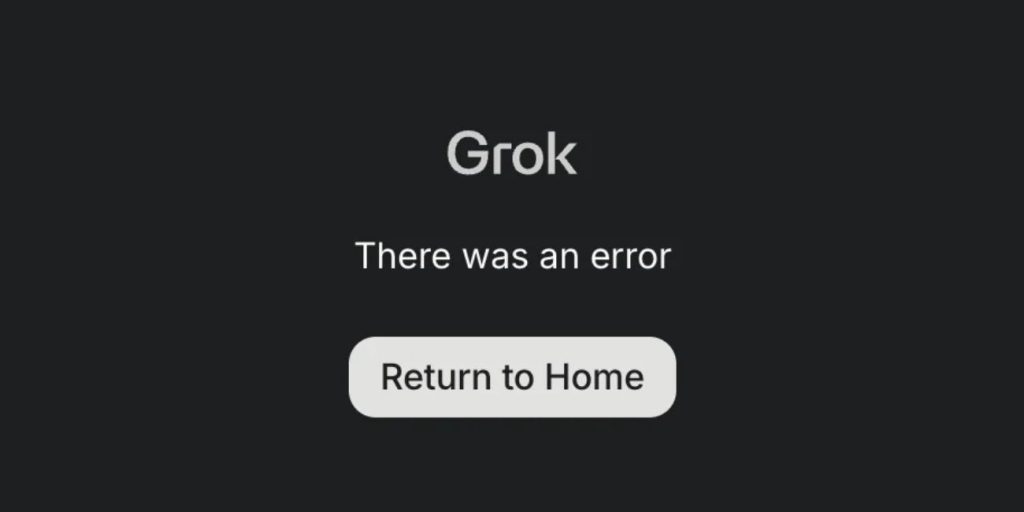
This message indicates that Grok was unable to load or complete a request. That request may be opening the home page, loading your chat history, sending a message, refreshing a conversation or connecting your account session.
It does not necessarily mean Grok is down. It’s also not always an indication of a problem with your account. A good way to explain it is this: Grok attempted to do something, and the request was not completed due to failure.
Why Does Grok Show “There Was an Error”?
This error can be displayed by Grok for a number of reasons. There could be a reason for this as well, such as a bad browser session or a weak internet connection. It can also be on the service side, particularly if numerous users are experiencing the same problem simultaneously.
Common causes include:
- Temporary Grok loading glitch
- Expired or broken login session
- Bad browser cache or cookies
- Outdated X app or browser
- Browser extensions blocking page scripts
- VPN or proxy causing connection problems
- Slow or unreliable internet connection
- Mobile app cache problem
- Strict browser privacy settings
- Grok or X service issue
- Account or access issue
That is why the simple act of refreshing can sometimes not resolve the issue. When the error occurs repeatedly, testing should be done to determine where the error is coming from.
Quick Cause and Fix Table
| Possible Cause | What to Try |
|---|---|
| Temporary loading glitch | Return to Home and refresh Grok |
| Stuck app/browser session | Close and reopen the app or browser |
| Broken login session | Log out and log in again |
| Weak internet | Try mobile data or another network |
| VPN/proxy issue | Turn off VPN or proxy |
| Corrupted browser cache | Clear cache and cookies |
| Extension conflict | Disable extensions or use incognito mode |
| Outdated X app/browser | Update the app or browser |
| App cache issue | Clear app cache or reinstall app |
| Grok/X service problem | Wait and check if others are affected |
How to Fix Grok “There Was an Error”
Attempt the following solutions in the following order. Open Grok after every step and check if it loads. Try not to do more than one thing at a time as it will be hard to determine what worked and what didn’t.
1. Click the Return to Home Button and Refresh Grok
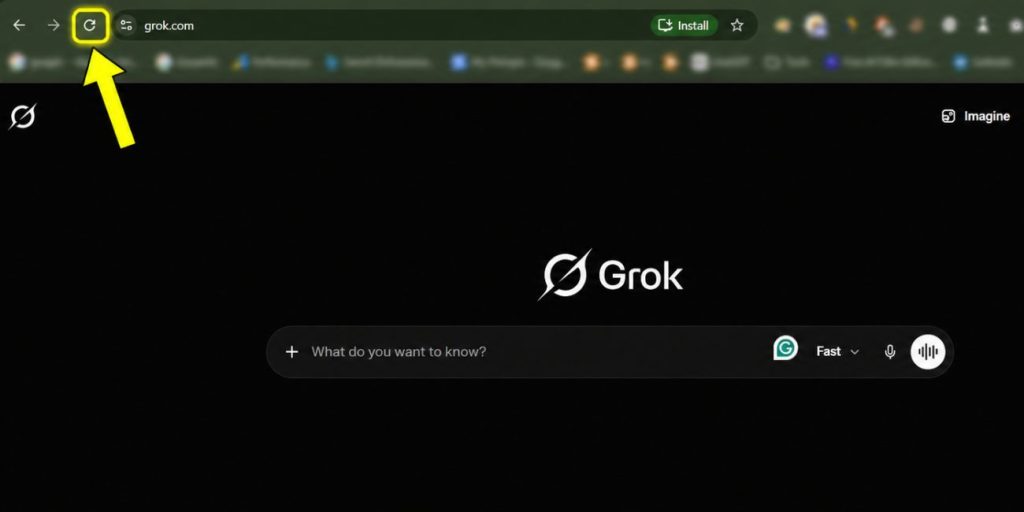
Begin by clicking on the button displayed on the error screen. Press Return to Home, wait a couple seconds and then attempt to open Grok again. On a browser, refresh the page once when coming home from Grok.
This will resolve a single request failure. Perhaps the page didn’t load correctly or the chat expired after a short period. If the page has frozen, do not continue clicking the same page. Wait for a few seconds and repeat.
2. Close the App or Browser and Reopen It
If the error persists, close the app or browser entirely. Don’t just minimize it. On mobile devices, swipe the app off recent apps. On desktop, close the browser window or quit the app altogether.
Reopen it and give Grok a shot. This can be helpful when the tab, app process or background session is hung. It’s a minor patch, yet for loading issues, it’s definitely worth having an early look.
3. Log Out and Log In Again
Grok is based on your account session. When that session expires or breaks, the page will partially load and display the message “There was an error.” This may occur following long periods of login, changing your device, or switching networks.
Log out of your account and exit the app/browser. Open the browser again and log in. Then return to Grok and test. If Grok begins working after logging in, then it is likely that there was a broken session or sync issue with the account.
This fix also comes in handy when everything seems to be working fine except for Grok itself. It makes the service generate a new session for your account.
4. Check Your Internet Connection
Grok requires a reliable internet connection to retrieve chats and provide prompts. Normal websites may still be openable, but if your connection fails or is too slow, Grok may fail. AI chat tools may require consistent connection to yield satisfactory results.
Here are some quick checks:
- Change to mobile data instead of Wi-Fi
- Get closer to your router
- If lots of sites are slow, restart your router
- Stop large downloads or streaming
- If possible, use another network
If Grok is running on mobile data but not on Wi-Fi, your internet provider, DNS or router may be involved. If it fails on all networks, focus more on the app, service, browser or account.
5. Turn Off VPN or Proxy
A VPN or proxy can alter the way that Grok connects with the service. There are slow, blocked and unusual traffic VPN routes. That can result in loading errors even when everything else on your Internet seems to be working fine.
Please deactivate the VPN or proxy and close Grok and reopen it. If the error goes away, the problem was likely due to the VPN route. You may choose to switch to a different VPN server, but for testing purposes, disable the VPN altogether.
It’s an easy test to do, but many people neglect to do it. VPN problems can appear as issues with apps, making it a confusing issue.
6. Clear Browser Cache and Cookies
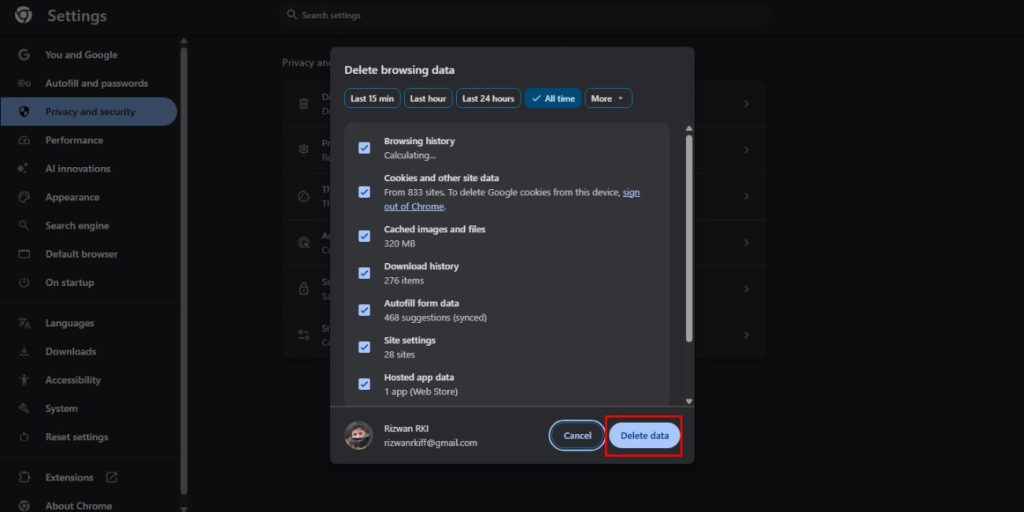
Browsers use caching and cookies to maintain fast load times and to remember usernames and passwords. At times the saved data becomes corrupt. At this point, Grok might not load, you might see errors on the session screen, or you might be continually bounced back to the error screen.
To remove data from the browser:
- Open the browser settings window
- Go to privacy or browsing data
- Clear Grok or X’s cache and cookies
- Restart the browser
- Sign in again
- Open Grok and give it a shot
When you clear cookies, you will also be signed out. Therefore, please ensure you have login information prior to doing so. If you can do so in your browser, delete data just for Grok or X, rather than clearing all data.
7. Disable Browser Extensions
Browser extensions may prevent scripts or requests from functioning properly for Grok. Web apps can be affected by ad blockers, privacy tools, script blockers, and strict tracking protection. These can be helpful, but can also disrupt portions of a web page.
Try opening Grok in incognito or private mode. Most extensions are disabled there by default. One of your extensions is likely to be causing the error if Grok works in incognito.
Switch back to your default browser, and disable one extension at a time. Ad blocking, privacy extensions and script blockers are a starting point. After each change, reload Grok.
8. Update the X App or Browser to the Latest Version
Check for updates to the X app if you use Grok via the X app. If using an older version of the app, it may result in loading issues, broken screens or a login screen problem. Open the official app store, update the app, restart the phone and retry.
When using Grok in a browser, upgrade the browser as well. Outdated browsers such as Chrome, Edge, Firefox, Safari or any other browser can cause problems with web apps. Once it is updated, close the browser completely and then reopen Grok.
It’s not the most thrilling of the patches, but it’s significant. Newer versions of the app and browser can resolve some minor compatibility issues that may result in loading errors.
9. Clear App Cache or Reinstall the App
Clear app cache on Android devices. App cache stores temporary files and sometimes those files can cause loading to fail. Navigate to the settings of your phone, X app and clear the X app cache if available.
On iPhone, cache controls are less extensive. If upgrading the app doesn’t solve the problem, you can try to uninstall and re-install the app. Before you do, be sure to know your login information.
Reinstalling is not the first thing to try, but if the app install is damaged or stuck, re-installing should help. Once installed, log in again and launch Grok from a new session.
10. Test Using a Different Browser, Device or Network
This way you’ll know where the issue is truly. If Grok is working elsewhere, it is likely the problem is your first browser, device or network. In case of failure in all the locations, the problem can be either account or service.
| Test Result | What It Helps Confirm |
|---|---|
| Grok works in another browser | Main browser cache or extension may be the problem |
| Grok works on mobile data | Wi-Fi, router or ISP may be the problem |
| Grok works on another device | Original device app or browser may be the problem |
| Grok fails everywhere | Account, access, or service issue may be likely |
This test will save you time. One way to narrow the problem down quickly rather than guess is to test Grok in a different place.
11. Check If Grok or X Has a Service Issue
Not all the time it is your fault. Grok or X may be experiencing a brief service outage. If this is the case, clearing the cache or reinstalling the app will not resolve the issue immediately.
See if anyone else is experiencing the same problem. You can also make another attempt after some time. When Grok stops working for a lot of people at once, there’s not much of a remedy other than waiting.
If nothing was a problem and the error just appears out of nowhere, don’t continually tweak the device settings. This could be due to a service issue.
What If Grok Still Says “There Was an Error”?
If Grok continues to display this error after all basic fixes, your problem may be attributed to your account, access, device, network or service. At this stage you need to gather information and then seek assistance. It makes support much easier.
Have the following information on hand:
- Copy or screenshot of the error on Grok screen
- Device type
- Version used, browser or app
- Whether it happens on web, app or both
- Whether VPN is used
- Whether Grok is operating on another network
- Fixes already tried
- Time when the error started
If Grok is working on another account or device, note this as well. It’s the little things that can tip you off sooner.
How to Prevent Grok Loading Errors
There are some Grok errors which are not preventable, particularly if there is a temporary problem with the service. However, you can minimise repeat problems by ensuring that your app, browser and connection are stable. It also prevents web apps from causing unstable VPN routes.
Useful prevention tips:
- Use the updated version of X app
- Ensure that your browser is kept up to date
- Don’t use shaky VPN service
- Stay on secure WiFi or mobile data connections
- If the same error continues to occur, clear cache
- If your session appears to be stuck, sign in again
- Do not leave Grok unattended for extended periods of time
- If one browser fails, use another browser
If it continues to occur on the same device, observe the error’s pattern. Does it occur when using VPN? In just one browser only? Only on Wi-Fi? That clue will typically indicate where to look.
Final Thoughts
This means that there was a mistake in the app or website, and it didn’t load something correctly. Try the basic solutions first: click Return to Home, refresh, restart the app/browser, log back in, check your Internet connection, disable VPN, clear cache, and update the app.
If Grok isn’t working on all devices and networks, then it might be an account or service-side issue. If it does in another location, then there is something wrong with your browser, app, device, or network. Was the Grok error a problem on the app, browser, or both?