
Quick Answer: When Discord is not capturing audio from your mic, it will typically show Error Code 3002. To resolve it, check your mic connection, select the appropriate input device, test microphone permissions, restart Discord, reset voice settings, update audio drivers, and ensure your mic is not muted in Windows or Discord.
A red warning bar that reads something like “Well, it looks like Discord is not picking up any input from your mic. Let’s fix that!” can appear when you get Discord Error 3002. You might still be able to log into Discord, send messages and join calls, but your mic won’t be functioning.
This error typically is not a server issue. In most cases, it’s because Discord can’t hear your microphone due to an incorrect input device, a muted mic, voice permissions denied, voice settings disabled, a faulty headset, a faulty microphone driver, or another program using the mic.
Fortunately, it’s typically correctable. Always check the simple things first, and then check the Discord voice settings, microphone permissions in Windows, browser settings, and audio driver fixes if indicated.
Discord Error 3002: What Is It?
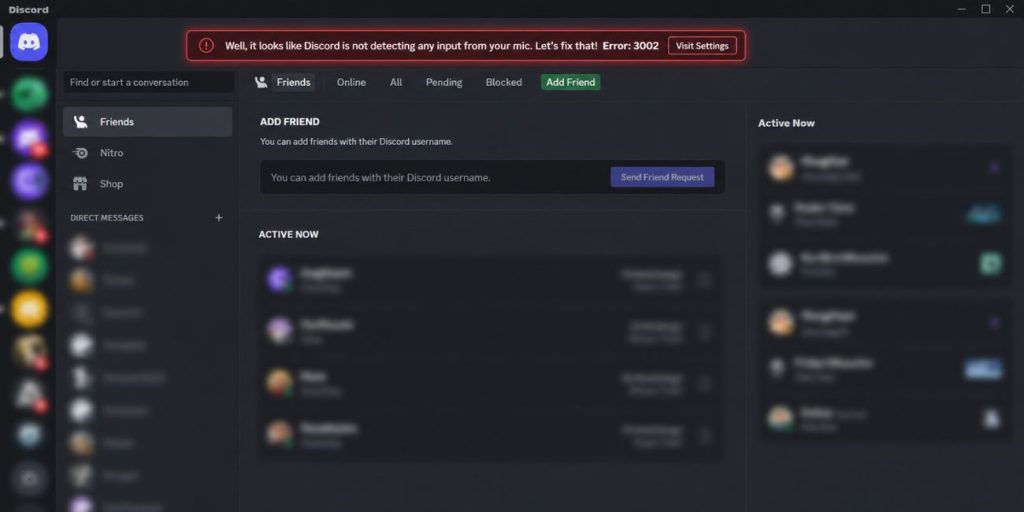
Discord Error 3002 occurs when Discord is unable to receive input from the microphone. To put it simply, even if your mic is plugged in, Discord won’t be able to hear it. It may occur even if the mic is working in another application, as Discord may be using the incorrect input device, or it may be denied permission in a permissions setting.
The error is not related to Discord RTC Connecting or Discord voice server problems. RTC Connecting is the art of connecting voice. Error 3002 relates to the microphone input. It’s kind of like this: Discord is open and connected, but your voice isn’t getting to the app.
What Is Causing Discord Error 3002?
The Discord Error 3002 occurs when an issue prevents Discord from detecting the user’s microphone audio. Occasionally, the mic is muted. At times, Discord is listening to the incorrect device. In some cases, this may be due to Windows, macOS, browser, or privacy settings.
Common causes include:
- The wrong input device was selected in Discord
- The microphone is muted on the headset, keyboard, or system
- Voice settings are not working in Discord
- The microphone permission for Windows is disabled
- Permission to use the microphone was denied in the browser
- An old or faulty sound card
- The headset is not secure
- Bluetooth mic is not paired properly
- The microphone is being used by another app
- Input sensitivity is too high or too low
- Push to Talk is accidentally turned on
- App cache or glitch in Discord
The patch will vary depending on the block’s location. So don’t change everything at once. Do it step by step.
Quick Cause and Fixes
| Possible Cause | What to Try |
|---|---|
| Mic is muted | Check headset, Windows and Discord mute settings |
| Wrong input device | Select the correct mic in Discord |
| Bad voice setting | Reset Discord voice settings |
| Push to Talk enabled | Switch to Voice Activity or use the correct keybind |
| Windows mic permission off | Allow microphone access in Windows |
| Browser mic permission denied | Allow mic access in browser settings |
| Loose headset connection | Reconnect headset or try another port |
| Another app using mic | Close Zoom, OBS, Teams or recording tools |
| Old audio driver | Update or reinstall audio drivers |
| Discord cache issue | Clear Discord cache or reinstall Discord |
How to Resolve Discord Error 3002
You can use any of these solutions separately. Once you’ve made any changes, return to Discord and try out your mic in User Settings > Voice & Video. If Discord shows that the input meter is moving when using voice, the mic is being detected again.
1. Check If Your Mic Is Muted
Take the easy route. Verify if the mic is muted on your headset, microphone, keyboard, and Windows sound icon. There is a small mute switch or button on many headsets, which can be accidentally hit.
Be sure to check what Discord says, too. If the mic icon on your profile shows muted, Discord has muted your microphone. Single click for unmute. This is very simple, but can cause this error in particular with gaming headsets.
2. Pick the Appropriate Input Device in Discord
Your microphone may not be the correct one Discord is using. For instance, it can choose your webcam mic, monitor audio device, virtual cable, controller mic, or an old headset that you are no longer using. This will cause Discord to display Error 3002 as it is receiving no actual input.
To select the appropriate mic:
- Open Discord
- Click the gear icon next to your name
- Go to Voice & Video
- Find Input Device
- Choose your real microphone/headset
- Check the input level meter
- Rejoin the voice channel and try again
If Discord continues to select the incorrect device, do not leave it on Default. Instead select the specific mic name.
3. Test Your Microphone in Discord Settings
There is a mic test in Voice & Video settings on Discord. Use it as a first step before modification of deeper system configurations. This will indicate whether Discord can hear you.
Navigate to User Settings > Voice & Video, and select Let’s Check under mic test. Speak normally. If you can hear yourself or see the meter moving, then your mic is working in Discord. If there’s no motion, Discord still isn’t receiving any input.
This is important as it helps to differentiate between a Discord mic problem and speaker problem. Sometimes people believe that the mic is broken, but in reality, the issue is output audio or headphones.
4. Reset Discord Voice Settings
Changes to the input mode, noise suppression, sensitivity, or audio subsystems may have been made prior to this, causing Discord voice settings to get stuck. Resetting voice settings will reset them to default.
To reset the Discord voice settings:
- Open Discord Settings
- Go to Voice & Video
- Go to the bottom of the page
- Click Reset Voice Settings
- Confirm the reset
- Choose your input device again
- Test the mic
Discord might reset your input and output devices to the default after a reset. Therefore, verify both the microphone and speaker settings before participating in a call.
5. Check Input Mode and Push to Talk
Discord offers two input modes: Voice Activity and Push to Talk. If Push to Talk is enabled, Discord will not send your voice unless you press the key you have assigned to it. That can appear to be Discord not picking up your mic.
Open Voice & Video settings and select Input Mode. You can select Voice Activity so that Discord will automatically detect your voice. Ensure keybind is set and that you press it when using Push to Talk.
Consider input sensitivity, too. If it is set too high, Discord might not detect your voice. Click off auto input sensitivity for a test, and adjust the slider to ensure that your normal voice is captured.
6. Allow Microphone Access in Windows
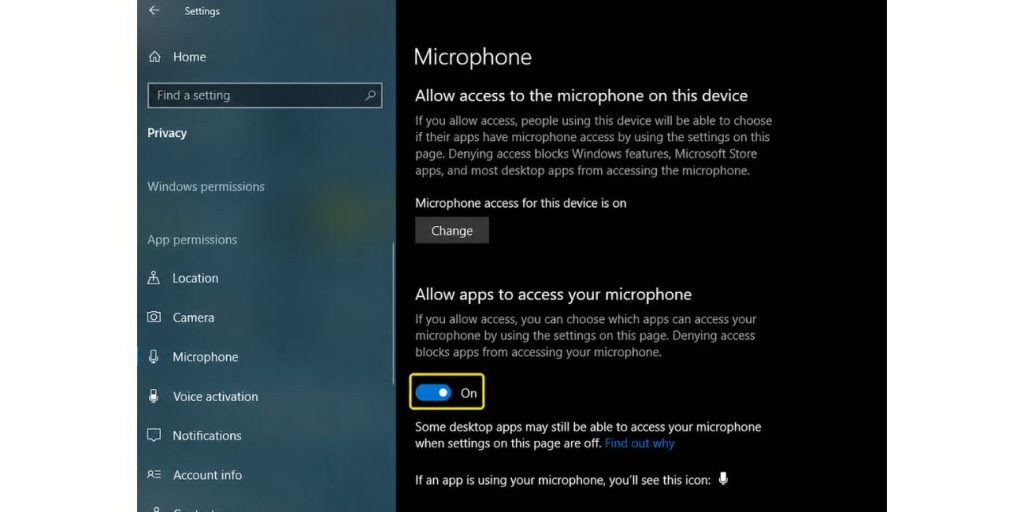
App permissions may prevent apps from using the microphone in Windows privacy settings. When the mic is configured correctly, but Discord is not granted permission, it might display Error 3002.
On Windows:
- Open Settings
- Tap Privacy & security
- Open Microphone
- Turn on Microphone access
- Turn on Let apps access your microphone
- Turn on access for desktop apps
- Restart Discord
This is a big one… It’s not just the general microphone toggle that Discord desktop needs, but the desktop app permission area. Once changed, close Discord completely and then reopen it.
7. Check Browser Microphone Permission
If you are using Discord in the browser, your browser may deny access to the microphone. Users are prompted to allow access to the microphone by Chrome, Edge, Firefox, etc. but they accidentally block it. It happens.
Visit Discord web and look at the mic icon next to the address bar. Please ensure Discord has microphone permissions granted. Another way to allow the mic is to open browser site settings and allow it from there.
Once you have granted permission, refresh the Discord tab and test your mic again. If it doesn’t work, try Discord in a different browser. If it does, the first browser has a permission, cache or extension problem.
8. Restart Discord and Your Device
If a temporary app glitch occurs, it can prevent Discord from recognizing your mic. Close Discord completely, not just the window. On Windows, you will find the system tray in the lower right corner, right-click on Discord and select Quit Discord.
Reopen Discord and check your microphone. If it still displays Error 3002, restart the computer or phone. This resolves hanging audio services, background app conflicts and minor driver glitches. Not very exciting, but it can quickly resolve mic detection problems.
9. Test the Connection of Your Headset or Microphone
For wired headsets, unplug and reconnect it. Ensure it is plugged into the proper port. Depending on the PC, there may be two separate input/output ports for the microphone and headphones, which means some may require a splitter.
If you are using a USB microphone or USB headset, plug the headset into a different USB port. Do not use loose hubs for tests. If you are using Bluetooth, turn off and then pair the headset again. Sometimes Bluetooth can show the headset as connected, but the microphone won’t work.
Try the mic in another app, such as Voice Recorder, Zoom, or Windows Sound Settings. If it doesn’t work anywhere, it’s likely not Discord’s problem.
10. Close Apps That May Be Using the Mic
Sometimes other apps can control your microphone. This can be through Zoom, OBS, Teams, browser tabs, game voice chat, recording tools, or audio software. Discord might not detect input if one of them is using the mic in an unusual way.
If there are any applications open that might be using your microphone, close them down then restart Discord. If the mic starts working, open apps one at a time to identify which app is causing the conflict. This is particularly helpful if Error 3002 began after streaming, recording or joining another meeting app.
11. Update or Reinstall Audio Drivers
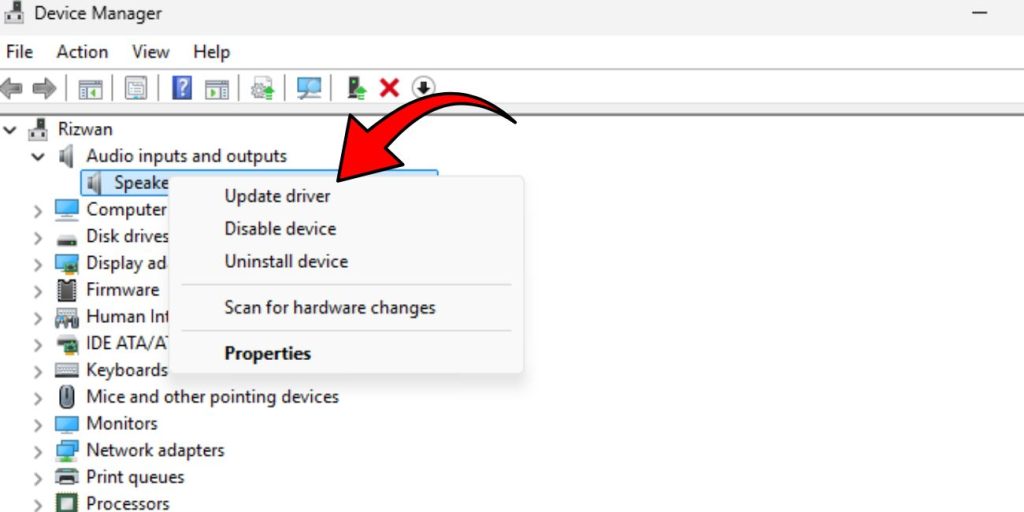
Discord microphone issues can be caused by outdated or faulty audio drivers. This is more likely to happen following Windows updates or updates for headset software or changes to audio devices. Drivers are worth checking if your mic is performing poorly across several applications.
Open Device Manager, select Audio inputs and outputs and check for microphone or headset. You could try updating your driver from there. For branded headsets, also check the app or driver page for that brand.
If the problem began immediately following a driver update, it may be helpful to roll back the driver. Avoid installing random driver tools. Use Windows Update, Device Manager or a manufacturer’s website.
12. Clear Discord Cache
Discord will save temporary files to load the application faster. At times, those files end up getting corrupted and this leads to strange app behavior. If Discord still displays the same warning, it’s not the most popular mic fix, but it’s worth a shot.
On Windows: Close Discord completely first. Next, in the Discord folder in AppData, delete the folders containing cache, such as Cache, Code Cache, and GPUCache. Then log back into Discord if necessary.
Android users can possibly clear Discord cache from settings of the app on mobile. If issues persist with the cache, iPhone users may have to reinstall the app.
13. Update or Reinstall Discord
If you still can’t get it to work, update Discord. Typically, the desktop app will update on restart but at times, it may hang. Restart Discord. Update Discord from the official app store on your mobile device.
If you have tried the main mic fixes and still have problems, reinstall Discord. Remove the application, reboot the device and reinstall the most recent version of the application. Please ensure that you have login information prior to uninstallation.
A fresh install can resolve any corrupted app files, corrupted settings, or old cached data that will not resolve during a normal restart.
If Discord Error 3002 Is Still Showing Up
If Discord continues to indicate that it is not receiving input from your mic, test your mic outside of Discord. Utilize Windows sound settings, Voice Recorder or any other voice application. If the mic is not working anywhere, it’s probably a problem with your mic, headset cable, Bluetooth connection or audio driver.
If the mic works everywhere else except Discord, gather these details before seeking help:
- Discord Error 3002 screenshot
- Device type
- Discord app version
- Model of the microphone or headset used
- Whether it happens on desktop, web or mobile
- Whether the mic works in other apps
- If Push to Talk is on or not
- Solutions to problems you already attempted
This helps a lot to troubleshoot. The complaint that “my mic doesn’t work” is too general. It’s much more helpful to say “my mic works in Windows Voice Recorder but Discord gives me Error 3002.”
How to Avoid Discord Error 3002 in the Future
To minimize the occurrence of repeat mic problems, avoid overly complex or numerous Discord configurations. Avoid changing the audio device too much during calls and inspect the audio device after updates to Windows or Discord.
Useful prevention tips:
- Keep Discord updated
- Keep the audio drivers updated
- In Discord make sure to use the correct input device
- Remember to not accidentally leave Push to Talk on
- If there were any Windows updates, make sure to verify mic permissions
- Try not to use a loose USB hub with microphones
- Unplug and re-plug the headset and restart Discord
- Test mic prior to big calls or games
If you are using Bluetooth, reconnect it prior to joining voice. Bluetooth headsets are very convenient, but a little messy when it comes to input/output modes.
Final Thoughts
The Discord Error Code 3002 typically indicates that Discord is not recognizing microphone input. Always try the following first: unmute your mic, check your input device, test your mic, reset your voice settings, give permission to mic, and check your headset connection.
If the mic works in other apps but not Discord, the problem is likely in Discord’s settings, permissions, cache, or app files. If the microphone doesn’t work anywhere, check the mic, cable, Bluetooth, or audio driver. Was Error 3002 on Discord desktop, browser or on mobile?