
Quick Answer: If your BASN IEM microphone is not working, it’s usually something simple. Like the wrong cable, loose plug, app permission, wrong input device, or an adapter that only supports audio and not the mic.
Start with the basic stuff first. Check the cable, test the IEM on another device, and make sure the correct microphone is selected in settings.
Introduction
BASN IEMs are made for clear sound, but yeah, the microphone can still stop working sometimes. You might hear everything perfectly, but your voice doesn’t go through in calls, games, Discord, Zoom, WhatsApp, or even voice recordings.
That’s the annoying part. The earphones seem fine, so it feels confusing.
This happens a lot with wired IEMs because the mic depends on more than just the earbuds. The cable matters. The 3.5mm plug matters. The adapter matters too. Device settings, app permissions, and the selected audio input also play a role.
If one small thing is wrong or loose, the mic may stop working even when both left and right earphones still play sound normally.
The good thing is, you don’t need to replace your BASN IEM right away. Most mic problems can be checked with simple steps. This guide starts with the most common causes, then moves into Windows, phone, adapter, and cable fixes.
Why Does the BASN IEM Microphone Stop Working?
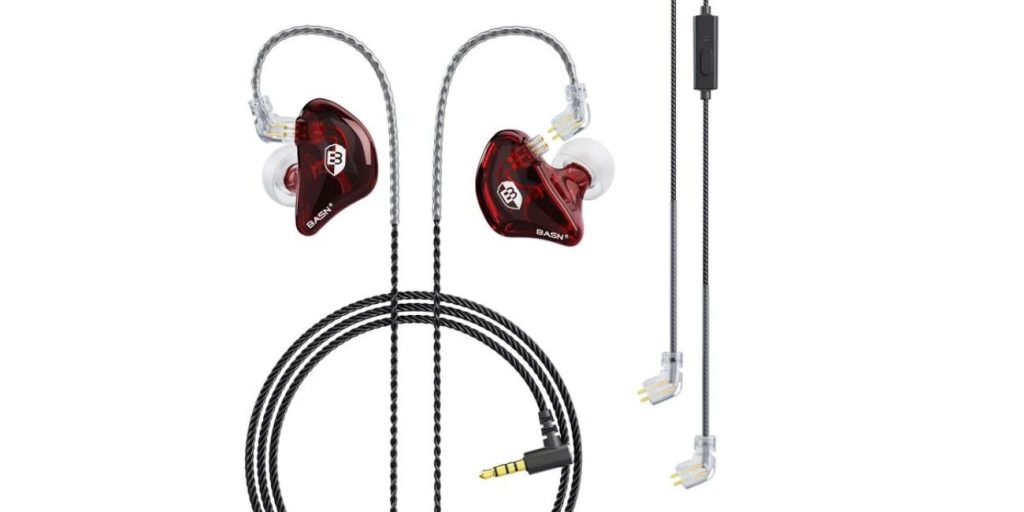
A BASN IEM microphone usually stops working because the device is not receiving the mic signal properly.
That can happen when the cable does not have an inline mic, the plug is not pushed in fully, Windows is using the laptop mic, or the phone adapter only supports audio output.
Sometimes it’s physical too. Dust in the jack. A loose cable. Damage inside the wire. Small stuff, but it can break the mic signal.
Common causes include:
- The BASN IEM cable is audio-only and has no inline microphone
- The detachable cable is loose on one side
- The 3.5mm TRRS plug is not fully pushed in
- Windows is using the wrong input device
- The app does not have microphone permission
- A desktop PC needs a headphone and mic splitter
- A USB-C or Lightning adapter does not support mic input
- Dust is blocking the headphone jack, plug, or mic hole
- The inline mic cable is damaged
How to Fix BASN IEM Microphone Not Working
Start with the simple checks before changing deeper settings or buying a new cable.
After each fix, test the mic with a voice recorder app, a call, or the app where you normally use the mic. That way you’ll know what actually fixed it. Otherwise, you’re just guessing, and that gets annoying fast.
Fix 1: Check If Your BASN IEM Cable Has a Microphone
Some BASN IEMs use detachable cables, and not every cable has a microphone.
If your cable does not have an inline mic module or button, your device has no mic signal to detect. The earphones can still play sound fine, but the microphone will not work because there is no mic on that cable.
Look at the cable closely. A mic cable usually has:
- A small inline control piece
- A tiny mic hole
- Sometimes a button
- A TRRS plug with extra contact rings
If you’re using an audio-only replacement cable, that may be the whole problem. You’ll need a compatible BASN IEM mic cable instead.
Fix 2: Reconnect the Detachable IEM Cable Properly
A loose detachable cable can cause weird issues.
Sometimes the audio works, but the mic or inline controls do not work properly. This can happen if the connector is not seated all the way in, or if the left and right sides are connected wrong.
Follow these steps:
- Remove the cable gently from both IEM shells
- Check the connector area for dust, bent pins, or loose contact points
- Reconnect the cable firmly to each IEM shell
- Make sure the left and right sides match correctly
- Test the mic again with a voice recorder app
Do not force the cable into the IEM shell. If it feels wrong, stop and check the connector type.
Some IEM cables use 2-pin connectors. Some use MMCX-style connectors. Forcing the wrong fit can damage the earphones, and then you have a bigger problem.
Fix 3: Push the 3.5mm Plug Fully Into the Jack
A half-inserted 3.5mm plug can still play audio, but the mic may not work.
This happens because the audio contacts may touch, but the microphone contact may not line up inside the jack. It sounds like a small thing, but honestly, it causes a lot of wired headset problems.
Push the plug in firmly until it sits all the way in.
Also check these things:
- Remove your phone case and try again
- Make sure the plug is not blocked by the case
- Use the combo headset jack on laptops
- Avoid headphone-only ports if your device has more than one audio port
Thick phone cases are a common one. The plug looks connected, but it’s not fully seated.
Fix 4: Select the Correct Microphone Input on Windows
Windows may keep using the built-in laptop microphone even after you plug in your BASN IEM.
So your IEM mic might be connected, but Windows is listening to the wrong input. This happens a lot on laptops, gaming PCs, and systems with Realtek audio software.
Here’s what to do:
- Open Settings on Windows
- Go to System
- Click Sound
- Find the Input section
- Select the headset microphone or external mic option
- Speak into the BASN IEM mic
- Watch the input level bar
If the input bar moves, Windows is detecting the mic.
If the bar does not move, unplug and reconnect the IEM. You can also test the built-in mic and IEM mic separately, because Windows sometimes switches back by itself. Annoying, but it happens.
Fix 5: Choose “Headset” When Realtek Audio Console Asks
Many Windows laptops and desktops use Realtek audio software.
When you plug in wired earphones, you may see a popup asking what type of device you connected. If you choose headphones, Windows may treat the BASN IEM as audio output only. That can stop the mic from working.
Choose:
- Headset for audio and microphone
- Headphones for audio only
That small choice matters.
If the popup does not appear, open Realtek Audio Console or your laptop’s audio control app. Look for jack settings or device type settings. Change the connected device to headset, then test the mic again in Windows Sound settings or a recording app.
Fix 6: Check Microphone Permission for the App
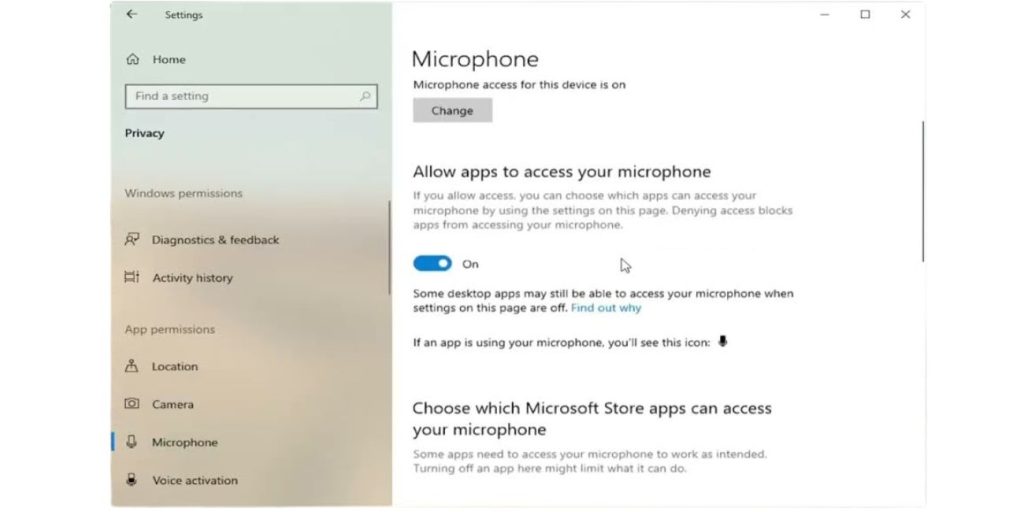
Sometimes the BASN IEM mic works on the device, but not inside one app.
That usually means the app does not have microphone permission, or it is using the wrong input source. This can happen with Discord, Zoom, WhatsApp, browsers, voice recorders, games, and meeting apps.
Use this checklist:
- Check if the app has microphone permission in your device settings
- If you’re using a browser app, check browser mic permission too
- Open the app’s audio settings
- Choose the correct input device
- Restart the app after changing input or permission
- Test the mic in a basic voice recorder app
This matters because app settings can override system settings.
Your phone or PC may detect the mic correctly, but the app may still be listening to the built-in mic. Or it may be blocking mic access completely.
Fix 7: Use a Headphone and Microphone Splitter on Desktop PC
Desktop PCs often have separate ports for headphones and microphones.
One port is usually for audio output, and the other is for mic input. If you plug a single BASN IEM headset plug into only the headphone port, you may hear sound, but the mic will not work.
A TRRS to dual TRS splitter can fix this.
It splits the single headset plug into two separate plugs:
- One for headphones
- One for microphone
This is useful for desktop PCs that do not have a combo headset jack.
| Device Type | What You May Need |
|---|---|
| Laptop with combo jack | Direct 3.5mm headset connection |
| Desktop with separate audio ports | TRRS to dual TRS splitter |
| Phone with no headphone jack | USB-C or Lightning adapter with mic support |
| USB audio setup | Audio adapter or interface that supports input |
If your PC has a combo headset icon near the jack, you may not need a splitter.
But if it has separate green and pink ports, a splitter is usually needed for the mic to work.
Fix 8: Test the BASN IEM Mic on Another Device
Testing the mic on another device helps you find the real problem faster.
Try using the BASN IEM on a phone, laptop, tablet, or another computer. Open a voice recorder app and record a short clip while speaking into the inline mic.
If the mic works on another device, the IEM cable is probably fine.
The issue is more likely with:
- The original device settings
- The adapter
- App permission
- The audio port
- Windows input settings
If the mic does not work anywhere, the cable or inline microphone may be damaged.
A simple way to think about it:
- If the problem follows the IEM, the IEM cable is likely the issue
- If the problem stays with one device, that device needs checking
Fix 9: Try a Different Adapter or Dongle
If your phone or laptop does not have a 3.5mm headphone jack, you may be using a USB-C or Lightning adapter.
Some adapters work for sound output but do not pass microphone input properly. So your BASN IEM may play audio, but the mic stays dead.
Try another adapter that clearly supports microphone input.
Check for:
- USB-C adapter with headset mic support
- Lightning adapter with mic support
- Audio dongle that supports both output and input
- Not just a music-only adapter
This is where it gets tricky because many adapters look the same.
One dongle may work fine for listening to music. Another supports both listening and speaking. If your mic works with a different adapter, the original adapter was probably the weak point.
Fix 10: Clean the Jack, Plug, and Mic Opening
A dirty headphone jack can stop the plug from sitting correctly. Dirt around the inline mic hole can also make your voice sound low or totally silent.
Clean these parts:
- The 3.5mm plug
- The phone or laptop headphone jack
- The inline mic opening
- The adapter port, if you use one
Use a dry soft cloth for the plug. For the jack, use a soft brush or gentle air if needed.
Do not use liquid. Do not use needles. Do not use metal tools. That can damage the connector or push dirt deeper inside.
After cleaning, plug the BASN IEM back in and record a short voice clip. If the mic starts working or sounds clearer, dirt was probably the problem.
Fix 11: Update or Reinstall Audio Drivers on Windows
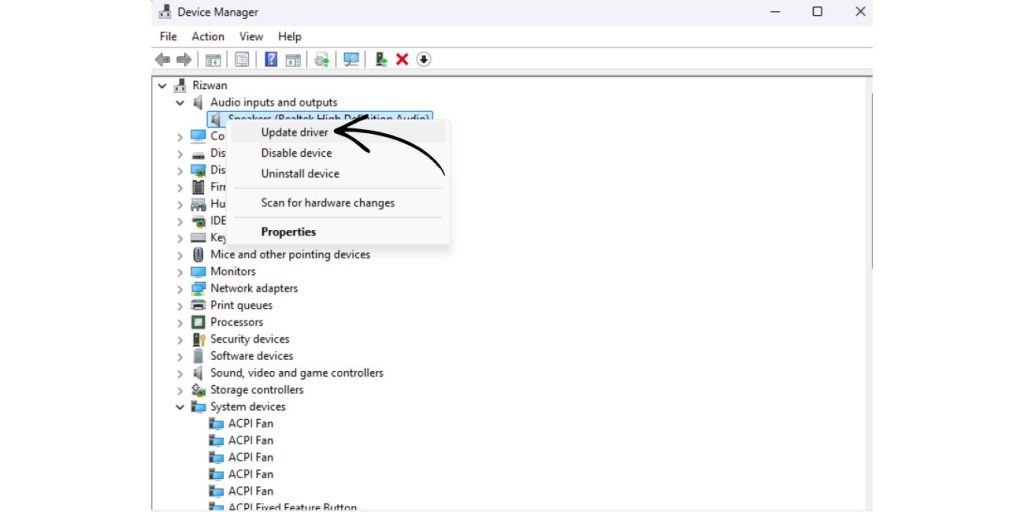
If you’re on Windows and the BASN IEM mic is not detected at all, the audio driver may be part of the problem.
Drivers help Windows understand audio input and output devices. When they break, glitch, or become outdated, wired headset microphones can stop showing up correctly.
Try these steps:
- Right-click the Start button
- Open Device Manager
- Expand Audio inputs and outputs
- Find your microphone or audio device
- Right-click and choose Update driver
- Restart your computer after the update
- Test the BASN IEM mic again
If updating does not help, you can uninstall the audio device and restart the computer.
Windows may reinstall the driver automatically. On some laptops, it may also help to install the audio driver from the laptop maker’s support page.
Not the most exciting fix, but sometimes it works.
Fix 12: Check If the Inline Mic or Cable Is Damaged
If you’ve tested different devices, settings, and adapters, the cable itself may be damaged.
Inline mic cables can fail from bending, pulling, or pressure near the plug. The earphones may still play sound because the audio wires are working, while the microphone wire or mic module has failed.
Common signs include:
- Crackling sound
- Random audio cutouts
- Loose inline button
- Mic works only at a certain cable angle
- Mic never works on any device
- Plug or cable looks worn
If the mic never works anywhere, the cable is a strong suspect.
Because many BASN IEMs use detachable cables, you may be able to replace only the cable instead of replacing the whole IEM. Just make sure the replacement cable has a microphone and matches your IEM connector type.
Fix 13: Reset Sound or App Settings
Old audio settings can keep forcing your device to use the wrong microphone.
This happens a lot in apps like Discord, Zoom, games, and recording tools. The app may remember an old headset, a laptop mic, or a virtual audio device.
Try this:
- Open the app’s audio settings
- Switch the input back to default
- Or manually choose the BASN IEM mic
- Use reset voice settings if the app has that option
- Restart the app
- Test again
On Windows, you can also reset sound settings by changing the default input device. If there are unused audio devices causing confusion, disable or remove them.
Sometimes the app just gets stuck on the wrong mic. It’s dumb, but yeah, it happens.
When Should You Replace the BASN IEM Cable?
You should think about replacing the BASN IEM mic cable only after testing the simple causes first.
If the mic fails on every device, does not work with a known good adapter, and shows no input in basic recorder apps, the cable may be the problem.
A replacement cable can be a better option than replacing the whole IEM, especially if the earphones still sound fine.
Signs you may need a replacement cable include:
- The mic does not work on any phone, laptop, or PC
- The cable works only when bent at a certain angle
- The inline button feels loose or stuck
- Audio cuts out when the cable moves
- The plug or connector looks damaged
- The mic hole is clean, but voice still does not record
Before buying, check the connector type.
Also make sure the new cable includes an inline mic. Some replacement IEM cables are made only for audio, so they won’t fix a microphone problem.
Prevention Tips for BASN IEM Mic Problems
A few simple habits can help your BASN IEM mic last longer.
Most cable problems come from bending, pulling, or using the wrong adapter again and again. Keeping the cable clean and stored properly helps too.
Try these tips:
- Store the IEM in a case instead of wrapping it tightly around your phone
- Pull the plug from the connector body, not from the cable
- Keep the inline mic opening clean and dry
- Use a splitter when connecting to desktop PCs with separate audio ports
- Use an adapter that supports microphone input
- Avoid bending the cable sharply near the plug or mic module
- Check app input settings after major updates or device changes
It’s basic stuff, but it helps. Especially with wired IEM cables, because they take a lot of small stress over time.
Final Thoughts
When your BASN IEM microphone is not working, don’t assume the earphones are broken right away.
The issue is often something smaller. Wrong cable. Loose plug. Blocked app permission. Bad adapter. Windows choosing the wrong input device. Just normal wired audio problems, honestly.
Go through the checks one by one and test the mic after each fix.
If the mic works on another device, your IEM is likely fine. If it fails everywhere, the cable or inline mic may need replacing.
Did your BASN IEM mic stop working on a phone, laptop, or desktop PC? Comment with your device and what you’ve already tried, so it’s easier to narrow down the cause.