
Quick Summary: If Hytale login is not working, it could be due to a server issue, incorrect account details, a launcher bug, browser cache, a VPN, a firewall, or an account verification issue. Start simple. Check whether the servers are experiencing issues first. Then restart the launcher, reset your password if needed, clear the cache, and try logging in again.
Hytale login issues can show up in a few different ways. Sometimes the login button does nothing. Sometimes the launcher gets stuck on the sign-in screen. You might also see an authentication error, failed login message, or an account page that just keeps loading and loading.
Yeah, it gets annoying fast.
This kind of problem can come from Hytale’s side, or it can be something on your own device. Maybe the servers are under maintenance. Maybe they’re busy. Or maybe it’s just your browser holding onto a broken cookie, the launcher acting weird, a VPN conflict, or Windows blocking the launcher from connecting.
This guide keeps things simple. We’ll go through server checks, account fixes, browser steps, launcher troubleshooting, and network checks. Start from the top and test after each fix. That way you don’t waste time changing stuff that was never the problem.
Why Does Hytale Login Stop Working?
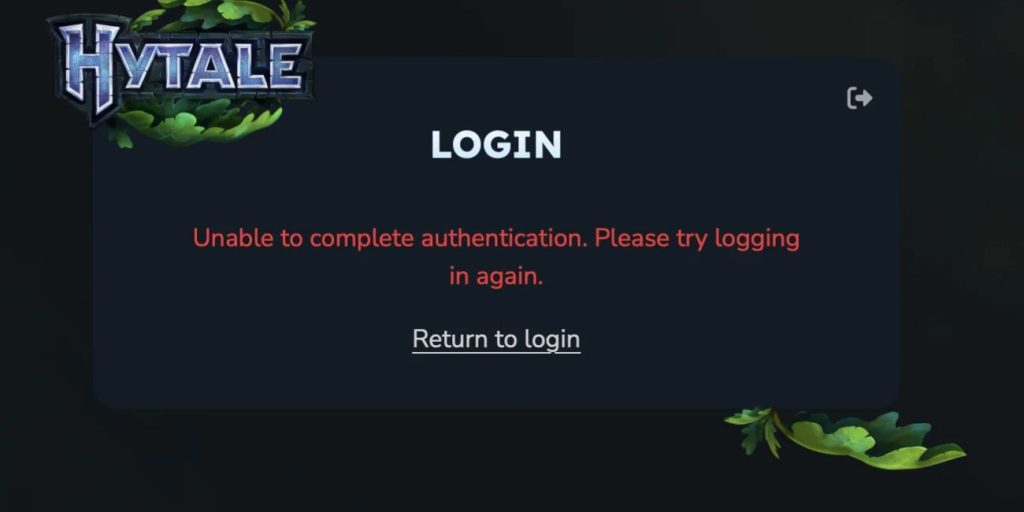
Hytale login can stop working when your device cannot complete the sign-in request properly.
That request may fail because the account service is down, the launcher is outdated, your browser is holding a broken login session, or your network is blocking the connection. It can also happen when your password is wrong, your account needs verification, or a security check does not load right.
Common causes include:
- Hytale servers are down, busy, or under maintenance
- The Hytale launcher is outdated or stuck
- Browser cache or cookies are causing a login loop
- A VPN, proxy, or DNS issue is blocking login
- Firewall or antivirus software is blocking launcher traffic
- The wrong email or password is being used
- The account needs verification or a security check
- A temporary authentication error is stopping login
How to Fix Hytale Login Not Working
The best way to fix this is to start with the easy causes first. Do not reinstall the launcher right away. And don’t reset everything at once either. Start with server status, then check your account, browser, launcher, and network settings.
After each fix, try logging in again. It’s slower, but it helps you know what actually changed.
Fix 1: Check If Hytale Servers Are Down
Before changing your settings, check whether Hytale itself is having a login problem.
If the authentication service is down or overloaded, your account might be fine. Your device might be fine too. In that case, resetting your password again and again will not help. It just adds more confusion.
A quick server-side check should include:
- See if other users are reporting login issues
- Look for maintenance notices from official Hytale channels
- Check whether both the website and launcher login fail
- Try again later if the issue looks server-side
- Avoid repeated password resets during an outage
If many people are having the same issue at the same time, it’s probably not just your setup. Wait until the service is stable, then test login again.
Fix 2: Restart the Hytale Launcher
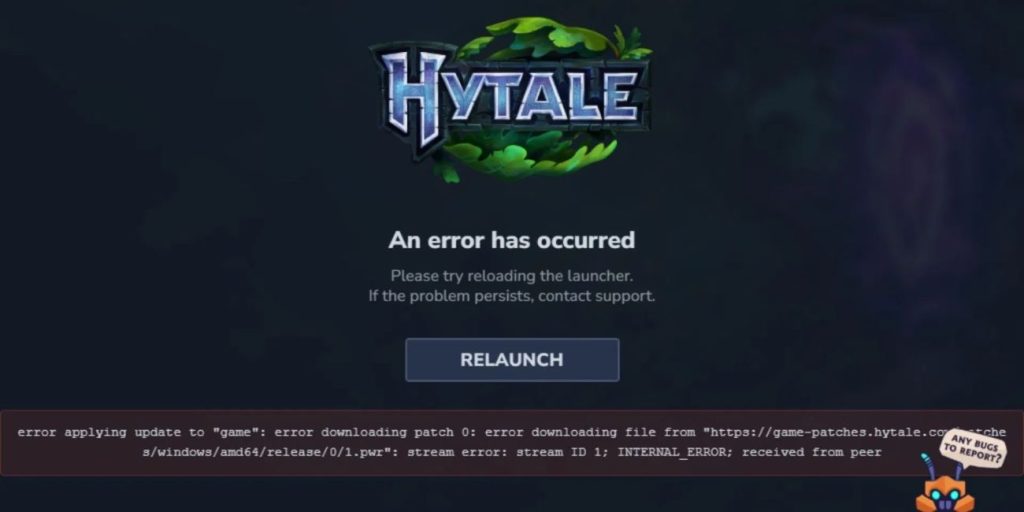
The Hytale launcher may hold a stuck login session in the background.
Closing the window is not always enough. Sometimes the launcher process keeps running quietly on your PC. A proper restart clears that stuck state and gives the login page a fresh start.
Follow these steps:
- Close the Hytale launcher
- Open Task Manager on Windows
- Look for any Hytale launcher process still running
- Select it and click End Task
- Reopen the launcher
- Try logging in again
If the launcher works after this, it was probably just a temporary session bug. Normal launcher stuff, honestly.
If the same error comes back, move to the account and network checks.
Fix 3: Make Sure Your Email and Password Are Correct
This sounds basic, but it’s still worth checking.
Login errors often happen because a saved password is old, the wrong email is selected, or the keyboard layout changes a character without you noticing. Autofill can make this worse because you assume it’s correct.
Type your email and password manually once instead of using saved login details.
Check for:
- Extra spaces at the start or end of the email
- Wrong email account
- Old saved password
- Caps Lock being on
- Keyboard language changing characters
If you use more than one email for games, make sure you are using the one connected to your Hytale account. A small typing mistake can keep causing failed login attempts even when the account itself is fine.
Fix 4: Reset Your Hytale Account Password
If you are not sure the password is correct, reset it instead of guessing.
This is safer than trying random passwords over and over. Too many failed attempts can trigger extra security checks, and then the problem becomes more annoying.
Use this process:
- Go to the Hytale account login page
- Choose the password reset option
- Enter the email linked to your Hytale account
- Check your inbox for the reset email
- Look in spam or junk if it does not arrive
- Follow the reset steps
- Try logging in again with the new password
If the reset email never arrives, don’t keep sending the same request every minute. Wait a bit. Check the email address carefully. Then contact support if needed.
Fix 5: Complete the Security Check Properly
Some login screens use a security check to confirm that a real person is signing in.
If that check does not load, times out, or keeps failing, the login can stop before your account is even checked. It may look like the page is broken, but it’s often a browser or network issue.
Things that can interfere include:
- Ad blockers
- Strict privacy settings
- Blocked cookies
- Browser extensions
- VPNs
- Proxy settings
- Script blockers
Try turning off extensions for the login page. Allow cookies. Or open the login page in a private window.
If the security check works in another browser, your normal browser settings are probably causing it.
Do not rush this step. Complete the check slowly and avoid refreshing the page again and again. If it keeps failing, clear browser data or try another network before changing your account password.
Fix 6: Clear Browser Cache and Cookies
Old cookies can keep a broken login session saved in your browser.
That can cause login loops where the Hytale page keeps loading, signs you out again, or fails after you press the login button. Clearing cache and cookies gives the account page a clean session.
General steps:
- Open your browser settings
- Find privacy or browsing data options
- Clear cache and cookies
- Close the browser fully
- Open it again
- Visit the Hytale login page
- Try signing in again
This works for most browsers, including Chrome, Edge, and Firefox. The menu names may be a little different, but the idea is the same.
If you do not want to clear all cookies, clear only the site data for Hytale if your browser lets you do that.
Fix 7: Try a Different Browser or Private Window
A private window is a quick way to test the login page without old cookies and most extension problems.
It does not fix everything, but it helps you figure out if your normal browser setup is the issue.
Try this:
- Open a private or incognito window
- Go to the Hytale login page
- Enter your details manually
- Try signing in again
If that works, your main browser probably has a cache, cookie, or extension problem.
You can also try another trusted browser like Chrome, Edge, or Firefox. Just to compare. Sometimes one browser gets stuck while another works fine.
Fix 8: Disable VPN or Proxy Temporarily

A VPN or proxy can sometimes make login systems suspicious of the connection.
That does not mean VPNs are always bad. But the login request may look unusual if it comes from a blocked region, shared IP address, or unstable route.
Turn off your VPN or proxy for a test, then try logging in again.
If login works without the VPN, you found the cause. You can try another VPN location later, but for account login, a normal home or mobile connection is usually more reliable.
If you use a VPN for privacy, you don’t have to remove it completely. Just test without it once so you know if it’s involved.
Fix 9: Restart Your Router and Check Internet Connection
A weak or unstable connection can break login before it finishes.
The page may load halfway. The launcher may hang. Or the authentication request may fail. And yes, this can happen even when other websites seem to work.
Try these quick checks:
- Restart your router
- Move closer to your Wi-Fi router
- Try Ethernet if Wi-Fi is unstable
- Test another online game or website
- Use a mobile hotspot once to compare
- Try logging in again after the connection is stable
If Hytale login works on mobile hotspot but not on your home Wi-Fi, your router, ISP route, or DNS may be part of the problem.
In that case, the DNS fix later in this guide may help.
Fix 10: Update the Hytale Launcher
Online game launchers often need the latest version to connect properly.
If your Hytale launcher is outdated, it may fail during login or get stuck while trying to reach the account service. Even a small launcher mismatch can cause weird sign-in problems.
Open the launcher and check for update prompts.
If the launcher cannot update itself, download the latest installer only from the official Hytale source. Avoid third-party downloads. They can be unsafe, outdated, or just not the real thing.
After updating, restart your computer and try logging in again. A clean restart helps the launcher load the new files properly.
Fix 11: Allow Hytale Through Firewall or Antivirus
Windows Firewall or antivirus software can block a launcher from reaching the internet.
When that happens, Hytale may look like it has a login problem, but really the launcher is just not allowed to connect. This is more common after a fresh install, launcher update, or antivirus warning.
Use these steps carefully:
- Open Windows Security or your firewall settings
- Go to allowed apps or network access
- Look for the Hytale launcher
- Allow it on private networks if you trust the install
- Check your antivirus blocked list or quarantine
- Restore only trusted files from the official Hytale install
- Restart the launcher and test login
Do not turn off your protection forever just to make a launcher work.
If you disable something for testing, turn it back on after checking. The safer fix is to allow the official launcher, not open up your whole system.
Fix 12: Check Date and Time Settings on Your Device
Wrong date and time settings can break secure login. Many account systems use time-based checks when creating login tokens. If your PC time is far off, the login request may fail even if your password is correct.
Open your device’s date and time settings.
Turn on:
- Automatic time
- Automatic time zone
- Internet time sync, if available
Then restart the launcher or browser and try again.
It’s a small check, but it can fix confusing authentication errors. Weird, but true.
Fix 13: Flush DNS or Change DNS
DNS helps your device find online services.
If your DNS cache is old or broken, the Hytale login page or launcher may fail to connect properly. This fix is a little more advanced than restarting your router, but it is still simple on Windows.
To flush DNS on Windows:
- Open Command Prompt as administrator
- Type ipconfig /flushdns
- Press Enter
- Close Command Prompt
- Restart your browser or launcher
- Try logging in again
If the issue continues, you can try a trusted public DNS in your network settings.
Keep this as a later fix though. It is better to check server status, account details, VPN, and launcher updates first.
Fix 14: Reinstall the Hytale Launcher
If the launcher files are damaged, login may keep failing no matter how many times you restart it.
Reinstalling can fix broken launcher files, failed updates, or missing components. But don’t make this your first move. It takes more time, and sometimes the issue is just cache or VPN.
Follow these steps:
- Close the Hytale launcher
- Uninstall the launcher from your device
- Restart your computer
- Download the launcher from the official Hytale source
- Install it again
- Open the launcher
- Try logging in
Avoid deleting random folders unless you know exactly what they are. A clean reinstall from the official source is enough for most launcher file problems.
Fix 15: Contact Hytale Support If Account Access Still Fails
If login still fails after all these checks, the issue may be tied to your account.
This can include locked access, missing password reset emails, repeated authentication errors, or account verification problems. At that point, support is the right next step.
When contacting support, include:
- The exact error message
- Your device type
- Browser name
- Launcher version, if you know it
- Whether website login works
- Whether launcher login works
- What fixes you already tried
Do not share your password with anyone. Support does not need it. Giving it out can put your account at risk.
Website Login vs Launcher Login: What’s the Difference?
Hytale login can fail in different places, and each one points to a different kind of problem.
If the website login fails, browser settings are more likely. If the launcher login fails, launcher files, firewall, or network access may be involved.
| Where Login Fails | Likely Cause | Best Fixes To Try |
|---|---|---|
| Hytale website | Browser cache, cookies, security check | Clear cache, private window, different browser |
| Hytale launcher | Outdated launcher, firewall, corrupted files | Restart, update, allow firewall, reinstall |
| Both website and launcher | Account or server issue | Check servers, reset password, contact support |
| Only one network | VPN, DNS, ISP issue | Disable VPN, restart router, flush DNS |
This table helps because it stops you from going down the wrong fix path.
For example, reinstalling the launcher will not help much if the website login also fails on every device. That points more toward account, server, or network trouble.
How to Know If It’s a Hytale Server Issue or Your Device
The main difference is the pattern.
A server issue usually affects many users at the same time. It may also stop login on both the website and the launcher. A device issue is usually limited to one browser, one PC, one network, or one launcher install.
Signs it may be server-side:
- Many users report login problems at the same time
- Website and launcher both fail
- Login fails on multiple devices and networks
- There is a maintenance notice
- Error appears before your account details are accepted
Signs it may be user-side:
- Login fails only on one browser
- Login works on mobile data but not Wi-Fi
- Other users can log in normally
- Turning off VPN fixes the issue
- The launcher works after firewall changes
If you are not sure, test on another network or device.
That one test can quickly show whether the problem follows your account, your device, or your connection.
Prevention Tips for Hytale Login Problems
You cannot prevent every login issue, especially if the service is down.
But you can avoid a lot of repeat problems by keeping your account, launcher, and browser setup clean. Nothing fancy. Just basic maintenance.
Try these tips:
- Keep the Hytale launcher updated
- Use a password manager to avoid old saved passwords
- Keep your account email verified
- Avoid logging in through suspicious third-party pages
- Turn off VPN when testing login problems
- Clear browser data if login loops come back
- Save error messages before contacting support
- Keep Windows date and time set to automatic
These small habits make it easier to recover if login fails again later. And honestly, they save time.
Final Thoughts
When Hytale login is not working, don’t start with the hardest fix.
Check if the servers are down first. Then move through your account details, browser cache, launcher, VPN, firewall, and network settings. Most login problems become easier once you know where the failure is happening.
If the issue happens on every device and every network, it may be server-side or account-side.
If it only happens on one PC, one browser, or one Wi-Fi network, the fix is probably local.
Are you stuck on the Hytale website login, the launcher login, or a specific error message? Comment with what you see on your screen, and it’ll be easier to narrow down the next step.