
Opening an EXE file with full permissions in Windows 11 is sometimes necessary when you are installing software, changing protected system settings, updating drivers, running repair tools, or managing files in restricted folders. Windows 11 is designed to protect you from unwanted system changes, so even if your account is an administrator account, programs do not automatically receive unrestricted access. Instead, Windows uses User Account Control, commonly called UAC, to ask for confirmation before granting elevated permissions.
TLDR: To open an EXE file with full permissions in Windows 11, right-click the file and choose Run as administrator, then approve the UAC prompt. You can also run programs as admin from the Start menu, Task Manager, Command Prompt, PowerShell, or by changing shortcut settings. Only elevate trusted software, because administrator access allows a program to modify important system files, settings, and security configurations.
What “Full Permissions” Means in Windows 11
In everyday language, “full permissions” usually means running a program with administrator privileges. This gives the EXE file permission to perform actions that standard programs cannot do, such as writing to protected system directories, editing certain registry keys, installing services, changing firewall rules, or modifying files owned by other users.
However, it is important to understand that administrator access is not the same as unlimited control over every part of the operating system. Windows 11 still protects some areas using system-level accounts, protected processes, and security policies. For most users and IT administrators, though, choosing Run as administrator is the practical way to launch an EXE with elevated rights.
The golden rule is simple: use admin access when you need it, but do not use it by default. Running every program with elevated permissions increases risk, especially if the application is outdated, poorly designed, or malicious.
Method 1: Right-Click and Run as Administrator
The fastest and most common way to open an EXE with full permissions is through the right-click menu.
- Locate the EXE file in File Explorer.
- Right-click the file.
- Select Run as administrator.
- When the User Account Control prompt appears, choose Yes.
If you are using a standard account, Windows may ask for an administrator username and password. If you are already signed in with an administrator account, you will usually only need to confirm the prompt.
This method is ideal for installers, diagnostic utilities, system cleanup tools, driver packages, and configuration programs that need temporary elevated access.
Method 2: Use the Start Menu
If the program is already installed, you can launch it as an administrator directly from the Start menu. This is useful for applications such as Command Prompt, PowerShell, Registry Editor, Device Manager tools, and third-party admin utilities.
- Click the Start button.
- Search for the app by name.
- Right-click the result.
- Select Run as administrator.
- Approve the UAC prompt.
In some cases, you may see the Run as administrator option in the right-side panel of the Start search result. Either option works the same way.
Method 3: Run an EXE as Administrator from Task Manager
Task Manager in Windows 11 is more than a tool for closing frozen apps. It can also start new tasks with elevated permissions.
- Press Ctrl + Shift + Esc to open Task Manager.
- Click Run new task.
- Click Browse and select the EXE file, or type its full path.
- Check the box labeled Create this task with administrative privileges.
- Click OK.
This method is especially useful when File Explorer is not responding, when you are troubleshooting a system issue, or when you need to launch a tool from a minimal desktop environment.
Method 4: Use Command Prompt with Administrator Privileges
If you prefer typing commands, you can launch an EXE from an elevated Command Prompt. First, you must open Command Prompt as an administrator.
- Click Start.
- Type cmd.
- Right-click Command Prompt.
- Select Run as administrator.
- Approve the UAC prompt.
Once the elevated Command Prompt is open, you can run your EXE by entering its path. For example:
"C:\Users\YourName\Downloads\installer.exe"
If the file path contains spaces, keep the quotation marks. Without quotes, Windows may interpret the path incorrectly.
You can also navigate to the folder first:
cd C:\Users\YourName\Downloads
Then run:
installer.exe
Because the Command Prompt itself is elevated, programs launched from it usually inherit administrator privileges.
Method 5: Use PowerShell or Windows Terminal
Windows 11 encourages the use of Windows Terminal, which can host PowerShell, Command Prompt, and other shells. To run an EXE with admin access using PowerShell, start by opening an elevated terminal.
- Right-click the Start button.
- Select Terminal Administrator or Windows Terminal Administrator.
- Approve the UAC prompt.
- Run the EXE by typing its full path.
For example:
& "C:\Tools\AdminUtility.exe"
In PowerShell, the ampersand tells PowerShell to execute the file at that path. This is particularly handy for administrators who manage scripts, deployment tools, maintenance utilities, and software packages.

Method 6: Always Run a Shortcut as Administrator
If you frequently need to open a particular program with elevated permissions, you can configure its shortcut to always request administrator access.
- Right-click the program shortcut.
- Select Properties.
- Open the Shortcut tab.
- Click Advanced.
- Check Run as administrator.
- Click OK, then Apply.
From now on, launching the program through that shortcut will trigger the UAC prompt. This does not silently bypass security; it simply makes the elevation request automatic whenever you use that shortcut.
This approach works well for trusted tools such as disk utilities, development environments, system monitors, database management software, or internal IT applications that regularly need elevated access.
Method 7: Change Compatibility Settings for an EXE
Some older programs were designed for earlier versions of Windows and expect administrator access to function correctly. Windows 11 allows you to set compatibility options directly on the EXE file.
- Right-click the EXE file.
- Select Properties.
- Go to the Compatibility tab.
- Check Run this program as an administrator.
- Click Apply, then OK.
You may also find other compatibility options here, such as running the program in compatibility mode for Windows 8 or Windows 7. Use those settings only when needed, because modern applications are usually built for current security standards.
Understanding UAC Prompts
User Account Control is one of the most visible security features in Windows 11. When a program requests administrator access, UAC dims the screen and asks whether you want to allow the app to make changes to your device.
Before clicking Yes, check the following:
- Program name: Does it match what you intended to open?
- Verified publisher: Is the software signed by a known company?
- File location: Did it come from a trusted folder or download source?
- Your intention: Were you expecting an admin prompt?
If the publisher is unknown or the prompt appears unexpectedly, pause before approving it. A suspicious UAC prompt can be a warning sign that something is trying to gain control of your system.
Why Some EXE Files Need Administrator Permissions
Not every EXE file requires elevation. A simple photo editor, note-taking app, or portable utility may work fine with standard permissions. But some programs need administrator access because they interact with protected parts of Windows.
Common examples include:
- Software installers that write to Program Files or install shared components.
- Driver installers that add hardware support.
- Security tools that scan protected system locations.
- Disk management utilities that change partitions or storage settings.
- Network tools that modify adapters, firewall rules, or routing tables.
- Administrative consoles used by IT teams for maintenance and configuration.
If a program fails with messages such as access denied, permission required, or unable to write to folder, running it as administrator may solve the issue. Still, it is worth asking why the program needs that access in the first place.
Security Best Practices Before Running EXE Files as Admin
Administrator access is powerful, and power should come with caution. Before granting full permissions to an EXE file, follow a few basic safety checks.
- Download from official sources: Avoid random mirror sites, pop-up links, and unknown file-sharing pages.
- Scan the file: Use Microsoft Defender or another reputable security tool.
- Check the digital signature: Right-click the file, open Properties, and look for a Digital Signatures tab.
- Keep Windows updated: Security patches reduce the chance of exploitation.
- Use a standard account for daily work: Elevate only when necessary.
- Back up important files: A bad installer or misconfigured tool can cause data loss.
These habits are especially important in business environments, where a single elevated malicious file can affect shared systems, sensitive data, and network resources.
What to Do If “Run as Administrator” Is Missing
Sometimes the Run as administrator option may not appear. This can happen for several reasons. The file might not be an executable program, your organization may restrict admin access, or the file may be located in a protected or unusual environment.
Try these steps:
- Confirm that the file ends in .exe.
- Move the file to a normal folder such as Downloads or Desktop.
- Right-click the file and choose Show more options if you are using the compact Windows 11 menu.
- Check whether your account has administrator rights.
- Contact your IT administrator if the computer is managed by an organization.
On company devices, missing admin options are often intentional. Many organizations limit elevation to prevent unauthorized software installs and reduce security risks.
How to Check If Your Account Is an Administrator
If Windows keeps asking for another user’s credentials, your account may not have administrator rights. You can check your account type in Settings.
- Open Settings.
- Go to Accounts.
- Select Your info.
- Look for the account type beneath your name.
You can also open Control Panel, go to User Accounts, and view your account role there. If your account is standard, you will need an administrator password to run EXE files with elevated permissions.
Should You Disable UAC?
Some users consider disabling UAC because they find prompts annoying. In most cases, this is a bad idea. UAC is not just a pop-up; it is a protective boundary that helps stop unauthorized changes. Disabling it can make your system easier to compromise and may cause some Windows features or modern security expectations to behave unpredictably.
A better approach is to configure trusted shortcuts to run as administrator when needed, while leaving UAC enabled. That way, you keep the warning system intact without adding unnecessary friction to routine admin tasks.
Troubleshooting Common Problems
If an EXE still does not work after you run it as administrator, the issue may not be permissions. Consider these possibilities:
- The file is blocked: Right-click the EXE, choose Properties, and look for an Unblock checkbox near the bottom.
- The file is corrupted: Download it again from the official source.
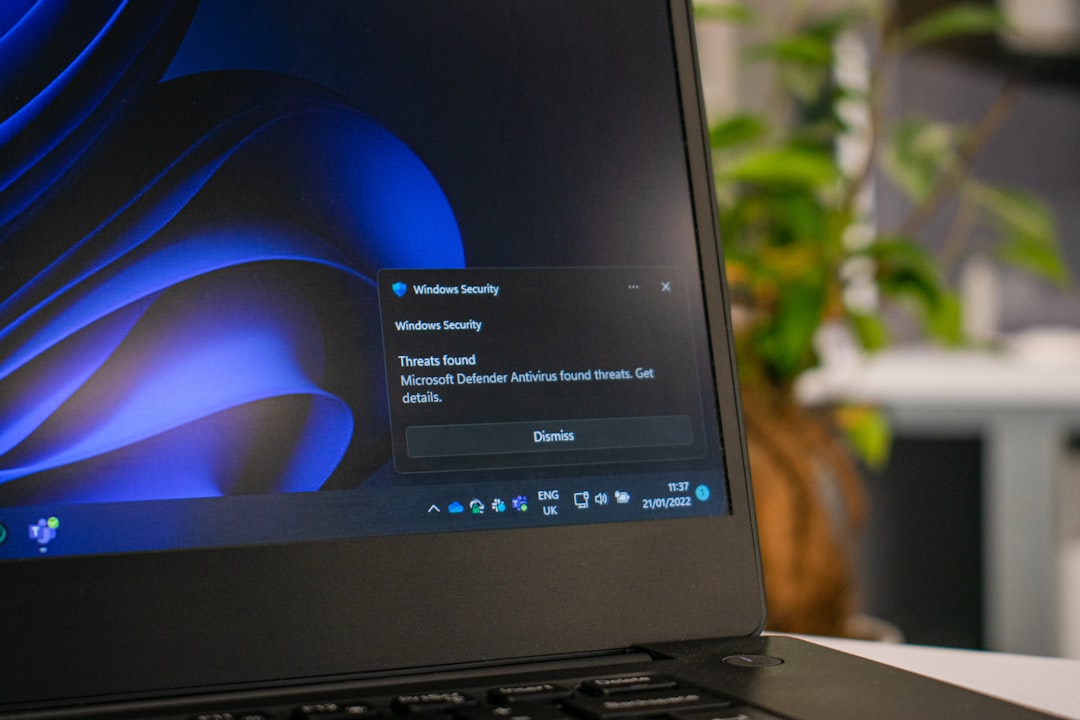
- Antivirus is blocking it: Review Windows Security notifications.
- The app is incompatible: Try compatibility settings or check for a newer version.
- Policy restrictions apply: Work or school PCs may block unapproved executables.
For advanced troubleshooting, Event Viewer, Windows Security logs, and application-specific log files can provide clues. In managed environments, endpoint protection or application control systems may record why a program was blocked.
Final Thoughts
Opening EXE files with full permissions in Windows 11 is straightforward once you understand how administrator elevation works. The most convenient method is to right-click the file and select Run as administrator, but you can also elevate programs through the Start menu, Task Manager, Command Prompt, PowerShell, Windows Terminal, shortcut settings, and compatibility options.
The key is to balance convenience with security. Administrator access should be treated as a deliberate action, not a default habit. When you elevate only trusted software and pay attention to UAC prompts, you can manage Windows 11 effectively while keeping your system safer, cleaner, and more reliable.