



You are watching an important tutorial, live event, or favorite show on YouTube, and suddenly the video starts buffering, freezing, or playing in choppy bursts. Few digital experiences are more frustrating. While YouTube’s platform is highly optimized, lag and stutter can still happen for many technical reasons, ranging from slow internet speeds to outdated hardware or misconfigured browser settings. Understanding the root cause is essential to solving the issue permanently rather than relying on temporary fixes.
TLDR: YouTube videos usually lag or stutter because of slow internet speeds, network congestion, outdated browsers, hardware limitations, or background applications consuming resources. Identifying whether the issue is network-related or device-related is the first step toward a solution. Simple actions such as lowering video quality, clearing cache, updating drivers, or switching networks often resolve the problem. For persistent issues, more advanced troubleshooting—like hardware acceleration adjustments or router optimization—may be required.
Understanding Why YouTube Videos Lag
YouTube streaming relies on a complex interaction between your internet connection, device hardware, browser or app, and YouTube’s own servers. When lag occurs, it usually means one of these components cannot keep up with the video’s required data flow.
In most cases, the problem falls into one of the following categories:
- Insufficient internet bandwidth
- Network congestion or instability
- Outdated software or browser issues
- Hardware limitations (CPU, RAM, GPU)
- Too many background applications
Accurately diagnosing which factor is responsible will save time and prevent unnecessary changes.
1. Slow or Unstable Internet Connection
The most common cause of YouTube stuttering is insufficient internet speed. High-definition video demands consistent bandwidth. For example:
- 480p requires roughly 2.5 Mbps
- 720p HD requires about 5 Mbps
- 1080p Full HD requires 8–10 Mbps
- 4K Ultra HD may require 20 Mbps or more
If your connection dips below these levels—even briefly—buffering and lag will occur.


How to Fix Internet-Related Lag
- Run a speed test to verify your actual download speed.
- Lower video quality manually in YouTube settings.
- Switch from Wi-Fi to wired Ethernet for a more stable connection.
- Restart your router to clear temporary network congestion.
- Limit other household bandwidth usage, such as online gaming or large downloads.
It is important to remember that advertised internet speeds are maximum values. Real-world performance often fluctuates, especially during peak hours.
2. Network Congestion and Wi-Fi Interference
Even with a fast internet plan, Wi-Fi interference can cause video stutter. Thick walls, microwave ovens, Bluetooth devices, and neighboring networks can weaken or disrupt your signal.
If multiple devices are connected to the same Wi-Fi network—smartphones, tablets, streaming TVs—they all compete for bandwidth. This shared usage can create temporary drops in video quality or playback interruptions.
Practical Solutions
- Move closer to the router to improve signal strength.
- Upgrade to a dual-band or mesh router for better coverage.
- Switch frequency bands (2.4 GHz for range, 5 GHz for speed).
- Schedule high-bandwidth activities during off-peak hours.
Network reliability is often more important than raw speed. A stable 15 Mbps connection performs better than a fluctuating 50 Mbps connection.
3. Browser Issues and Cache Overload
Your browser plays a critical role in video playback. Over time, cached data, cookies, and extensions may slow performance or interfere with streaming scripts.
An outdated browser can also struggle with newer streaming codecs and security protocols.
How to Resolve Browser-Related Stutter
- Clear cache and cookies to remove temporary clutter.
- Disable unnecessary extensions that may consume memory.
- Update your browser to the latest version.
- Try another browser to compare performance.
Extensions, especially ad blockers or video download tools, sometimes conflict with YouTube’s playback engine. Testing in “incognito mode” (without extensions) can quickly identify such conflicts.
4. Hardware Limitations
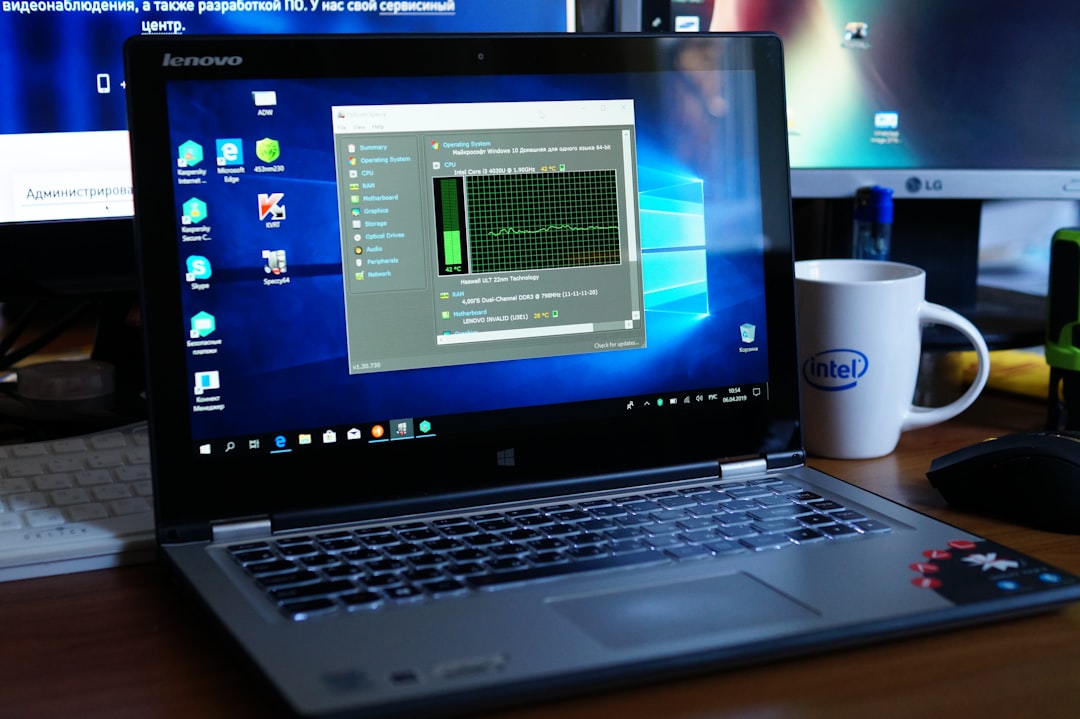
Video streaming requires real-time decoding of compressed video data. This process depends heavily on your device’s processor (CPU) and graphics unit (GPU). Older computers or entry-level devices may struggle with high-resolution content.
If your system lacks sufficient RAM, playback will stutter when multiple applications are running simultaneously.
Common Hardware Symptoms
- Fan noise increasing during playback
- Computer overheating
- High CPU usage in task manager
- System freezing or delayed response

Hardware-Based Solutions
- Close background applications before streaming.
- Enable hardware acceleration in browser settings.
- Update graphics drivers for improved video decoding.
- Upgrade RAM if the system consistently runs near maximum memory capacity.
For older systems, reducing resolution from 1080p to 720p can dramatically reduce processing demands without significantly lowering picture quality.
5. YouTube App Problems (Mobile Devices)
On smartphones and tablets, lag often occurs due to app-specific issues. Corrupted cached files or outdated app versions may lead to playback instability.
Recommended Fixes for Mobile
- Update the YouTube app from the app store.
- Clear app cache (not necessarily app data).
- Restart the device to refresh system resources.
- Free up storage space if the device is near capacity.
Mobile devices are particularly sensitive to limited storage and background apps, both of which can affect performance.
6. Background Applications and Downloads
Automatic updates, cloud sync services, torrent clients, or gaming platforms can silently consume bandwidth and processing power. Even if your internet speed appears sufficient, these hidden activities may create instability.
It is advisable to monitor:
- Operating system updates running in the background
- Cloud storage synchronization
- Large file downloads
- Video conferencing applications
Pausing or scheduling these activities outside of streaming time often resolves unexplained lag.
7. Video Codec and Hardware Acceleration Issues
YouTube uses modern video codecs such as VP9 and AV1 to deliver high-quality streaming efficiently. However, not all hardware supports these codecs natively. If hardware acceleration is disabled or incompatible, your CPU must handle decoding alone, leading to stutter.
What You Can Do
- Check if hardware acceleration is enabled in your browser.
- Update your graphics card drivers.
- Switch browsers if one struggles with playback.
Modern GPUs are optimized for video decoding and can significantly reduce CPU load when configured properly.
8. Router and ISP Problems
Sometimes the problem is beyond your direct control. Internet Service Providers may throttle bandwidth during high-traffic periods. Additionally, outdated router firmware can cause instability.
Advanced Measures
- Update router firmware through the manufacturer’s website.
- Reset router settings if performance degrades over time.
- Contact your ISP if consistent speed drops occur.
- Consider upgrading your internet plan if multiple users stream regularly.
Professional-grade or mesh networking systems are worth considering for large households with many connected devices.
A Structured Troubleshooting Approach
Rather than randomly trying solutions, take a structured approach:
- Step 1: Lower video quality. If lag disappears, the issue is likely bandwidth or hardware-related.
- Step 2: Run a speed test to confirm your connection.
- Step 3: Close background applications.
- Step 4: Clear browser cache or test a different browser.
- Step 5: Restart your router and device.
This process isolates the most frequent causes quickly and efficiently.
When to Consider Hardware Upgrades
If you consistently experience lag despite good internet speeds and software optimization, your device may simply be underpowered. Streaming technology evolves constantly, and older systems struggle with newer video standards.
Consider upgrading if:
- Your device is more than 6–8 years old
- CPU usage regularly exceeds 90% during playback
- You cannot stream smoothly even at 720p
Adding RAM or replacing an aging computer may be more cost-effective in the long term than ongoing troubleshooting.
Final Thoughts
YouTube video lag is rarely random. It is almost always the result of identifiable technical limitations—either network-related or hardware-related. By systematically testing your connection, optimizing your hardware and software, and minimizing background activity, most playback issues can be resolved quickly.
In summary, reliable streaming depends on three pillars: stable internet, updated software, and sufficient hardware resources. When these elements work together, YouTube delivers smooth, uninterrupted performance. When one fails, lag appears. The key is diagnosis, not guesswork.
With a structured approach and attention to detail, you can eliminate stuttering and enjoy seamless streaming—whether for work, education, or entertainment.