


If you have opened your monitor menu and seen DDC/CI, you probably wondered what it does. Many users find this setting on a Dell, LG, ASUS, Samsung, HP, Acer, or BenQ monitor. Some turn it off. Some leave it on. Others search online because Windows 11 or Windows 10 cannot control brightness on an external display.
This guide explains DDC/CI in simple words. It connects the terms VESA, MCCS, EDID, HDMI, DisplayPort, NVIDIA, AMD Radeon, Intel Graphics, ddcutil, and Monitorian so you understand how they work together. No guesswork. Just what is known and documented.
What Is DDC/CI?

DDC/CI stands for Display Data Channel Command Interface. It is a standard created by VESA – Video Electronics Standards Association. VESA also defines EDID and the Monitor Control Command Set or MCCS.
DDC is the communication path between a graphics card and a monitor. DDC/CI adds control commands to that path. This means your GPU, such as NVIDIA GeForce, AMD Radeon, or Intel Graphics, can send instructions to the monitor. Those instructions can change brightness, contrast, or color settings without pressing the physical OSD buttons.
In short:
- The DDC sends information, such as the EDID from the monitor, to the computer.
- DDC/CI allows the computer to send control commands back.
- MCCS defines what commands are allowed.
- The monitor firmware reads those commands and adjusts the LCD or LED panel.
So when software changes brightness on an external monitor, it often uses DDC/CI through HDMI, DisplayPort, or DVI.
How Does DDC/CI Work?
DDC/CI uses a low-level communication method called I2C. This channel runs inside video connections like HDMI and DisplayPort. VGA and DVI can also support it, but support depends on hardware.
Here is the simple flow:
- The graphics card reads EDID data from the monitor through DDC. EDID includes model name, resolution, and refresh rate.
- Software such as Monitorian or ClickMonitorDDC sends a brightness command.
- The GPU sends that command over HDMI or DisplayPort using I2C.
- The monitor firmware reads the MCCS command.
- The display controller changes brightness, contrast, RGB levels, or input source.
Everything depends on three parts working together:
- A compatible monitor with DDC/CI enabled in the OSD menu.
- A graphics card driver from NVIDIA, AMD, or Intel that supports it.
- A cable and port that allow DDC communication.
If one part fails, control fails.
What Can You Control with DDC/CI?
DDC/CI does not change resolution or refresh rate. The operating system handles that. It controls monitor hardware settings.
Most supported controls include:
- Brightness level
- Contrast ratio
- Color temperature
- RGB red, green, blue values
- Input source selection
- Power state on some monitors
Some gaming monitors also allow input switching or preset modes through MCCS commands. But support varies by model and firmware version.
On Windows 10 or Windows 11, tools like Monitorian and ControlMyMonitor use DDC/CI. On Linux, ddcutil is common. On macOS, third-party apps handle external monitor control because Apple handles internal displays differently.
Should You Enable or Disable DDC/CI?
For most users, enable it.
If DDC/CI is disabled in the OSD menu, Windows cannot change brightness on an external monitor. Software will not detect the display as controllable.
You might disable DDC/CI only if:
- A very old GPU driver causes conflicts.
- A monitor shows unstable behavior when software sends commands.
- A specific IT policy requires manual control.
Modern monitors from Dell, LG, ASUS, Samsung, Acer, and HP usually ship with DDC/CI enabled by default.
If brightness control is not working, check the OSD menu first.
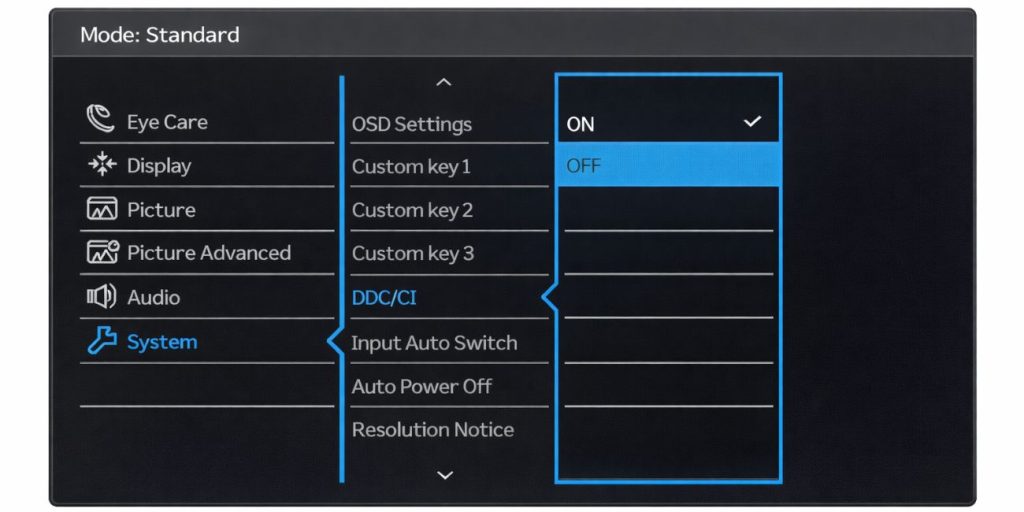
How to Enable DDC/CI on Your Monitor
Each brand uses a different OSD layout. The option usually appears under System, Setup, or Others.
Follow these steps:
- Press the physical menu button on your monitor.
- Open the On-Screen Display menu.
- Navigate to System or Setup.
- Find DDC/CI.
- Select Enable.
- Save and exit.
After enabling, restart Windows or reconnect the HDMI or DisplayPort cable. Some systems detect the change only after reconnecting.
Using DDC/CI in Windows, macOS, and Linux
Different operating systems handle display control differently.
Windows
Windows 10 and Windows 11 support DDC/CI for external monitors. However, the built-in brightness slider usually works only for laptop screens.
To control an external monitor:
- Install Monitorian.
- Or use NirSoft ControlMyMonitor.
- Make sure the NVIDIA, AMD Radeon, or Intel Graphics driver is updated.
- Use HDMI or DisplayPort instead of some low-quality adapters.
If the app does not detect the monitor, check the OSD and cable.
macOS
macOS controls internal Apple displays directly. For external monitors, it often needs third-party software.
Apps communicate through DDC/CI when the monitor supports it. USB-C and Thunderbolt connections may carry DisplayPort signals, which can support DDC.
Compatibility depends on the monitor firmware and macOS version. I don’t know about unsupported edge cases beyond documented DDC behavior.
Linux
Linux users often rely on ddcutil.
The process usually involves:
- Ensuring the I2C kernel module loads.
- Running ddcutil detect to identify monitors.
- Sending brightness commands through MCCS.
Linux provides strong low-level control, but setup may require technical steps.
Why Is DDC/CI Not Working?
When DDC/CI fails, the cause is often simple.
Common reasons include:
- DDC/CI disabled in the OSD.
- Faulty HDMI or DisplayPort cable.
- GPU driver issue from NVIDIA, AMD, or Intel.
- Using a VGA adapter that blocks DDC signals.
- Monitor firmware bug.
- Laptop internal display confusion – internal panels often do not use DDC/CI the same way external monitors do.
Try this:
- Enable DDC/CI in the monitor menu.
- Update the graphics driver.
- Switch from HDMI to DisplayPort if possible.
- Avoid low-cost HDMI splitters.
- Reboot the system.
If it still fails, the monitor model may not fully support MCCS commands.
DDC vs EDID – What Is the Difference?
EDID stands for Extended Display Identification Data. It sends information from the monitor to the computer. This includes resolution support, refresh rate, and manufacturer name.
DDC/CI sends commands from the computer to the monitor. It changes hardware settings like brightness.
Both use the DDC channel defined by VESA. But they serve opposite directions.
- Think of EDID as identification.
- Think of DDC/CI as control.
When Do You Need DDC/CI?
Not everyone needs it. But it helps in certain cases:
- Multi-monitor office setup with Dell and LG displays.
- Adjusting brightness at night without touching buttons.
- Remote desktop management.
- Content creation where color settings must match across screens.
- Automated scripts on Linux using ddcutil.
If you use only a laptop screen, the system controls brightness directly. DDC/CI matters more for external monitors.
Final Thoughts
DDC/CI is a VESA standard that lets your graphics card communicate with your monitor using MCCS commands over HDMI, DisplayPort, DVI, or VGA when supported. It allows software control of brightness, contrast, and other display settings through tools like Monitorian or ddcutil.
It is safe. It is widely supported. And for most users, it should stay enabled.
If this guide helped you understand DDC/CI, share your experience. Did your monitor work right away? Did you fix a brightness issue? Leave a comment and let others know what worked for you.