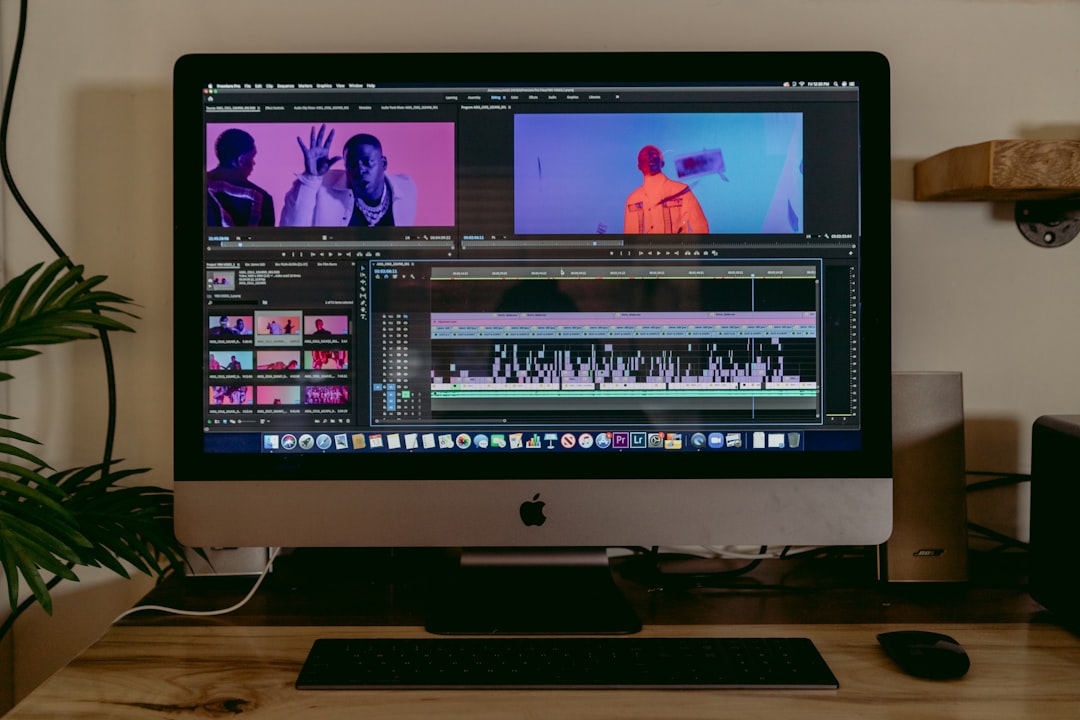
Downloading iMovie can be the first step toward creating engaging, high-quality videos, whether you’re documenting memories, producing short films, or creating social media content. However, like any software, downloading and setting up iMovie can come with its own challenges if you’re not prepared. Making sure your device meets the requirements, following the right steps, and troubleshooting issues proactively can help you avoid headaches and make the process more efficient.
TLDR (Too Long, Didn’t Read)
If you want to download iMovie, make sure your Apple device is compatible and running the correct version of macOS or iOS. Use the official Apple App Store for the most secure download. Keep your storage space clear and ensure a stable internet connection. If you run into trouble, checking your system requirements and updating your software usually solves most issues.
What Is iMovie?
iMovie is Apple’s proprietary video editing software that offers a clean interface and powerful editing tools for both beginners and hobbyists. Available for free across Apple’s ecosystem—including iPhones, iPads, and Macs—iMovie provides a host of features such as themes, transitions, audio edits, green screen effects, and more. It’s widely used by students, small business owners, and casual creators who want to produce professional-looking video content without a steep learning curve or expensive software.
Why Download iMovie?
There are several reasons to consider iMovie for your video editing needs:
- Free and Accessible: No subscriptions or one-time fees for Apple users.
- Intuitive Interface: Clean navigation and user-friendly design for all skill levels.
- Seamless Integration: Works smoothly with Apple Photos, iCloud, and other Apple apps.
- Cross-device Editing: You can start a project on your iPhone and finish it on your Mac or iPad.
Step-by-Step: How to Download iMovie
1. Check System Compatibility
Before initiating the download, verify that your device is compatible. iMovie only runs on Apple devices, so it’s not available for Windows or Android systems.
- macOS: Requires macOS 11.5.1 or later for iMovie 10.3 or newer
- iOS: Requires iOS 15.0 or later for iPhones and iPads
You can check this by going to:
- On Mac: Apple Menu > About This Mac
- On iPhone/iPad: Settings > General > About
2. Ensure Adequate Storage Space
iMovie can be large, especially on macOS where it may require over 2 GB of disk space. On iOS devices, the app size is generally smaller but can still consume significant storage due to additional content.
To check your storage:
- On Mac: Apple Menu > About This Mac > Storage
- On iPhone/iPad: Settings > General > iPhone Storage

3. Use the Official App Store
Downloading iMovie from the App Store ensures that you are getting the latest and most secure version of the app. Avoid downloading the software from third-party sites, which may expose you to malware or outdated files.
- On Mac: Open App Store, search for iMovie, and click Get.
- On iPhone/iPad: Open App Store, search for iMovie, and tap Download.
4. Check Your Internet Connection
A stable internet connection is essential for downloading iMovie, especially given the app’s size. If your connection fluctuates, the download may pause or fail altogether. A Wi-Fi connection is typically much more reliable than mobile data.
Common Issues and Troubleshooting
1. Issue: iMovie Won’t Download
Solution:
- Check your internet connection and switch to a stronger Wi-Fi network if necessary.
- Ensure your Apple ID is signed in and payment information (if any) is updated.
- Restart your device to resolve temporary glitches.
2. Issue: Your Device Is Not Compatible
Solution:
- Update your operating system to the latest version compatible with your hardware.
- If your device is too old to update, consider using alternative video editors or upgrading your hardware.
3. Issue: Not Enough Storage
Solution:
- Delete unused apps or large media files.
- Transfer photos and videos to iCloud or an external drive.
- Consider using built-in storage management tools on macOS or iOS.
4. Issue: Download Freezes or Gets Stuck
Solution:
- Cancel the download and try again.
- Log out and back into your Apple ID.
- Reset network settings if the problem persists on mobile devices.

Post-Download Tips
Once iMovie is successfully downloaded, make it work to your advantage by following these tips:
- Complete the Onboarding: The first time you open iMovie, it offers a brief tutorial. Take the time to walk through it.
- Use Templates: Beginners can use pre-set themes or trailers to ease into editing.
- Enable iCloud: Turn on iCloud Drive to effortlessly sync your projects across devices.
- Update Regularly: Keep the app updated to access new features and security patches.
Tips for a Smooth iMovie Experience
1. Organize Files Before You Edit
Having your media files—videos, images, and audio—organized in folders will streamline your editing process and help prevent missing file errors.
2. Use External Storage Devices
If you’re working with a large project on Mac and your internal storage is limited, consider editing directly from an external SSD for faster performance and better reliability.
3. Regularly Save and Backup Projects
While iMovie auto-saves frequently, it’s a good habit to manually save versions of your project periodically and maintain backups. This is especially important for longer or more complex edits.
4. Learn the Shortcuts
Keyboard shortcuts can significantly enhance your workflow efficiency. A few helpful ones include:
- Command + B: Split clip
- Command + Z: Undo
- Command + Shift + S: Share/export project
Final Thoughts
iMovie is a powerful and user-friendly tool that can meet a wide range of video editing needs. Ensuring a smooth download and setup process is key to getting started without delay. By following the tips outlined above—checking compatibility, using the App Store, ensuring space and connection stability—you can avoid common problems and get straight into creating your projects. Whether you’re a novice editor or someone with basic editing experience, iMovie provides a solid foundation for your video production journey.
Keep your software up to date, back up your projects, and explore its many features to make the most of this versatile application.