


So your PowerSaves Amiibo files are not showing up. Annoying, right? You plug everything in. You expect magic. And instead… nothing. No files. No load option. Just confusion.
Don’t worry. This is a common problem. And the good news? It’s usually easy to fix. Let’s break it down in simple steps. No tech degree required.
TLDR: If PowerSaves Amiibo files are not showing, the issue is usually caused by wrong file location, corrupted files, outdated software, driver problems, incompatible formats, or faulty hardware. Start by checking where your files are saved. Then update the software and drivers. Finally, test your USB port and Amiibo device to rule out hardware issues.
Why PowerSaves Amiibo Files Don’t Show Up
Before we fix it, let’s understand it.
PowerSaves searches for specific file types in specific folders. If something is off, it simply acts like the file does not exist.
Common causes include:
- Files saved in the wrong folder
- Incorrect file format
- Corrupted BIN files
- Outdated PowerSaves software
- Missing PC drivers
- Faulty USB connection
Now, let’s fix them one by one.
Fix #1: Make Sure the Files Are in the Correct Folder
This is the most common issue. And the easiest fix.
PowerSaves does not scan your entire computer. It looks inside its own backup folder.
Here’s what to do:
- Open the PowerSaves software.
- Go to settings or check the default backup location.
- Find that folder on your computer.
- Move your Amiibo .bin files into that folder.
Now restart PowerSaves.
If the files suddenly appear, problem solved.

Tip: Do not rename files with strange symbols. Keep names simple.
Fix #2: Check the File Format
PowerSaves only works with .bin files.
If your file is:
- .zip
- .rar
- .txt
- .json
It will not load.
Sometimes files are downloaded as ZIP archives. You must extract them first.
To fix this:
- Right click the file.
- Select “Extract.”
- Confirm the new file ends in .bin.
If Windows is hiding extensions, enable “File name extensions” in View settings.
Small detail. Big difference.
Fix #3: Update PowerSaves Software
Old software can cause detection problems.
Especially after system updates.
If your PowerSaves version is outdated, it may fail to detect new files or newer Amiibo dumps.
To fix it:
- Open PowerSaves.
- Check for updates.
- Download the latest version from the official source.
- Restart your computer after installation.
Simple. But very effective.
Outdated software causes more problems than people realize.
Fix #4: Reinstall Drivers
If PowerSaves does not detect the device at all, the problem may not be the file.
It may be the driver.
Drivers help your computer talk to the PowerSaves hardware. If the conversation fails, nothing works.
How to Reinstall Drivers
- Unplug the PowerSaves device.
- Go to Device Manager on your PC.
- Locate the PowerSaves driver.
- Right click and uninstall.
- Restart your computer.
- Plug the device back in.
Windows should automatically reinstall the driver.
If not, download it manually from the official site.

Many users fix the issue right here.
Fix #5: Test Another USB Port or Cable
Sometimes the problem is physical.
USB ports wear out. Cables fail. It happens.
Try this:
- Switch to another USB port.
- Avoid USB hubs.
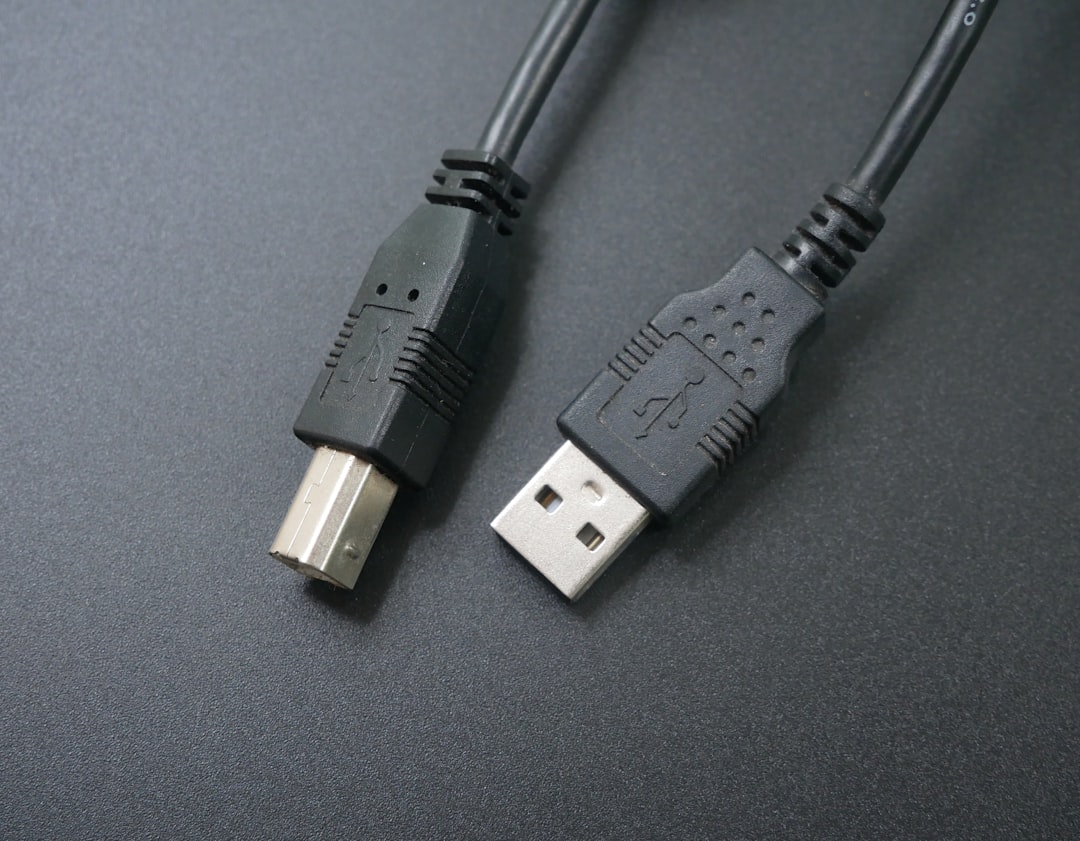
- Use a different USB cable.
- Test on another computer.
If it works elsewhere, your original port may be defective.
Simple tests like this save hours of frustration.
Fix #6: Check for Corrupted Amiibo Files
Not all BIN files are created equal.
A corrupted file will not load. Even if it is in the correct folder.
Signs of corruption:
- File size is 0 KB
- File size looks unusually small
- PowerSaves freezes when loading
- Error message appears
A valid Amiibo BIN file is usually 540 bytes.
If your file is smaller or larger, it may be incorrect.
Solution?
- Download the file again.
- Verify the source.
- Avoid incomplete transfers.
Clean file. Clean results.
Quick Comparison Chart of Fixes
| Fix | Difficulty | Time Required | Most Common? |
|---|---|---|---|
| Correct Folder Location | Very Easy | 2 Minutes | Yes |
| Check File Format | Very Easy | 3 Minutes | Yes |
| Update Software | Easy | 5 to 10 Minutes | Common |
| Reinstall Drivers | Medium | 10 Minutes | Sometimes |
| Change USB Port | Very Easy | 2 Minutes | Sometimes |
| Replace Corrupted Files | Easy | 5 Minutes | Common |
Start with the easy ones. Always.
Bonus Tips for Smooth Amiibo Loading
Want fewer issues in the future? Follow these simple tips:
- Keep all Amiibo BIN files organized in one main folder.
- Do not rename file extensions.
- Backup working files before editing.
- Keep your PowerSaves software updated.
- Avoid shutting down during file transfers.

Small habits prevent big headaches.
What If Nothing Works?
If you tried everything and files still do not show:
- Your PowerSaves device may be defective.
- Your Amiibo might be damaged.
- Your operating system might block the software.
Try running PowerSaves as Administrator.
Also temporarily disable antivirus software. Some security tools block file detection.
If problems continue, contact official support.
But honestly? In most cases, the fix is simple.
Final Thoughts
When PowerSaves Amiibo files are not showing, it feels complicated.
But it usually is not.
Most issues fall into three categories:
- Wrong location
- Wrong format
- Outdated or missing software components
Start simple. Work step by step.
Do not panic. Do not overthink it.
Technology fails quietly. But it also fixes easily.
With these six fixes, your Amiibo files should load properly again. And you can get back to enjoying your games.
Now plug it in. Try again. And watch those files finally appear.