


If your OpenClaw Telegram bot is not working, the issue is usually linked to the bot token, Telegram channel setup, pairing, allowlist settings, group permissions, or the OpenClaw Gateway not running properly.
OpenClaw can work through Telegram, but Telegram is only the chat layer. OpenClaw still needs its gateway, config, bot token, and permissions to be correct before it can reply. The official OpenClaw Telegram setup also uses BotFather to create the bot and save the Telegram bot token, so an incorrect or outdated token can break the entire connection.
If you were using OpenClaw on Telegram regularly and it suddenly stopped replying, this article will help you check the most common causes one by one. Start with the simple checks first, then move to logs, pairing, token, group settings, and network issues.
Why OpenClaw Telegram Bot Stops Working
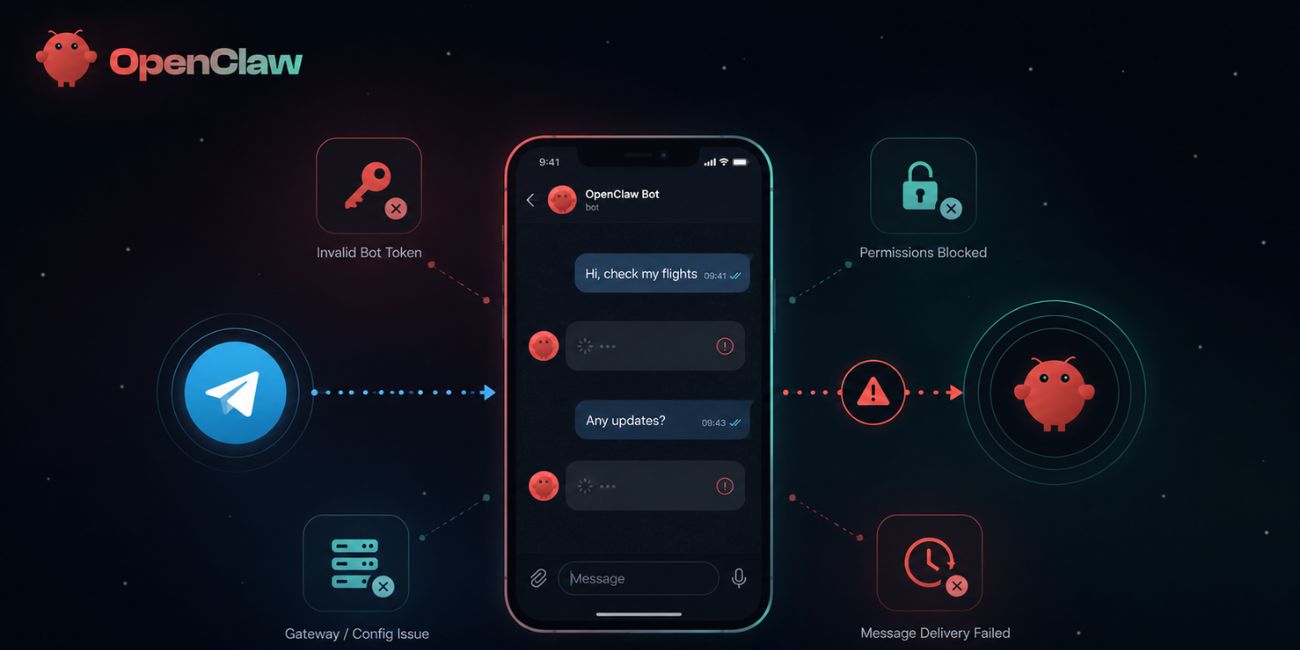

OpenClaw Telegram bot issues can happen from both sides. Sometimes Telegram sends the message, but OpenClaw does not receive it. Sometimes OpenClaw runs, but it drops the message because the user or group is not allowed. Sometimes the bot token is wrong, revoked, or used in the wrong place.
There is also one more thing. OpenClaw is not just a normal Telegram chatbot. It is a personal AI assistant system that can run via chat apps like Telegram and WhatsApp, as well as other channels. The official OpenClaw site describes it as an AI assistant that can handle tasks in the chat apps you already use.
So when the Telegram bot stops working, you need to check more than Telegram. You need to check the OpenClaw Gateway, Telegram channel config, pairing status, bot token, and message permissions.
OpenClaw Telegram Bot Not Working: Fast Checks
Use this table first. It helps you find the likely issue without wasting too much time.
| Problem You See | Most Likely Cause | What to Check First |
|---|---|---|
| The bot is online but does not reply | Gateway, pairing, or allowlist issue | OpenClaw logs and pairing |
| The bot worked before but stopped | Gateway stopped, token changed, config changed | Restart OpenClaw and check logs |
| The bot works in DM but not group | Group permission or privacy mode | Group allowlist and mention settings |
| /start gives no useful reply | Pairing or config issue | Telegram channel config |
| Logs show no Telegram messages | Token, webhook, polling, or network issue | Bot token and network access |
| Logs show dropped messages | User or group is not allowed | allowlist, pairing, group settings |
| Bot replies slowly or randomly | Gateway load, model issue, network issue | Runtime logs and API errors |
Do not jump straight to reinstalling everything. Most OpenClaw Telegram problems are not fixed by reinstalling. They are usually fixed by finding which part of the chain is broken.
Check If the OpenClaw Gateway Is Running
The first thing to check is the OpenClaw Gateway. If the gateway is not running, Telegram may receive your message, but OpenClaw will not process it.
Send a message to your Telegram bot and watch what happens in OpenClaw. If nothing appears in the logs, that is a strong clue. It means the message may not be reaching OpenClaw at all.
Check these things:
- Is OpenClaw running on your machine or server?
- Did the process crash after an update?
- Is the gateway service active?
- Are there startup errors in the terminal?
- Did your system reboot and fail to restart OpenClaw?
If OpenClaw was working yesterday and suddenly stopped today, a stopped gateway is one of the first things to suspect. Restart OpenClaw, then send a simple Telegram message like /start or hello and check the logs again.
Watch OpenClaw Logs While Messaging the Bot
Logs are very useful here. They tell you if OpenClaw is seeing the Telegram message or not.
When you send a message to the bot, one of three things may happen in the logs. You may see no activity at all. You may see the message coming in but getting dropped. Or you may see the message being processed but the reply fails.
That difference matters.
If there is no log activity, check the bot token, Telegram channel setup, network access, polling or webhook setup. OpenClaw may not be connected to Telegram correctly.
If the logs show the message but also show something like denied, not allowed, not paired, or dropped, then Telegram is reaching OpenClaw. The issue is probably pairing, allowlist, or group permission.
If the logs show the message is processed but the bot does not reply, the issue may be with the model provider, reply sending, the Telegram API, or a runtime error.
A simple way to debug is to keep logs open and send one message at a time. Do not spam the bot with ten messages. That only makes the logs harder to read.
Check the Telegram Bot Token
The Telegram bot token is one of the most important parts of the setup. It connects your OpenClaw Telegram channel to the bot you created with BotFather.
If the token is wrong, OpenClaw cannot control the correct Telegram bot. If the token was regenerated in BotFather, the old token may stop working. If you pasted the token with an extra space or missing character, the bot may fail quietly or show Telegram API errors.
Check these points:
- Make sure the token came from the real @BotFather.
- Confirm the token in your OpenClaw Telegram config.
- Check if you are using an environment variable like TELEGRAM_BOT_TOKEN.
- Make sure you did not paste the token into the wrong account or config file.
- Do not use the same token across multiple running OpenClaw instances.
The OpenClaw Telegram docs show a config example with channels.telegram.enabled and botToken, plus an environment fallback using TELEGRAM_BOT_TOKEN. That means your bot token can come from config or environment, depending on how you set it up.
If you are not sure, generate a new token from BotFather, update OpenClaw, restart the gateway, then test again. And one important thing, never share your bot token publicly. Anyone with the token may be able to control that bot.
Fix Pairing and Allowlist Problems
Pairing is another common reason the OpenClaw Telegram bot does not reply. OpenClaw may receive your Telegram message, but still ignore it because the sender is not approved.
This is not always a bug. It is usually a safety feature. OpenClaw is a personal assistant, so it should not respond to every random Telegram user who finds your bot.
Look for settings linked to allowed users or pairing. Depending on your OpenClaw version and setup, you may see options like allowed users, pairing policy, user ID, group allowlist, or similar channel rules.
The OpenClaw Telegram docs also mention that if you upgraded and your config contains @username allowlist entries, you may need to run openclaw doctor –fix to resolve them. This is useful because username-based allowlists can become a problem after upgrades or config changes.
Check this carefully:
- Did you complete Telegram pairing?
- Is your Telegram user ID allowed?
- Did your username change?
- Are you using an old @username allowlist entry?
- Did an OpenClaw update change how allowlists work?
- Is the message coming from a group instead of a private chat?
If logs show the message is blocked or ignored, do not keep changing the bot token. The token may be fine. The real issue may be that OpenClaw does not trust that sender yet.
Fix OpenClaw Telegram Group Problems
Group chats are a different case. Your OpenClaw bot may work perfectly in private chat but stay silent in a Telegram group.
This usually happens because group messages have extra rules. Telegram bots can have privacy mode. OpenClaw can also have group allowlist settings. Some setups require the bot to be mentioned in the group before it responds.
OpenClaw Telegram config examples show group settings such as requiring a mention in groups. For example, a config may use a group rule where the bot only responds when mentioned.
Check these things if the bot is silent in a group:
- Was the bot added to the group properly?
- Does the group allow the bot to read messages?
- Is Telegram privacy mode affecting what the bot can see?
- Does your OpenClaw config require mentioning the bot?
- Is the group chat ID allowed?
- Are group commands blocked by group allowlist rules?
- Did you pair in DM but forget group access rules?
This part confuses many users. Pairing your private Telegram chat does not always mean the group is allowed too. Some OpenClaw pairing guidance says group authorization is separate from DM access, and group access may need its own allowlist or group setting.
So if DM works but group does not, focus on group settings. Do not rebuild the whole bot.
Check If the Telegram Plugin or Channel Is Enabled
If OpenClaw has Telegram support through a plugin or channel system in your version, make sure it is enabled. A disabled Telegram channel can make the bot look dead even when the rest of OpenClaw is running.
There was also a reported OpenClaw issue where the Telegram plugin was not available because plugin loading or plugin allowlist settings were not correct. The issue notes mention checking plugins.enabled, checking whether the plugin allowlist contains “telegram”, and making sure the Telegram plugin entry is enabled.
This may not apply to every setup, but it is worth checking if your logs mention plugin loading, disabled channel, unavailable Telegram plugin, or missing channel handler.
Look for settings like:
- Telegram channel enabled
- Telegram plugin enabled
- Plugin loader enabled
- Plugin allowlist includes Telegram
- Config file is being read from the right place
- OpenClaw restarted after config changes
This is a small config issue, but it can fully stop replies.
Check Network, DNS, Proxy, or Firewall Issues
OpenClaw needs to connect with Telegram’s API. If your server or local machine cannot reach Telegram, the bot will not work properly.
This can happen on some VPS setups, office networks, restricted networks, Docker containers, or machines using strict firewall rules. Sometimes DNS is the problem. Sometimes IPv6 causes trouble. Sometimes a proxy is needed but not configured.
Check the logs for signs like:
- Telegram API request failed
- Connection timeout
- DNS lookup failed
- Network unreachable
- Unauthorized
- Bad gateway or API error
If you see network errors, the OpenClaw config may be fine. The problem may be that your machine cannot talk to Telegram.
A simple test is to check whether the same server can reach api.telegram.org. If it cannot, fix the network issue first. Restarting OpenClaw again and again will not help until the connection works.
Restart and Reconnect the Telegram Channel
After checking config, token, pairing, and group rules, a clean restart can help. But restart with a reason, not blindly.
Try this reset flow:
- Stop OpenClaw.
- Confirm the Telegram bot token is correct.
- Check that the Telegram channel or plugin is enabled.
- Confirm your user or group is allowed.
- Start OpenClaw again.
- Send one simple message to the bot.
- Watch the logs while testing.
If the bot starts replying after restart, the gateway process may have been stuck. If it still does not reply, logs should show what is failing.
If you recently updated OpenClaw, also check for config changes. Updates can sometimes change how pairing, allowlists, plugins, or channels are loaded. That does not mean the update is bad. It just means old config may need a small fix.
Security Note: Be Careful With Fake Bots and Tokens
Because OpenClaw can act like a real assistant, you should treat it carefully. Do not paste your Telegram bot token into random websites. Do not send it to strangers. Do not run unknown commands from random Telegram groups.
OpenClaw’s own security guidance describes it as a personal assistant deployment with a trusted operator boundary, which is another way of saying you should control who can talk to it and what it can access.
Also be careful with third-party skills, plugins, and scripts. If OpenClaw has access to your files, email, calendar, or other tools, unsafe setup can cause real problems. Keep your bot private, use allowlists, and only install things you trust.
FAQs About OpenClaw Telegram Bot Not Working
Why is my OpenClaw Telegram bot online but not replying?
It may be online on Telegram, but OpenClaw may not be receiving or accepting the message. Check the OpenClaw Gateway, logs, pairing, allowlist, and Telegram channel config.
Why does OpenClaw work in private chat but not in a group?
Group access often has separate rules. Check Telegram privacy mode, group allowlist, group chat ID, and whether your config requires mentioning the bot in the group.
Can a wrong bot token stop OpenClaw from replying?
Yes. If the Telegram bot token is wrong, old, revoked, or placed in the wrong config, OpenClaw may not connect to the correct bot.
What does no log activity mean?
No log activity usually means the message is not reaching OpenClaw. Check bot token, Telegram channel setup, network access, polling, webhook, or plugin status.
Do I need to run openclaw doctor –fix?
You may need it if your config has older @username allowlist entries after an upgrade. OpenClaw docs mention this as a best-effort fix for upgraded configs with username allowlist entries.
Should I create a new Telegram bot token?
Only do that after checking logs and config first. If the token looks wrong, was leaked, or was regenerated in BotFather, then creating or updating the token can help.
Final Thoughts
When the OpenClaw Telegram bot is not working, do not fix random things first. Start with the OpenClaw logs. Logs will usually tell you if Telegram messages are reaching OpenClaw or not.
After that, check the gateway, bot token, pairing, allowlist, group rules, plugin status, and network access. Most problems are somewhere in that chain.
If your OpenClaw Telegram bot was working before and suddenly stopped, the cause is often simple: gateway stopped, config changed, token changed, group permission changed, or an update affected pairing rules. Check those first, then test with one clean message.