


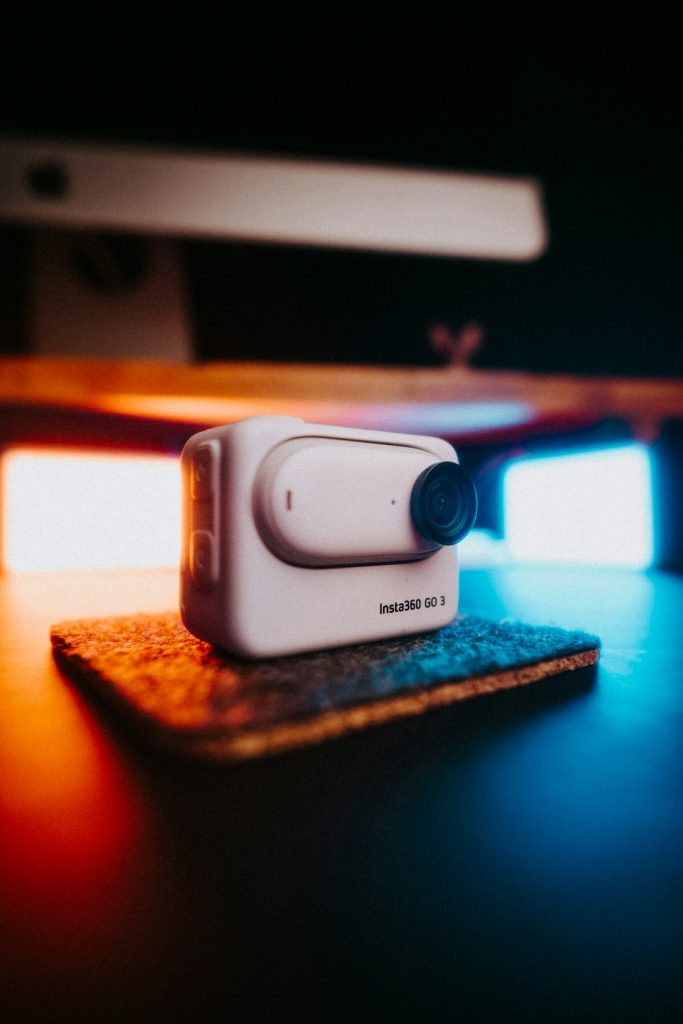
The Insta360 X5 is a beast of a camera. It shoots sharp video. It captures smooth action. And yes, it supports 60 FPS for that buttery look. But sometimes, you open the settings… and 60 FPS is nowhere to be found. Annoying, right?
Good news: this is usually an easy fix. In this guide, we’ll walk through why your Insta360 X5 is not showing 60 FPS and how to unlock the full frame rate in minutes.
TL;DR: If your Insta360 X5 is not showing 60 FPS, it’s usually caused by shooting mode limits, resolution caps, low battery, overheating, or outdated firmware. Switch to the right mode, lower resolution if needed, update firmware, and check performance settings. In most cases, 60 FPS appears instantly after adjusting one of these. Follow the five fixes below to get smooth footage fast.
First, Why 60 FPS Matters
Let’s make this simple.
30 FPS = Normal. Good for talking videos. Casual shots.
60 FPS = Smooth. Better for sports. Action. Fast movement.
If you’re filming:
- Mountain biking
- Motorcycling
- Surfing
- Running
- Travel action shots
You want 60 FPS. It looks cleaner. It reduces motion blur. It feels more alive.
So if it’s missing, let’s fix that.
Fix #1: Check Your Resolution Settings
This is the most common reason 60 FPS does not show.
The Insta360 X5 cannot run 60 FPS at every resolution. Some ultra-high resolutions are capped at 30 FPS to protect performance.
For example:
- Very high 360 resolutions may max out at 30 FPS.
- 5.7K or above might limit frame rate.
- Certain HDR or special modes reduce FPS automatically.
What to Do:
- Go to Camera Settings.
- Open Resolution options.
- Lower it one step.
- Check if 60 FPS appears.
Often, switching from the highest resolution to the next one down instantly unlocks 60 FPS.

Pro Tip: For action scenes, slightly lower resolution with 60 FPS usually looks better than ultra-high resolution at 30 FPS.
Fix #2: Switch Shooting Mode
Not all shooting modes support 60 FPS.
If you’re in:
- HDR Video
- Timelapse
- Bullet Time
- Certain AI capture modes
You may not see 60 FPS.
That’s because these modes use heavy processing. And the camera limits frame rate to keep things stable.
What to Do:
- Switch to Standard Video mode.
- Turn off HDR.
- Disable extra AI features temporarily.
- Check frame rate options again.
Most of the time, 60 FPS appears as soon as you return to standard shooting mode.
Simple. Quick. Done.
Fix #3: Update Your Firmware
This one is overlooked. But very important.
If your firmware is outdated, certain frame rates may not appear. Insta360 often unlocks improvements and fixes through updates.
Why it Matters:
- Bug fixes
- Performance upgrades
- New shooting options
- Improved stability
If you just bought your X5, it might still be running an older version.
How to Update:
- Open the Insta360 app.
- Connect your camera.
- Go to Settings.
- Tap Firmware Update.
- Install the latest version.
After updating, restart your camera. Then check the frame rate settings again.
Many users report 60 FPS reappearing right after firmware updates.
Fix #4: Check Battery and Temperature
This one surprises people.
If your battery is very low, the camera may limit performance.
If your camera is too hot, it may restrict high frame rates to protect internal components.
Low Battery Fix:
- Charge above 40%.
- Restart the device.
- Check frame rate menu.
Overheating Fix:
- Turn off the camera.
- Let it cool for 10–15 minutes.
- Avoid direct sunlight.
- Remove any heavy case while testing.
Small action cameras work hard. Especially at 60 FPS.
Heat management matters.
You’ll often see full frame rate options return once temperature drops.
Fix #5: Format or Upgrade Your SD Card
Your SD card speed matters more than you think.
60 FPS produces more data per second. If your SD card is slow, the camera may hide higher frame rates to prevent recording errors.
Minimum Recommendation:
- UHS-I
- V30 speed class or higher
If your card is:
- Old
- Cheap
- Nearly full
- Damaged
You may not see 60 FPS.
What to Do:
- Backup your footage.
- Format the SD card inside the camera.
- Test again.
If it still doesn’t work, try a newer V30 or V60 card.
Image not found in postmetaFast storage equals higher performance.
Quick Troubleshooting Checklist
Still stuck? Go through this fast checklist:
- ✅ Lower resolution
- ✅ Switch to standard video mode
- ✅ Turn off HDR
- ✅ Update firmware
- ✅ Charge battery
- ✅ Let camera cool
- ✅ Use V30 or faster SD card
- ✅ Restart camera
One of these almost always fixes it.
When 60 FPS Still Doesn’t Appear
If none of the fixes work, consider these possibilities:
- You are using a region-restricted firmware.
- The camera software glitched.
- The device requires a factory reset.
Factory Reset Steps:
- Go to Settings.
- Select Reset.
- Confirm.
Warning: Back up important settings first.
If the issue continues, contact Insta360 support. Rarely, hardware issues can affect performance.
Best Settings for Smooth 60 FPS Action
Once you unlock it, use it properly.
Recommended setup for action:
- Resolution: 4K or slightly below max 360 resolution
- Frame Rate: 60 FPS
- Stabilization: On
- HDR: Off for fast movement
- Shutter: Auto unless manually tuned
This setup balances smooth motion and clean detail.
If you plan to slow footage down later? Shoot at 60 FPS. It gives you more flexibility in editing.
Why the Camera Hides Options Instead of Showing Errors
You might wonder:
Why doesn’t the camera just tell me 60 FPS isn’t available?
Great question.
The Insta360 X5 simplifies the user experience by hiding unsupported combinations. Instead of showing an error message, it removes frame rate options that don’t work with your current setup.
This avoids:
- Recording failures
- Corrupted files
- Overheating damage
- Laggy performance
It’s protective. Not broken.
Final Thoughts
When your Insta360 X5 is not showing 60 FPS, it can feel like something is wrong.
But most of the time?
It’s just a setting mismatch.
Remember this:
- Resolution matters.
- Shooting mode matters.
- Firmware matters.
- Battery and heat matter.
- SD card speed matters.
Go through the five fixes calmly. One by one.
You’ll likely unlock 60 FPS in under five minutes.
And once you do?
Smooth. Clean. Action-packed video.
Exactly how it should be.