
Taking a screenshot on Android is one of those tiny skills that becomes surprisingly useful every day. Whether you are saving a receipt, sharing a funny chat, capturing a game score, or keeping proof of an error message, Android gives you several quick ways to freeze what is on your screen. The exact method can vary slightly depending on your phone brand, but the core idea is usually the same.
TLDR: On most Android phones, press Power + Volume Down at the same time to take a screenshot. Samsung, Xiaomi, OnePlus, Oppo, Realme, Motorola, and several others also offer gesture shortcuts, quick settings buttons, or scrolling screenshots. After taking a screenshot, you can usually edit, crop, share, or delete it from the preview that appears. If the shortcut does not work, check your buttons, gesture settings, storage space, or whether the app blocks screenshots.
The universal Android screenshot method
The most common screenshot shortcut on Android is simple: press the Power button and the Volume Down button at the same time. Hold them for about a second, then release. You should see a quick flash, hear a shutter sound if your phone is not muted, and notice a small preview appear on the screen.
This works on most modern Android phones, including devices from Samsung, Google Pixel, Xiaomi, OnePlus, Oppo, Realme, Motorola, Sony, Nokia, ASUS, Huawei, Honor, and more. The trick is timing. If you press the power button too early, the screen may lock. If you press volume down too early, the volume panel may appear. Try pressing both buttons together with a firm, quick motion.
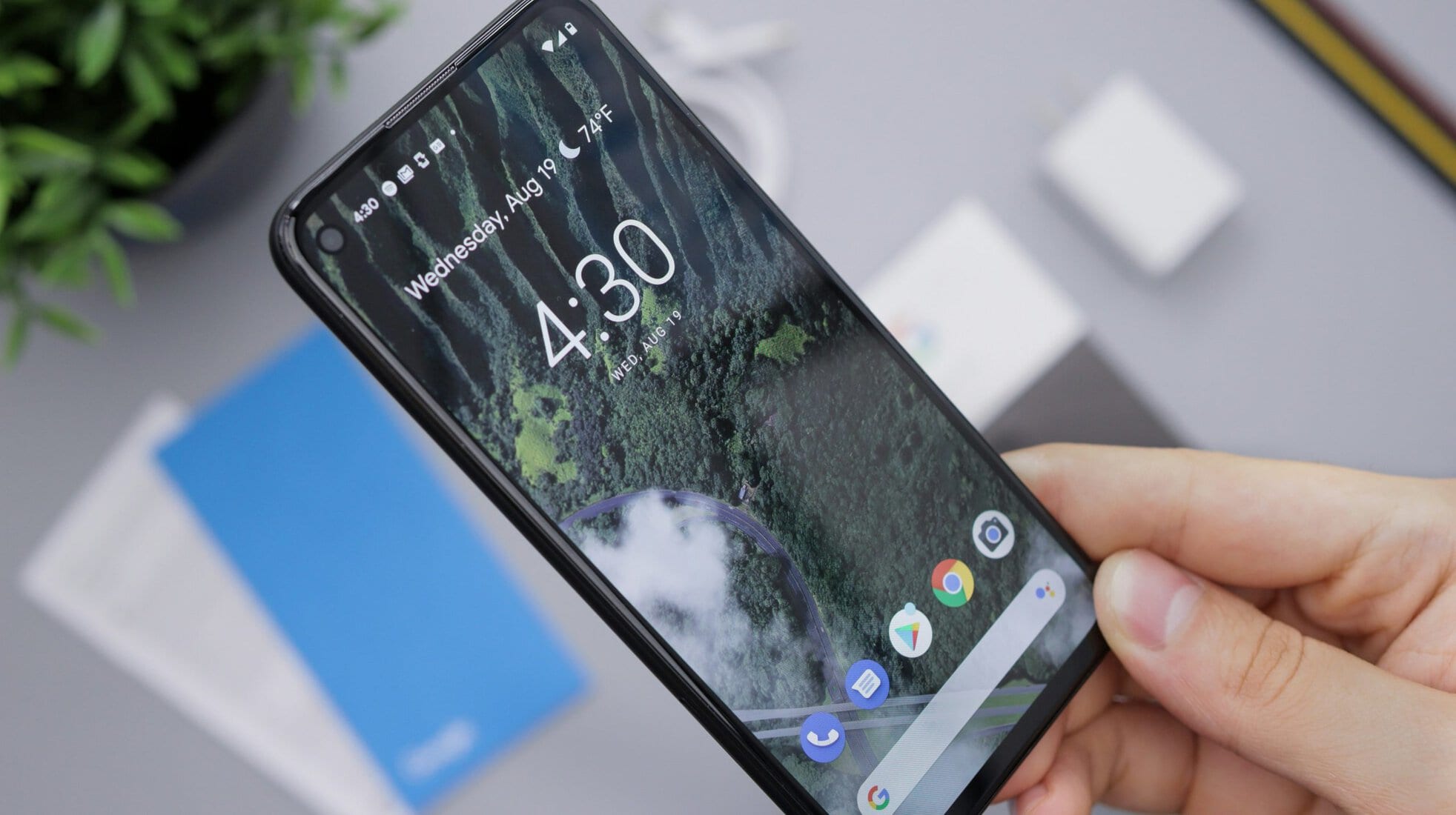
Once the screenshot is captured, Android usually gives you several instant options:
- Share: Send the screenshot through messaging apps, email, social media, or cloud storage.
- Edit: Crop, draw, highlight, blur, or add text depending on your phone’s tools.
- Scroll capture: Capture more than what is visible on the screen, such as a full webpage.
- Delete: Remove the screenshot immediately if you took it by accident.
How to take a screenshot on Samsung Galaxy phones
Samsung phones offer several screenshot methods, which is one reason Galaxy devices feel so flexible.
The standard method is Power + Volume Down. On newer Galaxy phones, press both buttons briefly and release. Do not hold them too long, or the power menu may appear.
Samsung also has a gesture called Palm swipe to capture. To use it, swipe the edge of your hand across the screen from left to right or right to left. If it does not work, enable it by going to Settings > Advanced features > Motions and gestures > Palm swipe to capture.
For long pages, Samsung’s Scroll capture is especially handy. After taking a screenshot, tap the downward arrow icon in the screenshot toolbar. Each tap extends the screenshot farther down the page.
On Galaxy phones with the S Pen, you can also use Air Command and choose Screen write. This captures the screen and immediately opens editing tools, which is great for notes, signatures, and annotations.
How to take a screenshot on Google Pixel phones
Google Pixel phones keep screenshots clean and straightforward. Press Power + Volume Down together, and your Pixel will capture the screen instantly.
You can also take screenshots from the Recent apps screen. Swipe up from the bottom and hold to open the app switcher, then tap Screenshot below the app preview. This is useful if your physical buttons are hard to press or if you are using the phone one handed.
Many Pixel models also support Quick Tap, which lets you double tap the back of the phone to trigger an action. To set it up, go to Settings > System > Gestures > Quick Tap, then choose Take screenshot. After that, a quick double tap on the back can capture your screen like a shortcut from the future.
How to take a screenshot on Xiaomi, Redmi, and Poco phones
Xiaomi, Redmi, and Poco phones use MIUI or HyperOS, and they provide several screenshot options. The standard Power + Volume Down shortcut works reliably on nearly all models.
Another popular option is the three finger swipe. Swipe down on the screen with three fingers to capture a screenshot. If it is not enabled, go to Settings > Additional settings > Gesture shortcuts > Take a screenshot, then turn on the three finger gesture.
You can also open the Control Center and tap the Screenshot tile. This is convenient when button combinations feel awkward or when your phone is in a case with stiff buttons.
For long screenshots, take a normal screenshot and tap Scroll on the preview. The phone will move down the page and stitch a taller image together automatically.

How to take a screenshot on OnePlus phones
OnePlus phones offer a fast and polished screenshot experience. The basic method is Power + Volume Down. You can also use the three finger swipe down gesture if it is enabled.
To check the gesture, open Settings > Additional settings > Screenshot or Settings > System settings > Gestures, depending on your OxygenOS version. Enable Three finger screenshot.
OnePlus also supports expanded screenshots. After capturing the screen, tap the expanded screenshot option in the preview. This is useful for capturing long chats, recipes, articles, shopping carts, and settings pages.
How to take a screenshot on Oppo and Realme phones
Oppo and Realme phones are closely related in software style, so their screenshot tools are similar. The universal Power + Volume Down shortcut works, but gesture options are often more comfortable.
The most common gesture is the three finger swipe down. You can enable or customize it by visiting Settings > Additional settings > Screenshot. Some models also allow a three finger touch and hold to capture a partial screenshot, letting you select only part of the screen.
For scrolling screenshots, take a normal screenshot, then choose Scroll or Long screenshot from the preview. Oppo and Realme phones usually make this process smooth, especially in browsers and messaging apps.
How to take a screenshot on Motorola phones
Motorola keeps things wonderfully simple. You can press Power + Volume Down, as with most Android phones. But Motorola’s signature feature is gesture control through the Moto app.
Many Motorola devices support a three finger touch screenshot. Instead of swiping, place three fingers on the screen and hold briefly. To enable it, open the Moto app, go to Gestures, and turn on Three finger screenshot.
If you want a screenshot of a long page, look for the double arrow or scrolling option after your screenshot is taken. Availability depends on your Android version and the app you are capturing.
How to take a screenshot on Sony Xperia phones
On Sony Xperia phones, press Power + Volume Down to take a screenshot. Some Xperia models also let you hold the Power button and select Screenshot from the power menu, although this option may vary by Android version.
Xperia devices are popular among people who care about media and display quality, so screenshots can be especially useful for capturing camera settings, video frames, or creative app layouts. After taking a screenshot, use the preview to edit or share it immediately.
How to take a screenshot on Nokia and HMD phones
Nokia and newer HMD Android phones usually run a fairly clean version of Android. That means the main shortcut is the familiar Power + Volume Down combination.
Some models also include a screenshot button in the Quick Settings panel. Swipe down from the top of the screen once or twice, then look for a tile labeled Screenshot. If it is not visible, tap the edit pencil and add it to your quick tiles.
How to take a screenshot on Huawei and Honor phones
Huawei and Honor phones often include creative screenshot features. The standard Power + Volume Down method works on most models. However, many devices also support knuckle gestures.
On supported phones, knock twice on the screen with a knuckle to capture a screenshot. You may also be able to draw a shape with your knuckle to capture a specific area. To check these features, go to Settings > Accessibility features > Shortcuts and gestures > Take screenshot.
Huawei and Honor devices also commonly offer scrolling screenshots. After taking a screenshot, tap Scrollshot or the scrolling icon to capture more content vertically.
How to take screenshots on Android tablets
Android tablets from Samsung, Lenovo, Xiaomi, OnePlus, Google, and other brands generally use the same Power + Volume Down shortcut. However, button placement can make the combination feel different. On a tablet, the power and volume keys may be on the top, side, or corner depending on orientation.
Some tablets also support stylus shortcuts. For example, Samsung Galaxy Tab models with an S Pen can use Screen write, while other tablets may include screenshot options in the taskbar, quick panel, or accessibility menu.
How to take a scrolling screenshot
A regular screenshot captures only what you can see, but a scrolling screenshot captures content below the visible screen. This is perfect for webpages, long conversations, instructions, order details, and social media threads.
The usual process is:
- Take a screenshot using Power + Volume Down or your preferred gesture.
- Look for a button called Scroll, Capture more, Scrollshot, or Long screenshot.
- Tap it and let the phone move down the page.
- Stop when you have captured enough content.
- Save, crop, or share the final image.
One important note: scrolling screenshots do not work everywhere. Banking apps, video apps, private screens, and some secure pages may block screenshots entirely or prevent extended capture.
Where screenshots are saved
Most Android screenshots are saved in the Screenshots folder. You can find them in Google Photos, your phone’s Gallery app, or a file manager under Pictures > Screenshots.
If you use cloud backup, screenshots may be uploaded automatically. That can be convenient, but it also means private information may sync to the cloud. If you capture passwords, IDs, addresses, or payment details, consider deleting or moving those images after use.
What to do if screenshots are not working
If your Android phone refuses to take a screenshot, try these fixes:
- Check the app: Some apps block screenshots for privacy or copyright reasons.
- Restart your phone: A quick reboot can fix temporary button or software glitches.
- Check storage: If your phone is full, it may not save new images.
- Remove the case: Thick cases can make button combinations harder to press.
- Enable gestures: Your three finger, palm swipe, or tap gesture may be turned off.
- Update Android: Software updates can fix screenshot bugs and add new capture tools.
Final tips for better screenshots
Before sharing a screenshot, take a moment to review it. Screenshots often include notification icons, usernames, phone numbers, addresses, tabs, or private messages. Use your phone’s built in editor to crop sensitive areas or cover them with a marker tool.
For cleaner screenshots, turn on Do Not Disturb to prevent notifications from appearing at the wrong moment. You can also switch to light or dark mode depending on which makes the content easier to read. If you are creating guides, tutorials, or support messages, a neat screenshot can explain a problem faster than several paragraphs of text.
In the end, Android screenshots are both simple and surprisingly powerful. The classic Power + Volume Down shortcut is the one to remember, but your phone may have brand specific gestures that are faster, smarter, or more fun. Once you know the options for your device, capturing and sharing what is on your screen becomes second nature.