


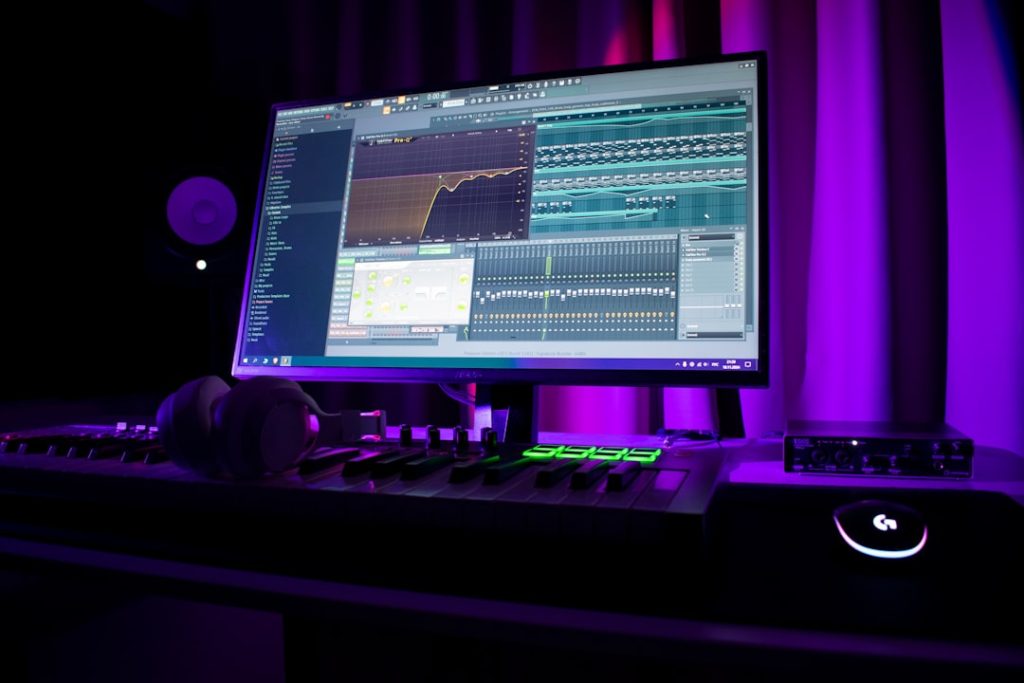
Sampling one-shots in FL Studio is one of the fastest ways to make your beats hit harder. It is simple. It is fun. And you do not need to be a music theory expert to start. With just a few clicks, you can turn a single sound into a powerful melody, bassline, or drum pattern.
TLDR: One-shots are single audio sounds like kicks, snares, or piano hits. In FL Studio, you can drag them into the Channel Rack and play them on the Piano Roll. You can adjust pitch, length, and effects to fit your track. With a few simple steps, you can turn any one-shot into a full musical idea.
What Is a One-Shot?
A one-shot is a single audio sound. It plays once when triggered. That is it.
Common examples:
- Kick drum
- Snare
- Clap
- 808 bass hit
- Piano note
- Vocal stab
Unlike loops, one-shots do not repeat on their own. You control when and how they play. That makes them perfect for custom drum patterns and melodies.
Why Use One-Shots?
One-shots give you full control.
- You choose the rhythm.
- You choose the pitch.
- You choose the effects.
- You shape the vibe.
They are lightweight. Easy to organize. And perfect for beginners.
Step 1: Import a One-Shot into FL Studio
Let us start simple.
- Open FL Studio.
- Locate the Browser panel on the left.
- Find your sample folder.
- Drag the one-shot into the Channel Rack.
That is it. Seriously.
FL Studio will automatically load it into the Sampler.

Now click the sound in the Channel Rack. The Sampler settings window will open.
Step 2: Play the One-Shot in the Piano Roll
This is where the magic starts.
- Right-click the one-shot in the Channel Rack.
- Select Piano Roll.
You will see a grid. Each row is a note. Each column is time.
To use it like an instrument:
- Click to place a note.
- Drag the end to change length.
- Move it up or down to change pitch.
If your one-shot is tonal, like a piano or 808, you can now play melodies.
If it is a drum, like a kick, the pitch change will slightly alter its tone. That can be creative too.
Step 3: Tune Your One-Shot Properly
Important tip. Especially for 808s.
If your sample is out of key, your beat will sound off.
To tune it:
- Open the Sampler settings.
- Go to the Misc tab.
- Adjust the Root note.
You can also:
- Right-click the keyboard at the bottom.
- Select the correct root note.
Now when you play C in the Piano Roll, it will actually be C.
This step is small. But powerful.
Step 4: Adjust the Envelope (Shape the Sound)
Sometimes your one-shot is too long. Or too short.
That is where the Envelope settings come in.
In the Sampler window:
- Click the Envelope icon.
- Enable Volume envelope.
You will see controls like:
- Attack
- Decay
- Sustain
- Release
What they do:
- Attack – How fast the sound starts.
- Decay – How fast it drops after the hit.
- Sustain – How long it holds.
- Release – How long it fades out.
For 808s, increase the release slightly. For plucky sounds, lower the sustain.
This step makes your track feel polished.

Step 5: Use Cut Itself for Cleaner Drums
Ever notice your kicks overlap and sound messy?
Here is the fix.
- Open Sampler settings.
- Go to the Misc tab.
- Enable Cut itself.
Now each new note stops the previous one.
This works great for:
- 808s
- Open hats
- Bass one-shots
Simple. Clean. Professional.
Step 6: Add Effects
One-shots can sound basic on their own. Effects bring them to life.
To add effects:
- Select the one-shot channel.
- Assign it to a Mixer track.
- Open the Mixer.
- Add effects like reverb, EQ, or distortion.
Great beginner effects:
- EQ – Clean up frequencies.
- Reverb – Add space.
- Delay – Create bounce.
- Soft Clipper – Add punch.
Small changes make a big difference.
Different Ways to Sample One-Shots in FL Studio
FL Studio gives you multiple tools to work with one-shots.
Here are the three main ones:
| Tool | Best For | Difficulty | Why Use It |
|---|---|---|---|
| Channel Sampler | Melodies, 808s, basic drums | Easy | Fast and beginner friendly |
| FPC | Finger drumming | Medium | Pad style drum setup |
| Slicex | Chopping samples | Medium to Advanced | Automatic slicing and rearranging |
Channel Sampler
This is the default method. It loads automatically. Perfect for beginners.
FPC
FPC works like a drum machine.
- Load FPC.
- Drag one-shots onto pads.
- Play them using your MIDI keyboard.
Great for boom bap or live drum vibes.
Slicex
Slicex is powerful. It chops audio into pieces automatically.
Even though it is often used for loops, you can load multiple one-shots and trigger them creatively.

Creative Ideas for Using One-Shots
Now let us get creative.
1. Layer Your Sounds
Combine:
- Two kicks
- Clap + snare
- 808 + bass stab
Layering creates thicker sounds.
2. Reverse Them
In the Sampler settings, click Reverse.
Now your sound plays backward.
Great for transitions.
3. Stretch Them
Adjust the Time stretching knob.
You can create ambient textures from short sounds.
4. Pitch Automation
Right-click the pitch knob.
Create an Automation Clip.
Now your 808 can slide and bend like a pro track.
Common Beginner Mistakes
Let us avoid frustration.
- Not tuning 808s – Always check the root note.
- Too much reverb – It makes the mix muddy.
- Clipping – Lower your volumes.
- Overlapping bass – Use Cut itself.
Keep it clean. Keep it simple.
Quick Practice Routine
Try this today:
- Load a kick, snare, and hi-hat one-shot.
- Create a basic drum pattern.
- Add an 808 one-shot.
- Tune it correctly.
- Create a simple 4-note melody with a piano one-shot.
- Add light reverb and EQ.
In 20 minutes, you will have a beat.
That is the power of one-shots.
Final Thoughts
Sampling one-shots in FL Studio is not hard. It just looks technical at first.
Remember the core steps:
- Drag the sample into the Channel Rack.
- Open the Piano Roll.
- Tune the root note.
- Shape with the envelope.
- Add effects.
That is your foundation.
From there, experiment. Layer sounds. Reverse them. Automate pitch. Make mistakes. That is how you improve.
Start simple. Stay consistent. And most importantly, have fun.
Your next fire beat might just start with one small sound.