
When a MacBook Pro or MacBook Air starts behaving strangely, the cause is not always an app, macOS bug, or aging battery. Sometimes the issue sits deeper, in the low-level hardware management layer that controls power, charging, fans, sleep, keyboard lighting, and other physical functions. On Intel-based Macs, that layer is called the System Management Controller, or SMC. Resetting it can be a quick and safe troubleshooting step when your Mac seems confused about power or hardware behavior.
TLDR: If you have an Intel MacBook Pro or MacBook Air, resetting the SMC can fix problems with charging, fans, sleep, battery readings, keyboard backlight, and power behavior. The exact reset method depends on whether your Mac has the Apple T2 Security Chip, a non-removable battery, or an older removable battery. If you have an Apple silicon Mac with an M1, M2, M3, or newer chip, there is no manual SMC reset; shutting down and restarting the Mac performs the equivalent low-level reset automatically.
What Is the SMC on a MacBook?
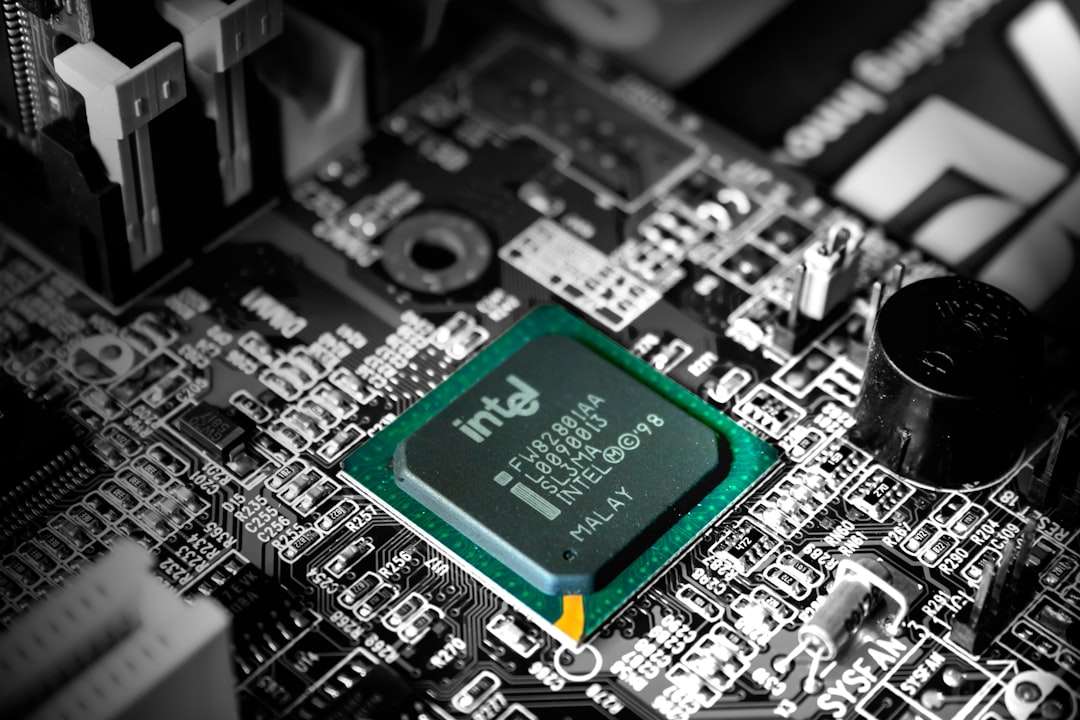
The System Management Controller is a small subsystem inside Intel-based Mac computers. It manages several hardware-level functions that continue working even when macOS itself is not fully in control. Think of it as a quiet traffic controller for your Mac’s physical behavior.
The SMC is responsible for things such as:
- Battery charging and power management
- Thermal management, including fan behavior
- Sleep, wake, and lid response
- Keyboard backlighting
- Battery status lights on older models
- Power button response
- Trackpad and ambient light sensor behavior in some situations
When the SMC gets into an odd state, your Mac may still turn on and run macOS, but certain hardware features might act unreliable or inconsistent. Resetting the SMC does not erase files, remove apps, change passwords, or reinstall macOS. It simply refreshes the controller’s settings.
When Should You Reset the SMC?
An SMC reset is not something you need to do regularly. It is a troubleshooting step, not routine maintenance. However, it can be very useful when you notice symptoms that seem related to power, charging, heat, sleep, or hardware controls.
You may want to reset the SMC if your Intel MacBook Pro or MacBook Air shows any of these signs:
- The Mac does not respond when you press the power button.
- The battery does not charge properly, even with a known good charger.
- The MagSafe or USB C charging indicator behaves oddly.
- The fans run at high speed even when the Mac is not under heavy load.
- The Mac sleeps or wakes unexpectedly.
- The keyboard backlight does not work correctly.
- The battery percentage appears inaccurate or stuck.
- The MacBook runs unusually hot under light usage.
- The lid-open wake feature stops working.
- External displays or USB C power behavior feels inconsistent.
Before resetting the SMC, it is smart to try the basics first: restart your Mac, update macOS if an update is available, unplug unnecessary accessories, and test with a different charger or cable if charging is the problem. If the issue continues, an SMC reset is a logical next step.
Do M1, M2, M3, and Newer MacBooks Have an SMC?
This is where many people get confused. Apple silicon MacBooks, including models with M1, M2, M3, and newer M-series chips, do not have a separate SMC in the same way Intel Macs do. The power and hardware management functions are integrated into Apple silicon architecture.
That means there is no special SMC reset key combination for M-series MacBook Pro or MacBook Air models. If you see instructions telling you to hold Shift, Control, Option, and the power button on an M1 or M2 Mac, those instructions are for Intel Macs and do not apply.
For Apple silicon MacBooks, the equivalent action is simple:
- Click the Apple menu in the top-left corner.
- Choose Shut Down.
- Wait about 30 seconds after the screen goes completely black.
- Press the power button or Touch ID button to turn the Mac back on.
This shutdown and restart process refreshes the low-level hardware management system. If the Mac is frozen, press and hold the power button until it turns off, wait a few seconds, and then turn it on again.
How to Identify Whether Your MacBook Is Intel or Apple Silicon
Before following any reset steps, confirm which type of Mac you have. This only takes a moment.
- Click the Apple menu.
- Select About This Mac.
- Look for either Chip or Processor.
If you see Chip: Apple M1, M2, M3, or similar, you have an Apple silicon Mac. Use the shutdown method described above.
If you see Processor: Intel, you have an Intel MacBook. Continue with the appropriate SMC reset steps below.
Reset SMC on Intel MacBook Pro or Air with the T2 Security Chip
Many Intel MacBooks released from 2018 onward include Apple’s T2 Security Chip. These models use a slightly different SMC reset method.
Common MacBooks with the T2 chip include:
- MacBook Air models from 2018 to 2020 with Intel processors
- MacBook Pro models from 2018 to 2020 with Intel processors
To reset the SMC on an Intel MacBook with the T2 chip:
- Shut down your Mac completely.
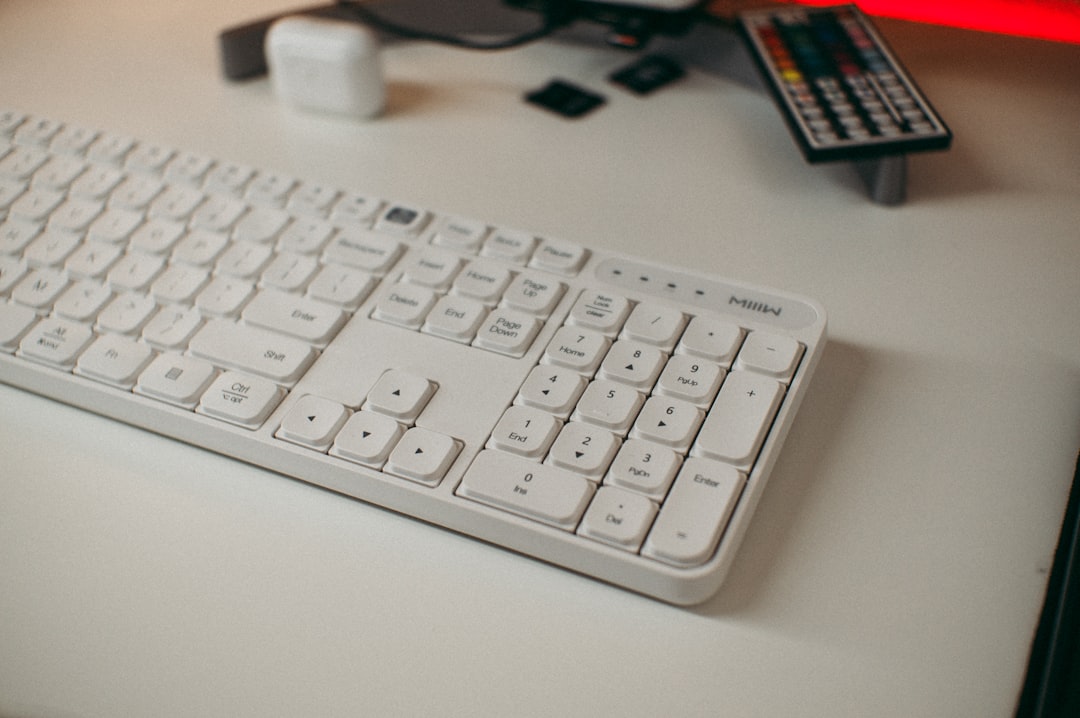
- Press and hold the Control key on the left side of the keyboard.
- Press and hold the Option key on the left side of the keyboard.
- Press and hold the Shift key on the right side of the keyboard.
- Keep holding all three keys for 7 seconds.
- Without releasing those keys, press and hold the power button as well.
- Hold all four keys for another 7 seconds.
- Release all keys.
- Wait a few seconds, then press the power button to turn on your Mac.
Your Mac may appear to do nothing during the process. That is normal. If it turns on briefly and then shuts off again, that can also be normal during the reset sequence.
Alternative T2 Power Reset Step
Apple also recommends a simpler first step for some T2-related power issues:
- Shut down your Mac.
- Press and hold the power button for 10 seconds.
- Release the button.
- Wait a few seconds.
- Press the power button again to turn on the Mac.
If that does not solve the problem, use the full key combination method above.
Reset SMC on Intel MacBook Pro or Air Without the T2 Chip
Older Intel MacBook Pro and MacBook Air models without the T2 chip use a different shortcut. Most of these have built-in, non-removable batteries.
To reset the SMC on an Intel MacBook with a non-removable battery:
- Shut down your Mac.
- Connect the power adapter if it is not already connected.
- On the built-in keyboard, press and hold Shift, Control, and Option on the left side.
- While holding those keys, press and hold the power button.
- Keep holding all keys and the power button for 10 seconds.
- Release everything at the same time.
- Press the power button again to turn on your Mac.
This applies to many Intel MacBook Air and MacBook Pro models released before the T2 generation. If your Mac has a Touch ID button but is still Intel, check carefully whether it has the T2 chip, because the reset method may differ.
Reset SMC on Older MacBooks with Removable Batteries
Some older MacBook and MacBook Pro models have removable batteries. These are much less common today, but if you are troubleshooting an older machine, the process is different.
- Shut down the Mac.
- Disconnect the power adapter.
- Remove the battery.
- Press and hold the power button for 5 seconds.
- Reinstall the battery.
- Reconnect the power adapter.
- Press the power button to turn on the Mac.
If you are not sure whether your battery is removable, do not force anything open. Modern MacBook batteries are internal and should not be removed by users.
How to Tell If the SMC Reset Worked
There is usually no message saying, “SMC reset successful.” Instead, you judge by behavior. After the reset, check whether the original problem has improved.
For example:
- If the fan was constantly loud, listen for normal fan behavior after startup.
- If charging was unreliable, check whether the battery now charges steadily.
- If the keyboard backlight was stuck, test brightness controls.
- If the Mac would not sleep properly, close the lid and reopen it.
- If battery percentage was odd, allow the Mac to charge and discharge normally for a while.
Do not worry if your Mac takes slightly longer to start immediately after the reset. That can happen, especially if power management settings are refreshing.
SMC Reset vs NVRAM Reset: What Is the Difference?
SMC and NVRAM resets are often mentioned together, but they solve different kinds of problems.
SMC reset targets hardware management issues: power, battery, fans, thermal behavior, sleep, and charging.
NVRAM reset targets stored system settings such as startup disk selection, sound volume, screen resolution, time zone, and certain kernel panic information.
On Intel Macs, you can reset NVRAM by restarting and holding Option + Command + P + R for about 20 seconds. On Apple silicon Macs, NVRAM is handled automatically and does not use the same manual reset process.
If your Mac has power or charging symptoms, try the SMC reset first. If your Mac has display resolution, sound, or startup disk weirdness, NVRAM may be more relevant.
What If Resetting the SMC Does Not Fix the Problem?
An SMC reset is helpful, but it is not magic. If the issue continues, the cause may be a failing battery, damaged USB C port, bad charger, outdated macOS version, software conflict, overheating due to dust, or a hardware fault.
Try these next steps:
- Test another charger and cable, preferably an Apple-certified one.
- Update macOS to the latest version available for your Mac.
- Check Battery Health in System Settings or System Information.
- Disconnect accessories such as hubs, docks, drives, and external displays.
- Run Apple Diagnostics by restarting and holding the appropriate startup key for your Mac model.
- Check for heat or swelling; if the trackpad lifts or the case bulges, stop using the Mac and seek service.
For Apple silicon Macs, persistent low-level problems may require a normal macOS update, a safe mode test, or in rare cases a firmware revive or restore using another Mac. That is more advanced than an SMC reset and is usually only needed when the Mac will not start correctly.
Final Thoughts
Resetting the SMC is one of the most useful troubleshooting steps for Intel MacBook Pro and MacBook Air models because it targets the hidden systems that control power, charging, fans, and sleep. The key is choosing the right method for your model: T2 Intel MacBooks use the newer Control, Option, right Shift, and power sequence; older Intel MacBooks use the left Shift, Control, Option, and power shortcut; and M-series MacBooks simply need a full shutdown and restart.
If your MacBook is acting unusually hot, refusing to charge, waking at random, or running its fans constantly, an SMC reset is a safe and sensible place to start. It takes less than a minute, does not delete your data, and often restores the calm, predictable behavior you expect from a Mac.