


Your PC is acting strange: pop-ups keep appearing, the browser opens unfamiliar pages, files seem to move on their own, or the computer suddenly runs like it is dragging a heavy suitcase uphill. These are classic signs that a virus or other malware may have found its way onto your system. The good news is that you can remove many infections safely if you follow a careful, methodical process instead of clicking random “fix now” buttons or deleting files you do not recognize.
TLDR: If you suspect malware, disconnect from the internet, stop using sensitive accounts, and scan your PC with trusted security tools. Back up important files carefully, run scans in Safe Mode if needed, remove suspicious programs and browser extensions, then update everything before reconnecting. If the infection persists, consider using a rescue disk, restoring from a clean backup, or seeking professional help.
Recognize the Warning Signs
Malware does not always announce itself with a flashing warning. Sometimes it works quietly in the background, stealing data, recording keystrokes, displaying ads, or turning your PC into part of a botnet. Still, there are common symptoms worth taking seriously.
- Sudden slowdowns: Your computer becomes unusually sluggish, even when few programs are open.
- Unexpected pop-ups: Ads, fake alerts, or “your PC is infected” messages appear repeatedly.
- Browser hijacking: Your homepage, search engine, or new tab page changes without permission.
- Unknown apps: Programs appear that you do not remember installing.
- Disabled security tools: Antivirus software turns off or refuses to update.
- Unusual network activity: The fan runs constantly, or your data usage spikes for no obvious reason.
- Locked or renamed files: Files become inaccessible, which may indicate ransomware.
One symptom alone does not guarantee an infection, but several together should prompt immediate action.

Step 1: Disconnect from the Internet
The first safe move is simple: disconnect your PC from the internet. Unplug the Ethernet cable, turn off Wi-Fi, or enable airplane mode. This can prevent malware from sending stolen data, downloading additional malicious components, or communicating with a remote attacker.
If you are on a shared home or office network, disconnecting also helps protect other devices. Some malware spreads across local networks by targeting weak passwords, outdated software, or shared folders.
Step 2: Do Not Log In to Sensitive Accounts
Until you know your PC is clean, avoid logging in to email, banking, shopping, cloud storage, cryptocurrency wallets, work accounts, or password managers. If the malware includes a keylogger or screen capture tool, anything you type may be exposed.
If you already entered sensitive passwords while the PC was acting suspiciously, change those passwords later from a different, trusted device, such as a clean phone or another computer. Prioritize your email account first, because it is often used to reset passwords for other services.
Step 3: Back Up Important Files Carefully
Before attempting deeper cleanup, consider backing up important personal files such as documents, family photos, spreadsheets, school projects, and business records. However, do this carefully. You do not want to copy malware to an external drive and later reinfect your system.
Use an external drive or cloud storage, but avoid backing up programs, installers, cracked software, unknown scripts, or suspicious files. Focus on personal data. If you suspect ransomware, do not overwrite your existing backups. Instead, use a separate drive so you preserve older, clean copies.
Tip: If a file looks suspicious, leave it alone until after you scan it with reliable security software.
Step 4: Start with a Trusted Antivirus Scan
Use a reputable antivirus or anti-malware tool. Windows includes Microsoft Defender, which is much stronger than many people realize and is a good first option. You can also use a reputable second-opinion scanner from a well-known security company, especially if the infection appears stubborn.
Run a full scan, not just a quick scan. A quick scan checks common hiding places, while a full scan examines far more of your system. It takes longer, but it is worth it when you suspect a real infection.
- Open your security software.
- Update the malware definitions if possible.
- Choose Full Scan or Offline Scan if available.
- Let the scan finish completely.
- Quarantine or remove detected threats.
- Restart the PC if prompted.
If your antivirus refuses to open, disappears, or crashes repeatedly, that may be a sign the malware is actively interfering with security tools. In that case, move on to Safe Mode or an offline rescue scan.
Step 5: Boot into Safe Mode
Safe Mode starts Windows with a minimal set of drivers and services. Many malware components depend on normal startup processes, so they may be less active in Safe Mode. This makes removal easier.
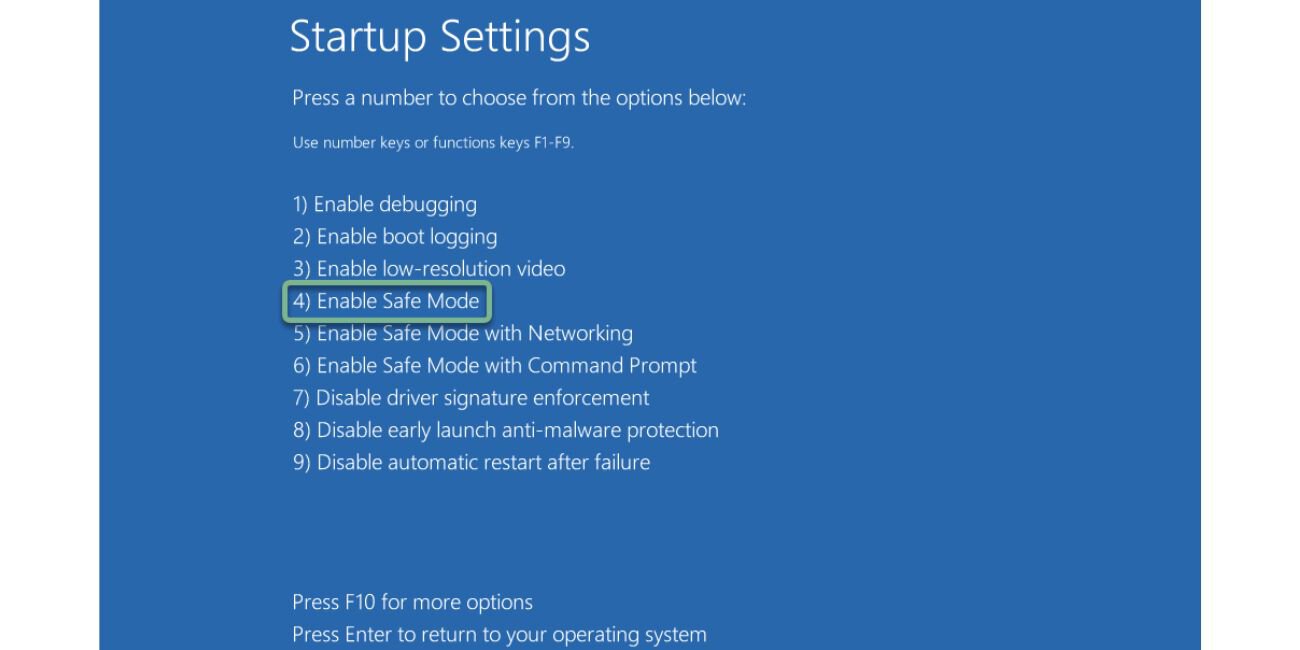
To enter Safe Mode on Windows 10 or Windows 11, hold Shift while selecting Restart from the Start menu. Then go to Troubleshoot, Advanced options, Startup Settings, and choose Restart. When the list appears, select Safe Mode or Safe Mode with Networking.
Use Safe Mode with Networking only if you need internet access to update or download a trusted scanner. Otherwise, regular Safe Mode is safer.

Step 6: Remove Suspicious Programs
Some malware arrives bundled with unwanted software. Adware, fake cleaners, browser toolbars, and “driver updater” utilities can cause constant pop-ups and redirects. Open your installed apps list and look for anything unfamiliar, especially programs installed around the date the problems began.
In Windows, go to Settings, then Apps, and review the installed applications. Sort by installation date if possible. Remove programs that are clearly suspicious, but be careful not to uninstall important system drivers or legitimate software you use.
Warning signs include:
- Names that imitate well-known brands but look slightly wrong.
- Programs with vague names such as “PC Booster,” “Search Manager,” or “System Optimizer.”
- Software you never intentionally installed.
- Apps that generate scary warnings and demand payment to “fix” your computer.
After uninstalling suspicious programs, restart your PC and run another malware scan.
Step 7: Clean Your Browser
Browsers are frequent malware targets because they hold search settings, saved passwords, cookies, and extensions. A malicious extension can redirect searches, inject ads, track browsing, or steal information.
Open each browser you use and check the extensions or add-ons page. Remove anything you do not recognize or no longer need. Then review your homepage, default search engine, and startup pages. If they keep changing back after you fix them, malware may still be active elsewhere on the system.
You can also reset the browser to its default settings. This usually disables extensions, clears temporary settings, and removes unwanted search changes without deleting all personal data. Still, read the reset options carefully before confirming.
Step 8: Check Startup Items and Scheduled Tasks
Malware often tries to survive reboots by adding itself to startup locations. In Windows, open Task Manager and check the Startup apps tab. Disable items that look suspicious or unnecessary. If you are not sure what an item is, search its name from a clean device before deleting anything.
Advanced users can also inspect Task Scheduler, where malware sometimes creates tasks that run at login or at regular intervals. Look for tasks with strange names, unknown publishers, or commands that launch files from temporary folders.
Do not randomly delete system entries. The goal is to identify obvious unwanted persistence mechanisms, not to dismantle Windows.
Step 9: Use an Offline or Rescue Scanner for Stubborn Infections
Some malware hides while Windows is running. Rootkits and advanced threats may hook into system processes, making them difficult to detect from inside the infected operating system. In these cases, an offline scan can help.
Microsoft Defender Offline, for example, restarts your PC and scans before Windows fully loads. Some security companies also offer rescue media that you can place on a USB drive and boot from. This approach allows the scanner to inspect the hard drive while the malware is inactive.
Only download rescue tools from official, trusted websites. If possible, create the rescue USB on a clean computer, not the infected one.
Step 10: Update Windows and Your Software
Once threats are removed, update your system. Malware often enters through outdated software, unpatched browsers, old document readers, vulnerable drivers, or unsafe plugins. Installing updates closes known security holes and reduces the chance of reinfection.
- Run Windows Update until no important updates remain.
- Update browsers such as Chrome, Edge, Firefox, or Brave.
- Update productivity apps, PDF readers, messaging tools, and media players.
- Remove software you no longer use.
- Check that real-time antivirus protection is turned on.
Also make sure your firewall is enabled. The Windows firewall is suitable for most users and helps block unwanted inbound connections.


Step 11: Change Passwords from a Clean Device
After your PC appears clean, change important passwords from a separate trusted device. Start with email, banking, work accounts, cloud storage, and password manager accounts. Use unique passwords for each service, because reusing one password across multiple sites makes a single breach much more dangerous.
Enable multi-factor authentication wherever possible. Even if a password is stolen, multi-factor authentication can stop attackers from logging in without the second verification step.
If you stored passwords in your browser and suspect a serious infection, consider changing all saved passwords. This is inconvenient, but it is safer than assuming they were not exposed.
Step 12: Know When to Reset or Reinstall Windows
Sometimes removal is not enough. If the PC still behaves strangely after multiple scans, if system files are damaged, or if you experienced ransomware, a reset or clean Windows installation may be the safest path.
A Windows reset can reinstall the operating system while giving you the option to keep personal files, although you should still back up important data first. A clean installation is more thorough because it wipes the system drive and starts fresh. This is often the best choice after a severe compromise.
Before reinstalling, gather license keys, installer files from official sources, and backups of personal data. After reinstalling, update Windows immediately, install trusted security software, and restore only clean files.
How to Avoid Getting Infected Again
Removing malware is satisfying, but prevention is easier. Most infections rely on rushed clicks, outdated software, deceptive downloads, or weak security habits. A few practical changes can dramatically lower your risk.
- Download software only from official sources. Avoid cracked programs, unofficial installers, and “free” versions of paid tools.
- Be skeptical of email attachments. Even messages that appear to come from friends, delivery companies, or banks can be fake.
- Keep backups. Use both cloud and offline backups if you can, especially for irreplaceable files.
- Use a standard user account. Avoid using an administrator account for everyday browsing and email.
- Pause before clicking alerts. Fake antivirus pop-ups often use fear to make you install more malware.
- Keep macros disabled. Malicious Office documents often rely on macros to run harmful code.
- Use strong, unique passwords. A password manager can help you create and store them safely.
Final Thoughts
Malware removal is not about panic; it is about control. Disconnect, protect your accounts, scan with trusted tools, clean up suspicious apps and browser extensions, update everything, and verify that the system behaves normally. If the infection is deeply embedded or you cannot trust the PC, wiping and reinstalling Windows may save time and provide greater peace of mind.
Above all, treat security as an ongoing habit rather than a one-time repair. A cautious click, a current backup, and regular updates can be the difference between a minor annoyance and a major digital disaster.