
Few things are more frustrating than gearing up to watch or broadcast your favorite content—only to be stopped by the dreaded “Stream Failed to Start” Error 2012. Whether you’re a gamer trying to go live, a viewer attempting to access a stream, or a content creator hosting an event, this error can feel like a brick wall. The good news? In most cases, Error 2012 is entirely fixable with a few practical troubleshooting steps.
TL;DR: “Stream Failed to Start” Error 2012 usually happens due to network instability, incorrect stream settings, firewall restrictions, or outdated software. Begin by checking your internet connection and restarting your router. Then verify your streaming settings, update your app, and ensure your firewall or antivirus isn’t blocking the stream. Most users resolve the issue within minutes by following these basic steps.
What Is “Stream Failed to Start” Error 2012?
Error 2012 is a connection-related streaming error that typically appears when a streaming application cannot establish or maintain communication with its server. This could apply to platforms like Twitch, YouTube Live, Facebook Live, OBS, Streamlabs, or other broadcasting tools.
In simple terms, your device is saying: “I can’t talk to the streaming server properly.”
This communication failure can be caused by:
- Weak or unstable internet connection
- Incorrect stream key or server URL
- Outdated streaming software
- Firewall or antivirus interference
- Platform-side server issues
Understanding the root cause is the key to fixing it quickly.
Step 1: Check Your Internet Connection
The most common culprit behind Error 2012 is unstable internet. Streaming requires consistent upload speed and low latency.
What to Do:
- Run a speed test (Google “internet speed test”).
- Ensure your upload speed meets the platform’s requirements (at least 5 Mbps for 720p streaming).
- Restart your modem and router.
- Switch from Wi-Fi to a wired Ethernet connection if possible.
Pro Tip: Even if download speeds look good, low upload speed is what usually causes streaming failures.
Step 2: Restart Your Streaming Software
Temporary software glitches can interrupt server communication.
Fix:
- Close your streaming software completely.
- Wait 10–15 seconds.
- Reopen the application.
- Try starting the stream again.
If the program froze during a previous attempt, you may also need to open Task Manager (Windows) or Force Quit (Mac) to fully stop it.
Step 3: Verify Your Stream Key and Server Settings
A very common cause of Error 2012 is an incorrect stream key or wrong server selection.
How to Check:
- Log in to your streaming platform (Twitch, YouTube, etc.).
- Navigate to Stream Settings.
- Copy the stream key again.
- Paste it carefully into your streaming software.
- Make sure the correct server region is selected.
Important: Even one misplaced character in your stream key can prevent the stream from starting.
Step 4: Update Your Streaming Software
Outdated applications often have compatibility issues with updated platform APIs.
To Update:
- Check for updates inside OBS or Streamlabs.
- Visit the official website and download the latest version.
- Install updates and restart your system.
Updates frequently fix server communication bugs that may trigger Error 2012.
Step 5: Disable Firewall or Antivirus Temporarily
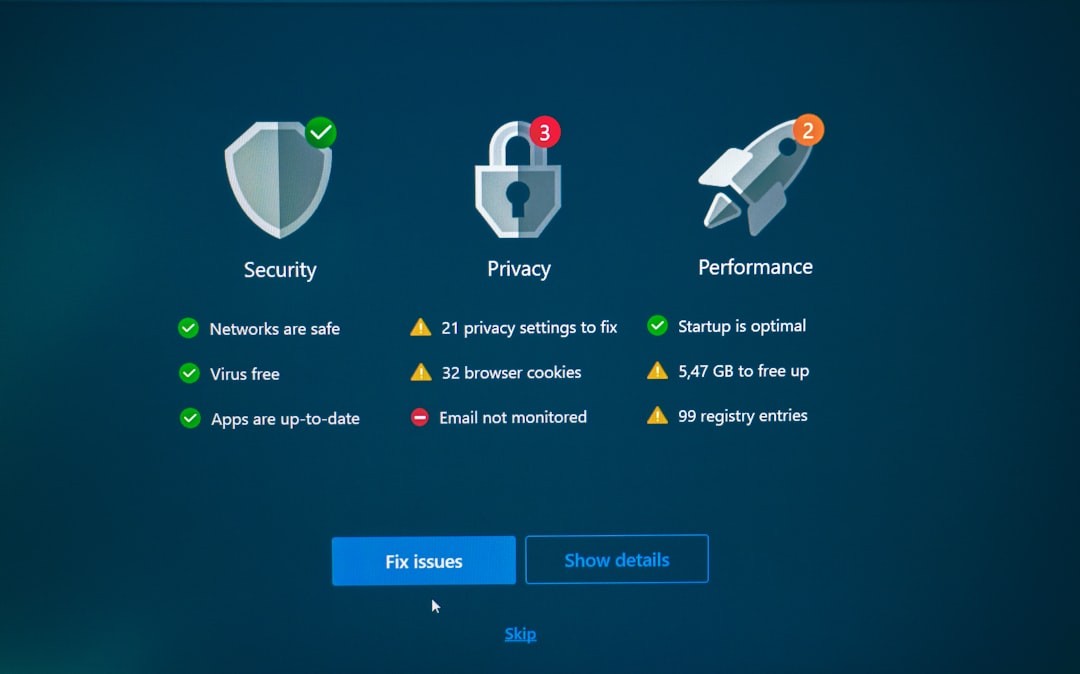
Your firewall might be blocking streaming software from sending data to external servers.
Troubleshooting Steps:
- Temporarily disable firewall protection.
- Attempt to start your stream again.
- If it works, add the streaming application to the allowed apps list.
Note: Never leave your firewall permanently disabled. Instead, create an exception for your streaming software.
Step 6: Lower Your Bitrate
If your bitrate is set too high for your internet capacity, the stream cannot initiate properly.
How to Adjust Bitrate (OBS Example):
- Go to Settings → Output.
- Reduce bitrate by 500–1000 kbps.
- Click Apply.
- Restart the stream.
Lower resolution and bitrate = more stable connection.
If you are streaming in 1080p but only have 5 Mbps upload, consider switching to 720p.
Step 7: Check Platform Server Status
Sometimes, the issue isn’t on your end.
Streaming platforms occasionally experience:
- Server outages
- Maintenance periods
- Regional disruptions
Visit:
- Twitch Status page
- YouTube Live Dashboard
- Downdetector.com
If servers are down, all you can do is wait.
Step 8: Clear Cache or Reinstall the App
Corrupted application data can interfere with streaming initialization.
Fix Option 1: Clear Cache
- Locate app settings folder.
- Delete cache or temp files.
Fix Option 2: Reinstall
- Uninstall the software completely.
- Restart your computer.
- Install the latest version.
This often resolves persistent Error 2012 issues.
Step 9: Check OBS Auto-Configuration Tool
If you’re using OBS, there’s a built-in helper.
To Use It:
- Open OBS.
- Go to Tools.
- Select Auto-Configuration Wizard.
- Choose “Optimize for streaming.”
This automatically adjusts resolution, frame rate, and bitrate for your system capabilities.
Advanced Fixes (If Nothing Else Works)
1. Flush DNS
Network misrouting can sometimes block streaming traffic.
- Open Command Prompt (Windows).
- Type:
ipconfig /flushdns - Press Enter.
2. Change DNS Server
Switch to Google DNS:
- Primary: 8.8.8.8
- Secondary: 8.8.4.4
This often improves routing stability.
3. Disable VPN
VPNs can conflict with streaming server connections. Turn it off temporarily and test.
Why Error 2012 Happens So Often
Streaming involves real-time data upload. Unlike watching videos (which buffers content ahead), live streaming must maintain constant communication—second by second. Even minor packet loss, firewall restrictions, or server mismatches can halt the start process.
That’s why Error 2012 tends to feel sudden and unpredictable.
Preventing Error 2012 in the Future
Here’s how to avoid seeing this error again:
- Use a wired connection whenever possible.
- Keep your streaming software updated.
- Regularly reboot your modem/router.
- Do a 5-minute “private test stream” before going live publicly.
- Keep bitrate within 70% of your upload capacity.
Example: If you have 10 Mbps upload, keep bitrate below 7 Mbps.
When to Contact Support
If you’ve tried everything and still get Error 2012:
- Contact your streaming platform’s support team.
- Reach out to your internet service provider.
- Check whether your IP address may be temporarily throttled.
Be ready to provide:
- Screenshots of the error
- Your streaming settings
- Your speed test results
- Time and date of the issue
Final Thoughts
Although “Stream Failed to Start” Error 2012 can seem intimidating at first glance, it’s usually a straightforward connectivity or configuration issue. By methodically checking your internet, verifying settings, updating software, and eliminating firewall conflicts, you can resolve the problem quickly and confidently.
Streaming should be exciting—not stressful. The next time Error 2012 pops up, you’ll know exactly what to do. Instead of panic, you’ll respond with a structured plan. And in most cases, you’ll be back live within minutes.
Remember: Stable internet + correct stream key + updated software = smooth streaming.