

Steam Link is a powerful feature that allows users to stream games from their PC to other devices such as TVs, smartphones, and tablets. However, like any streaming service, it is not immune to technical issues. One of the most frustrating problems users encounter is Steam Link Error 451. This error can interrupt gameplay, prevent device pairing, or block streaming entirely. Fortunately, it is usually fixable with the right troubleshooting steps.
TL;DR: Steam Link Error 451 is typically caused by network instability, firewall restrictions, outdated software, or router configuration problems. Fixing the issue often involves checking your internet connection, updating Steam and device firmware, adjusting firewall settings, and restarting network devices. In some cases, port forwarding or resetting Steam Link may be required. Following a structured troubleshooting approach usually resolves the error quickly.
What Is Steam Link Error 451?
Steam Link Error 451 generally appears when the streaming connection between the host PC and the client device fails. The error code itself is not always accompanied by a detailed explanation, making it confusing for users. In most cases, it indicates a network communication issue between devices.
Steam Link relies on a stable local network connection (or remote internet connection if using Remote Play). If something interrupts this communication—whether at the router, firewall, or software level—the connection attempt may fail and trigger Error 451.
Image not found in postmetaMain Causes of Steam Link Error 451
Understanding the root cause helps speed up the troubleshooting process. The most common causes include:
- Unstable or slow network connection
- Firewall or antivirus blocking Steam
- Outdated Steam client or firmware
- Incorrect router settings
- Corrupted Steam installation files
1. Network Instability
Steam Link requires a robust and stable internet or local network connection. If your Wi-Fi signal is weak or fluctuating, the streaming session may fail. High ping, packet loss, or bandwidth congestion can all contribute to this issue.
2. Firewall or Security Software Conflicts
Some firewall or antivirus programs may mistakenly identify Steam Link’s network activity as suspicious and block it. This prevents the client device from communicating with the host PC.
3. Outdated Software
If either the Steam client or Steam Link app is outdated, compatibility problems may arise. Updates often include bug fixes that address streaming errors.
4. Router or Port Configuration Issues
Steam uses specific ports to establish connections. If your router is blocking or mismanaging these ports, Error 451 may occur.
How to Fix Steam Link Error 451
Below are proven solutions to resolve Steam Link Error 451. It is recommended to follow them in order.
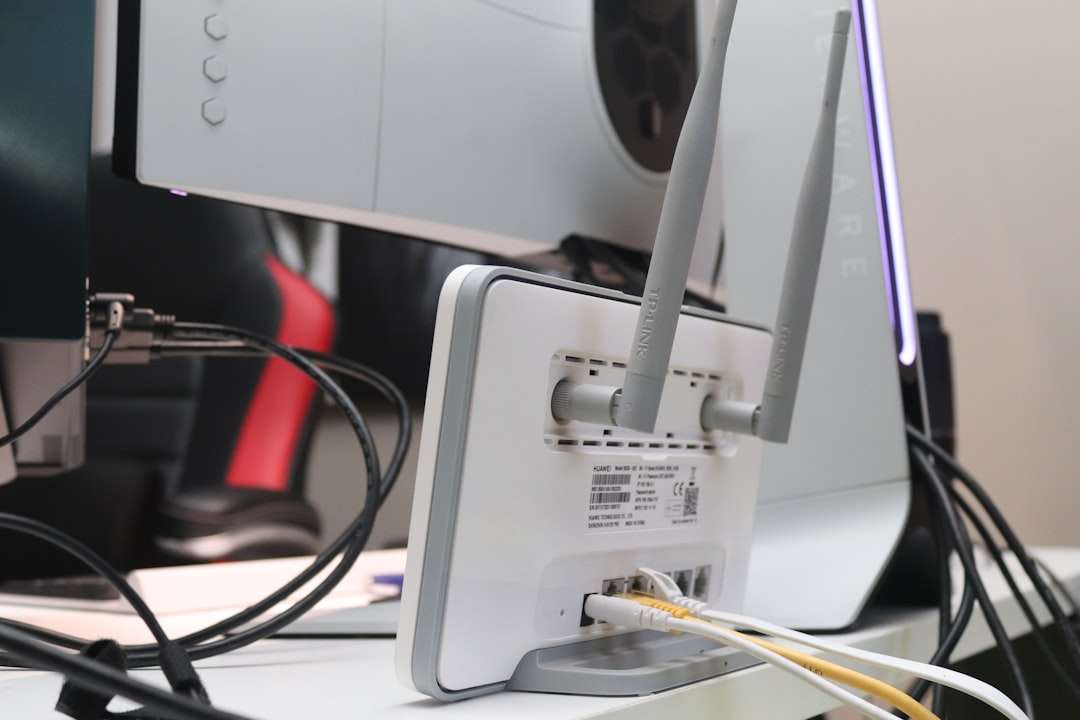
1. Check Your Network Connection
The first step is verifying your network stability:
- Restart your router and modem.
- Connect both devices to the same network.
- Use a wired Ethernet connection instead of Wi-Fi if possible.
- Run a speed test and ensure at least 15 Mbps for 1080p streaming.
Switching to a wired connection often resolves latency and packet loss issues immediately.
2. Update Steam and Steam Link
Ensure both the host PC and client device are fully updated:
- Open Steam on your PC.
- Check for client updates under the Steam menu.
- Update the Steam Link app or device firmware.
After updating, restart both devices before attempting to reconnect.
3. Disable Firewall or Add Steam Exceptions
Instead of completely disabling your firewall, it is safer to add exceptions:
- Allow Steam.exe through Windows Firewall.
- Allow Steam streaming ports (UDP 27031–27036, TCP 27036–27037).
- Whitelist Steam in your antivirus settings.
After adjusting the settings, try reconnecting to Steam Link.
4. Enable Steam Remote Play
Ensure Remote Play is enabled on your host PC:
- Open Steam.
- Go to Settings > Remote Play.
- Check Enable Remote Play.
Without this setting enabled, the connection may fail entirely.
5. Adjust Streaming Settings
Lowering streaming quality can reduce network strain. Try:
- Setting streaming quality to Balanced or Fast.
- Reducing resolution from 4K to 1080p.
- Disabling hardware encoding if compatibility issues arise.
6. Restart Devices
Sometimes the simplest solution works best. Restart:
- The gaming PC
- The Steam Link device or app
- The router and modem
This clears cached sessions and refreshes connections.
7. Reinstall Steam
If the error persists, corrupted files may be responsible:
- Back up your game files.
- Uninstall Steam.
- Download and reinstall the latest version.
- Restore your game library.
This often fixes deep-seated configuration problems.
Comparison of Troubleshooting Methods
| Fix Method | Difficulty | Effectiveness | Best For |
|---|---|---|---|
| Restart Router | Easy | High | Network instability |
| Update Software | Easy | High | Compatibility issues |
| Adjust Firewall | Medium | Very High | Blocked connections |
| Lower Streaming Quality | Easy | Moderate | Slow internet |
| Reinstall Steam | Advanced | High | Corrupted files |
Advanced Fix: Port Forwarding
If playing remotely over the internet, port forwarding may be necessary:
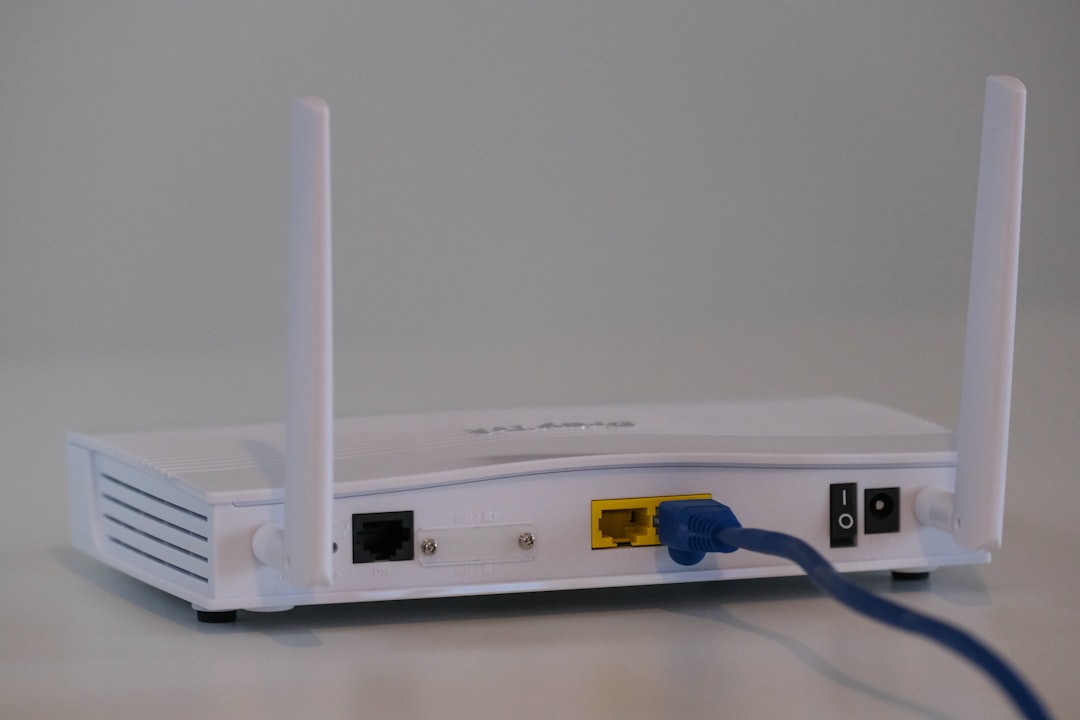
- Log into your router’s admin panel.
- Locate the Port Forwarding section.
- Forward Steam ports (UDP 27031–27036, TCP 27036–27037).
- Save and restart the router.
This ensures uninterrupted communication between devices.
Preventing Steam Link Error 451 in the Future
Prevention is always better than troubleshooting. Here are proactive measures:
- Use wired Ethernet connections when possible.
- Keep Steam and device firmware updated.
- Regularly restart your router.
- Maintain updated antivirus exceptions.
- Avoid heavy downloads during streaming sessions.
Following these steps ensures smooth and consistent gameplay streaming.
Frequently Asked Questions (FAQ)
1. What does Steam Link Error 451 mean?
It usually indicates a communication or network connection problem between the Steam host PC and the client device.
2. Is Steam Link Error 451 caused by internet speed?
Yes, slow or unstable internet can trigger the error, especially during high-resolution streaming sessions.
3. Can a firewall cause Error 451?
Yes. If Steam is blocked by firewall or antivirus software, the streaming connection may fail.
4. Does using Wi-Fi increase the chances of this error?
Yes. Wi-Fi connections are more prone to interference and packet loss compared to wired Ethernet connections.
5. Do I need to reinstall Steam to fix Error 451?
Reinstallation should be a last resort. Most cases are resolved by adjusting network settings or updating software.
6. Is port forwarding required for local streaming?
No. Port forwarding is typically only necessary for streaming over the internet, not within the same local network.
7. How can I tell if my network is the problem?
Run a speed and ping test. High latency, jitter, or packet loss indicates network instability that could cause Error 451.
By systematically identifying the cause and applying the appropriate fix, Steam Link Error 451 can be resolved quickly. With a stable network and properly configured settings, users can enjoy seamless game streaming without interruptions.