


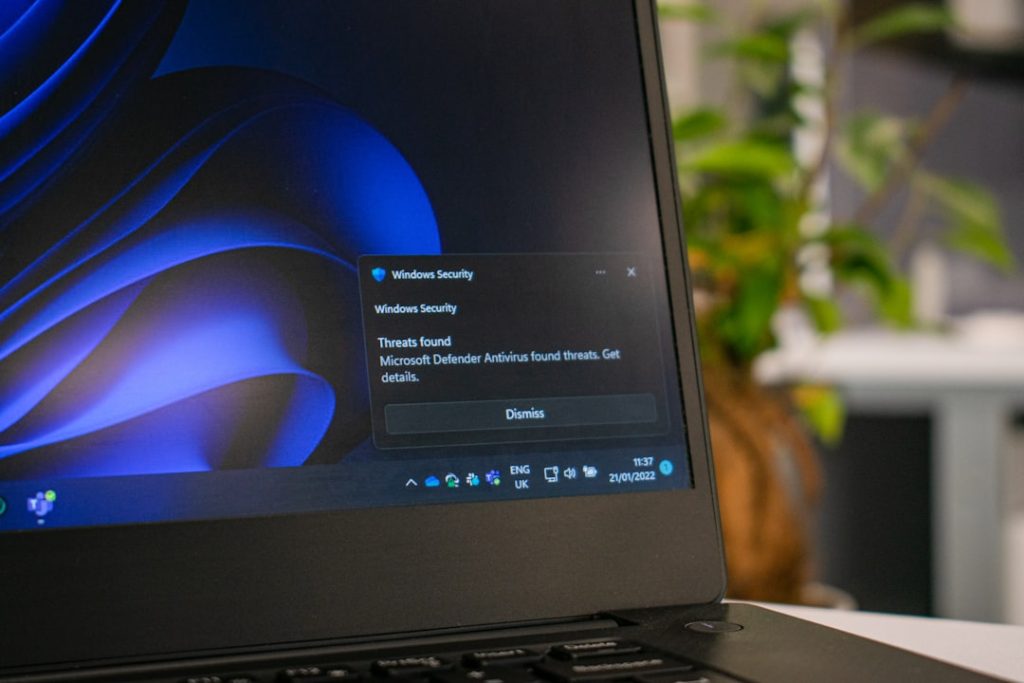
HP laptops are tough. But sometimes the screen acts weird. It may flicker. It may go black. It may show strange lines. Don’t panic. Most display issues are easy to fix. You just need a little patience and a few simple steps.
TL;DR: Most HP laptop display problems are caused by loose connections, outdated drivers, or incorrect settings. Start with simple fixes like restarting and checking brightness. Then update display drivers and check cables. If the problem continues, test the screen with an external monitor to find out if the issue is hardware-related.
Common HP Laptop Display Problems
First, let’s look at what can go wrong. Knowing the symptom helps you choose the right fix.
- Black screen but laptop is on
- Flickering screen
- Dim display
- Strange lines or colors
- Screen freezing
- Cracked or physically damaged screen
Each problem has a cause. Let’s solve them step by step.
Step 1: Restart Your Laptop
This sounds simple. But it works often.
A restart clears temporary glitches. It resets memory. It refreshes drivers.
- Click Start
- Select Power
- Click Restart
If your screen is black, hold the power button for 10 seconds. Then turn it back on.
If the problem is gone, great. If not, move on.
Step 2: Check Brightness and Display Settings
Sometimes the fix is hiding in plain sight.
Maybe the brightness is turned down. Maybe the projection mode changed.
- Press Fn + Brightness key (usually F2 or F3)
- Press Windows + P and choose “PC screen only”
This ensures your laptop isn’t trying to send the display somewhere else.
If your screen is very dim, disable battery saver mode:
- Go to Settings
- Click System
- Select Battery
Step 3: Update or Reinstall Display Drivers
Drivers tell your screen how to behave. If they are outdated, problems happen.
Here’s how to update them:
- Right-click the Start button
- Click Device Manager
- Find Display adapters
- Right-click your graphics card
- Select Update driver

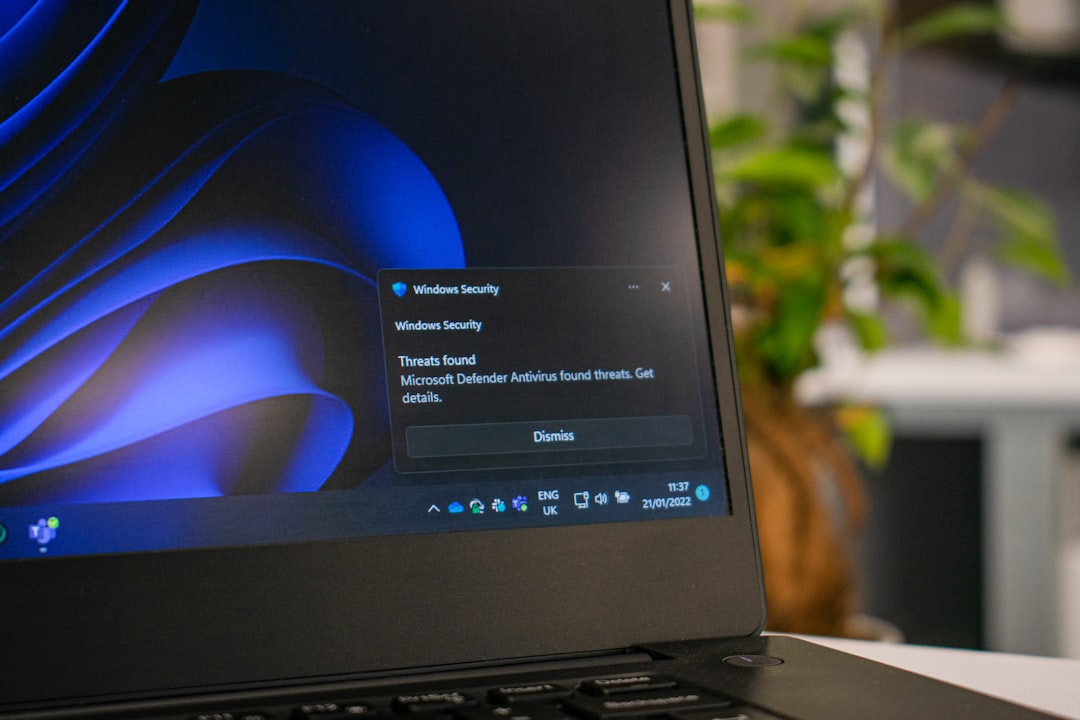
If that does not work, try uninstalling the driver and restarting. Windows will reinstall it automatically.
This often fixes flickering and strange lines.
Step 4: Check for Windows Updates
Sometimes Windows needs updating.
Go to:
- Settings
- Update & Security
- Windows Update
Click Check for updates.
Install everything. Then restart.
Small updates can fix big screen issues.
Step 5: Run HP Hardware Diagnostics
HP laptops come with a built-in test tool.
To open it:
- Turn off your laptop
- Turn it on
- Press Esc repeatedly
- Select F2 System Diagnostics
Run the display test.
If it shows errors, you may have a hardware problem.
Step 6: Test with an External Monitor
This step is very important.
It tells you whether the issue is the screen or the graphics card.
Connect your laptop to a TV or external monitor using HDMI.
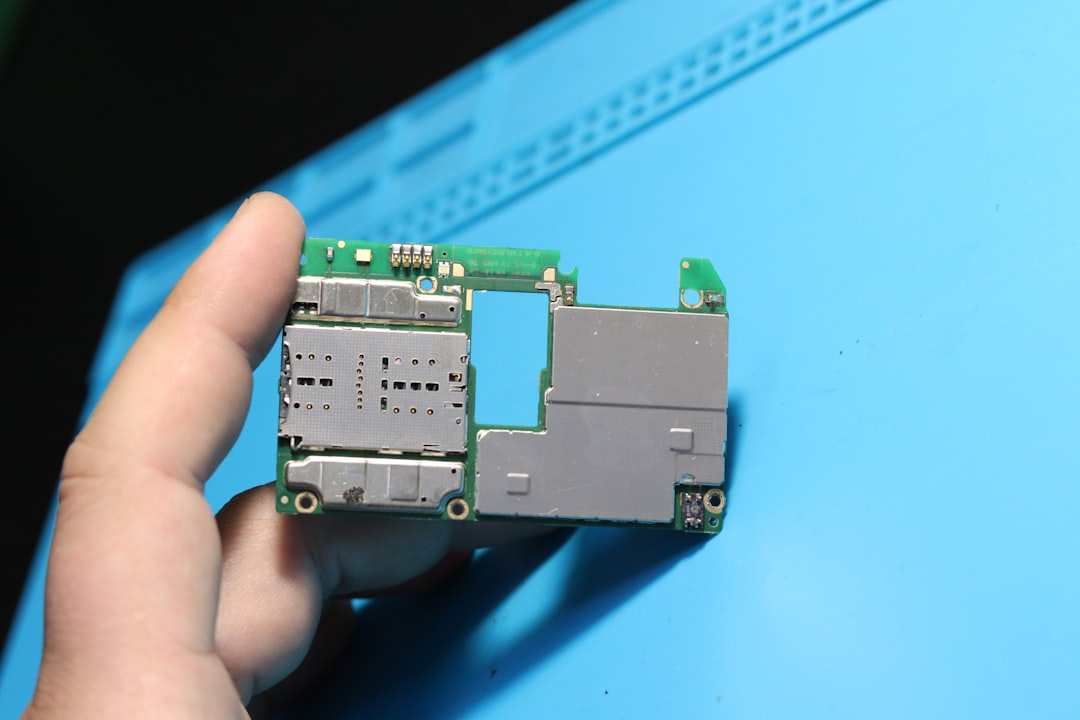
- If the external monitor works fine, your laptop screen is likely damaged.
- If the external monitor also has issues, the graphics card may be the problem.
This test saves time and money.
Step 7: Check for Loose Internal Connections
If you feel confident, you can check inside.
Warning: Only do this if your warranty is expired.
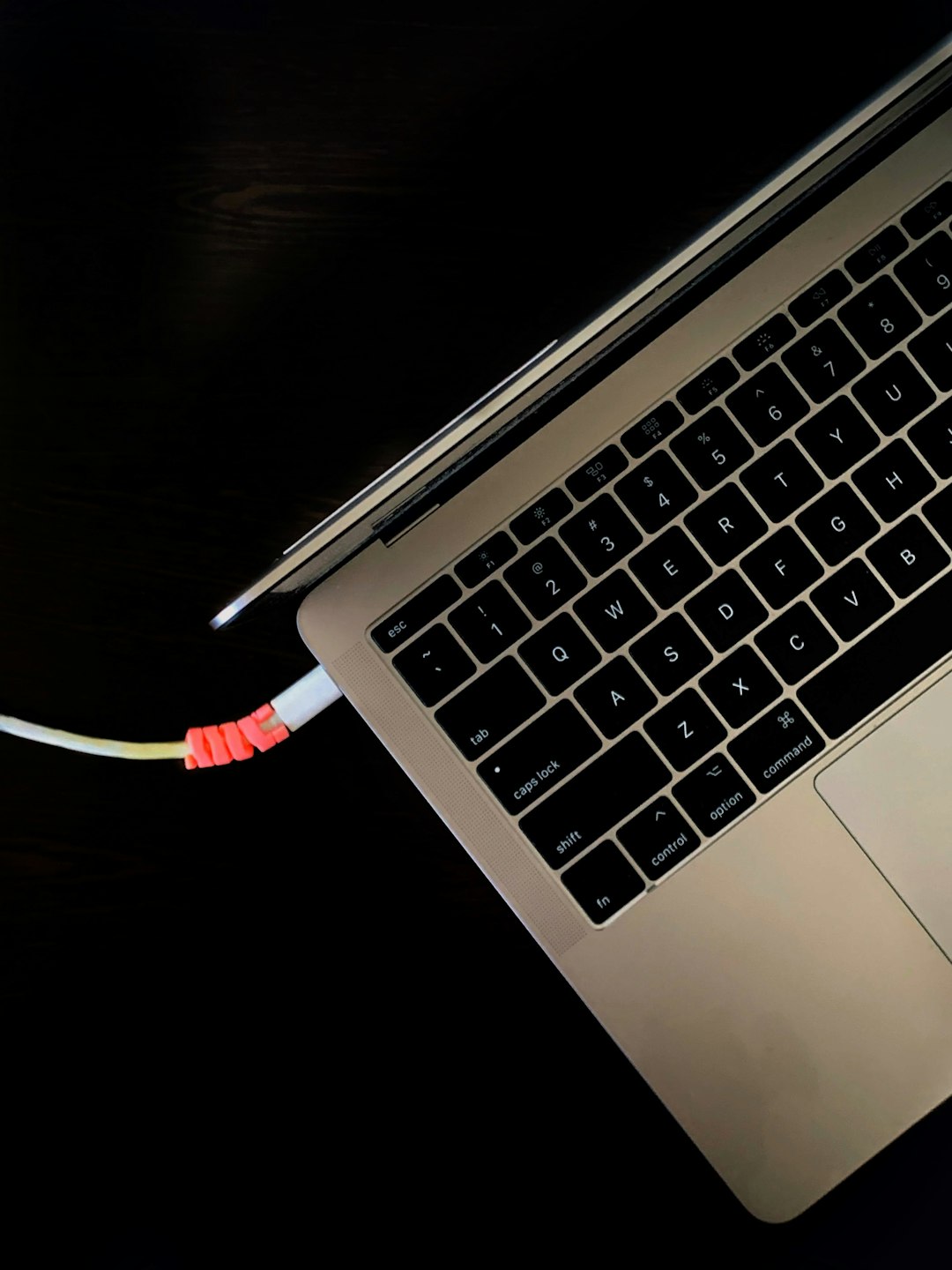
The display cable connects the screen to the motherboard. If it is loose, the screen may flicker or go black.

You will need:
- A small screwdriver
- Good lighting
- Patience
Carefully open the back panel. Check if the display ribbon cable is secure.
If you are unsure, ask a technician.
Useful Tools for Fixing Display Issues
Here are some common tools you might use:
| Tool | Purpose | Difficulty Level | When to Use |
|---|---|---|---|
| Screwdriver Set | Open laptop panel | Medium | Checking internal cables |
| HDMI Cable | Connect external monitor | Easy | Testing screen vs GPU |
| External Monitor | Display testing | Easy | Diagnosing hardware faults |
| Driver Update Tool | Update graphics drivers | Easy | Fixing flickers and glitches |
Most fixes need only simple tools.
How to Fix a Physically Damaged Screen
If your screen is cracked, software won’t help.
You have two options:
- Replace the screen yourself
- Visit a repair shop
Screen replacement is possible at home. But it requires skill.
You must:
- Buy the exact screen model
- Remove the bezel carefully
- Disconnect the ribbon cable
- Install the new screen
If this sounds scary, don’t do it.
A repair shop is safer.
How to Fix Screen Flickering
Flickering is annoying. But it usually has simple causes.
- Outdated drivers
- Incorrect refresh rate
- Loose cable
To check refresh rate:
- Right-click on desktop
- Choose Display settings
- Click Advanced display settings
Set the recommended refresh rate.
This often stops flickering instantly.
Fixing a Black Screen with Cursor
If you see a black screen but can move the mouse, the system may not load properly.
Try this:
- Press Ctrl + Shift + Esc
- Open Task Manager
- Click File
- Select Run new task
- Type explorer.exe
This reloads the Windows interface.
Simple trick. Big result.
When to Seek Professional Help
Sometimes DIY is not enough.
Call a professional if:
- You see no image at all, even on external monitor
- The screen is shattered
- The laptop overheats regularly
- You smell burning or see sparks
Your safety matters. Always.
Preventing Future Display Problems
Prevention is better than repair.
- Keep drivers updated
- Avoid closing the lid hard
- Use a protective laptop case
- Keep liquids away
- Clean the keyboard and vents
Small habits make a big difference.
Final Thoughts
HP laptop display issues can look scary. But most are easy to fix.
Start simple. Restart. Check settings. Update drivers.
Test with an external monitor. Use built-in diagnostics.
Only open the laptop if necessary.
Take it step by step.
Your screen will likely shine bright again.
And if not, help is always available.
Stay calm. You’ve got this.