


VLC makes it easy to watch videos with subtitles, but the steps depend on the type of subtitle you have. Some videos already include subtitle tracks inside the file. Others need a separate subtitle file like SRT.
This article explains how to display subtitles in VLC, how to add an external subtitle file, how to choose the right subtitle track, and how to fix common subtitle problems if they are not showing the way they should.
How VLC Subtitles Work?
VLC can show two main types of subtitles. The first type is embedded subtitles. These are already built into the video file, so you only need to turn them on or choose the correct track.
The second type is external subtitles. These are separate files that you add yourself. A common example is an SRT file. Once you load the file into VLC, the subtitles should appear while the video plays.
How to Display Subtitles in VLC

If your video already has subtitle tracks inside it, the process is simple.
Follow these steps:
- Open the Video in VLC
- Click Video in the Top Menu
- Open Subtitles Track
- Choose the Subtitle Track You Want
- Check if the Subtitles Appear on the Screen
Sometimes subtitles show automatically. But if they do not, choosing the right track manually usually fixes it.
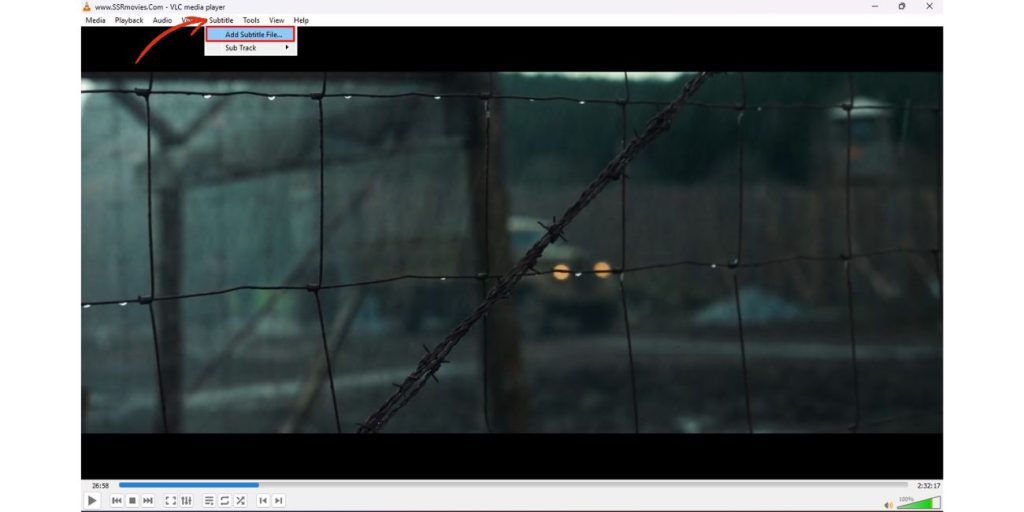
How to Add an External Subtitle File in VLC
If the video does not have built-in subtitles, you can add a subtitle file yourself.
Use these steps:
- Open the Video in VLC
- Click Subtitle or Video in the Top Menu
- Choose Add Subtitle File
- Select the SRT or Subtitle File
- Open the File
- Play the Video and Check if the Subtitles Show Up
This is the easiest way to display downloaded subtitles in VLC. Just make sure the subtitle file matches the video properly.
How to Fix VLC Subtitles If They Are Not Showing
If subtitles are not showing, the issue is usually small. In many cases, the wrong subtitle track is selected or subtitles are turned off.
Common reasons include:
- Subtitle Track Is Disabled
- Wrong Subtitle Track Is Selected
- The Subtitle File Does Not Match the Video
- The Subtitle File Was Not Loaded Correctly
- VLC Needs to Be Restarted
- Subtitle Encoding Is Wrong
Start by checking the subtitle track first. Then reload the subtitle file if needed. If that still does not work, close VLC and open the video again.
How to Adjust Subtitle Delay in VLC
Sometimes subtitles appear, but the timing feels wrong. They may show too early or too late compared to the audio.
VLC lets you adjust subtitle delay so the text matches the voices better. You can do this through the subtitle sync settings or by using subtitle delay controls while the video is playing.
This helps when:
- Subtitles Appear Before People Speak
- Subtitles Appear After the Dialogue
- The Subtitle File Matches the Video but the Timing Is Off
If the subtitles are only slightly out of sync, a small delay adjustment usually fixes the problem.
How to Change Subtitle Font and Text Settings
If the subtitles are too small, hard to read, or do not look good on the screen, VLC also lets you change how subtitles appear.
You can adjust settings like:
- Font
- Font Size
- Text Color
- Outline
- Background
- Subtitle Position
These settings are useful when the subtitles are visible but not comfortable to read. A larger font or clearer outline can make a big difference, especially on smaller screens.
How to Fix Strange Subtitle Characters
Sometimes subtitles appear, but the letters look broken. You may see boxes, question marks, or strange symbols instead of normal text.
This usually happens because of subtitle encoding or font support. If that happens, go into the subtitle settings in VLC and try a different encoding option. You can also try a font that supports more characters.
This problem is more common with subtitles in non-English languages or subtitle files from older sources.
How to Make VLC Show Subtitles Automatically
If you use subtitles often, you may want VLC to handle them more smoothly each time you open a video.
A few simple habits help:
- Keep the Subtitle File in the Same Folder as the Video
- Use the Same File Name for the Video and Subtitle File
- Check the Subtitle Settings in VLC Preferences
- Keep VLC Updated
When the subtitle file and video file match well, VLC often loads them more easily.
Final Thoughts
Displaying subtitles in VLC is usually simple once you know whether the video has built-in subtitles or needs an external subtitle file. Most of the time, the fix is just choosing the right subtitle track or loading the correct SRT file.
If the subtitles still don’t look right, VLC also lets you adjust timing, font settings, and display options. So whether you need to turn subtitles on, add them manually, or fix subtitle problems, VLC gives you enough control to make it work.