


When installing Windows, you may run into an error message that says:
“Windows cannot install required files. The file may be corrupt or missing. Make sure all files required for installation are available, and restart the installation. Error code: 0x80070570.”
This stops the entire setup process. It’s frustrating, especially if you’re doing a clean install or upgrading your system. You might be using a USB, DVD, or ISO, and suddenly the installation fails mid-way.
This guide will explain what error 0x80070570 means, what causes it, and how to fix it. You’ll also learn what to do before trying again so it doesn’t come back.
What Does Error 0x80070570 Mean?
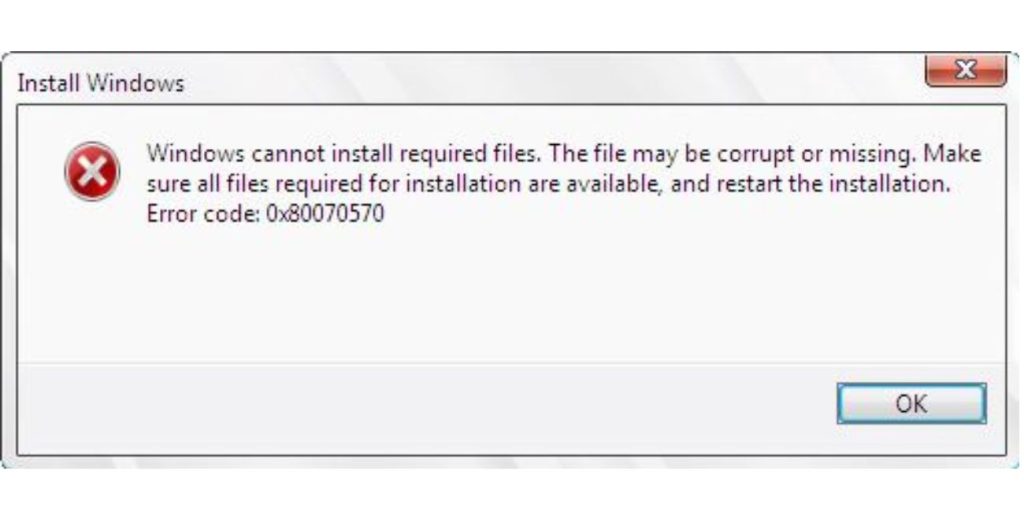

Error 0x80070570 is a file corruption or file access error. It appears during the Windows installation process, usually during the file copying or expanding stage.
It means the Windows Setup tool couldn’t read or copy a file. This can be due to a bad ISO, a failing USB or DVD, or deeper problems like RAM issues, disk corruption, or incorrect BIOS settings.
The error doesn’t always appear at the same stage, but it’s often tied to hardware-related read/write failures or corrupt installation media.
When Does This Error Usually Appear?
You’ll most likely see Error 0x80070570 in these scenarios:
- Installing Windows from a bootable USB
- Installing from a burned DVD
- During a clean install, upgrade, or reset
- When using an ISO downloaded online
- Sometimes during a Windows update (rare)
- Occasionally when copying large files manually (in older Windows builds)
In most cases, it occurs during the “Expanding Windows files” stage or soon after you choose the drive for installation.
What Causes Error 0x80070570?
Here are the most common causes:
- Corrupt installation media – USB or DVD might be damaged or poorly written
- Incomplete ISO file – bad downloads or third-party ISOs often fail
- Bad sectors on your hard drive or SSD – the destination disk may be failing
- Faulty RAM – memory issues lead to read/write errors during setup
- USB drive failure or port issues – the drive itself or port may be unstable
- BIOS/UEFI misconfiguration – boot mode (Legacy vs UEFI) may be mismatched
- Loose or failing SATA cables – in hard drive setups, connection problems matter
- Security software interference – though rare, pre-installed firmware protections can cause it
How to Fix Error Code 0x80070570 (Step-by-Step)
Each of the fixes below addresses a specific cause. Start from the top and work your way down.
Fix #1 – Rebuild the Installation USB or DVD
Most of the time, this error comes from corrupt or badly written installation media.
Steps to rebuild USB:
- Download the official Windows ISO from Microsoft
- Use Rufus or the Media Creation Tool to write the ISO
- Choose file system FAT32 (or NTFS if your ISO is over 4GB)
- Enable UEFI support (if your BIOS uses it)
- Try plugging the USB into a different port, preferably USB 2.0 instead of USB 3.0
- Avoid USB hubs; use the direct motherboard port
If you’re using a DVD:
- Burn the ISO at low speed (4x or 8x)
- Use high-quality DVDs (avoid rewritable discs)
- Verify the burn after completion
If the USB or DVD has been used many times, consider using a new one.
Fix #2 – Run a Memory Test (Windows Memory Diagnostic)
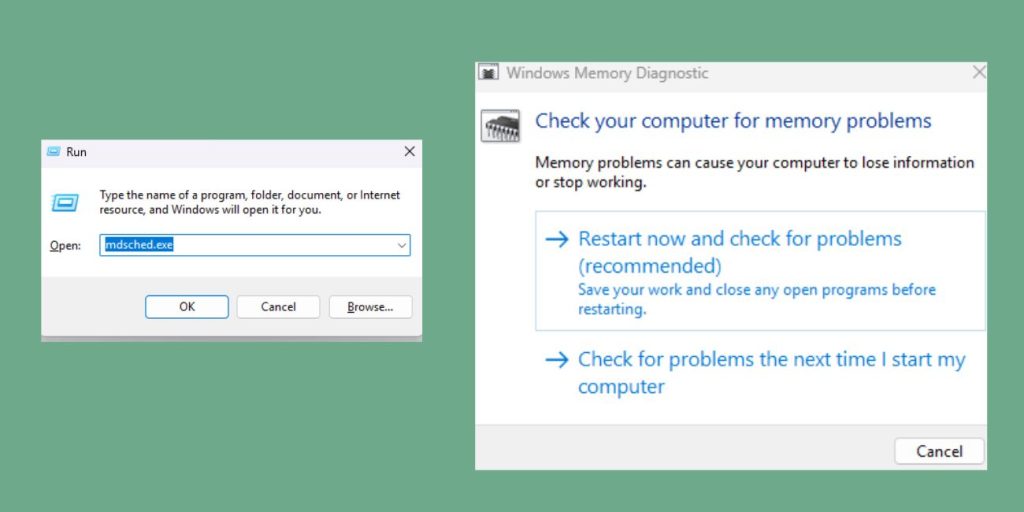
Bad RAM can corrupt files during installation. Even if your system is running normally, Windows Setup is more sensitive to memory issues.
To test RAM:
- Press
Win + R, typemdsched.exe, hit Enter - Choose Restart now and check for problems
- Let the scan run; it can take 10–30 minutes
- If errors are detected, you may need to replace one of your RAM sticks
For deeper testing, use MemTest86 from a USB. Run at least 4 passes.
Fix #3 – Run CHKDSK to Scan Your Hard Drive
The hard drive or SSD you’re installing Windows to might have bad sectors or errors. If the installer tries to write a file to a damaged area, it will fail.
Steps:
- Boot into the Windows installation screen
- Press
Shift + F10to open Command Prompt - Type:
chkdsk C: /f /r - Press Enter
- Wait for the scan to finish (can take an hour or more)
If CHKDSK reports lots of bad sectors, consider replacing the drive.
Fix #4 – Try a Different USB Port or Device
A failing USB stick or unstable port can cause random install failures.
- Use a different USB drive if you have one
- Switch from USB 3.0 to USB 2.0
- Don’t use front panel ports on desktop PCs; use the rear I/O ports
- Avoid USB hubs or extenders
Even if the drive seems fine, tiny read errors during setup can stop the install.
Fix #5 – Change Boot Mode in BIOS (UEFI vs Legacy)
If your BIOS and media don’t match in boot mode, installation may fail with file access errors.
Steps:
- Restart your PC and enter BIOS/UEFI (usually
DEL,F2, orESC) - Find Boot Mode or Boot Configuration
- Switch between UEFI and Legacy/CSM
- Save and exit
- Try the installation again
Be sure your USB matches the boot mode (Rufus lets you configure this when creating the media).
Fix #6 – Re-download a Fresh ISO File
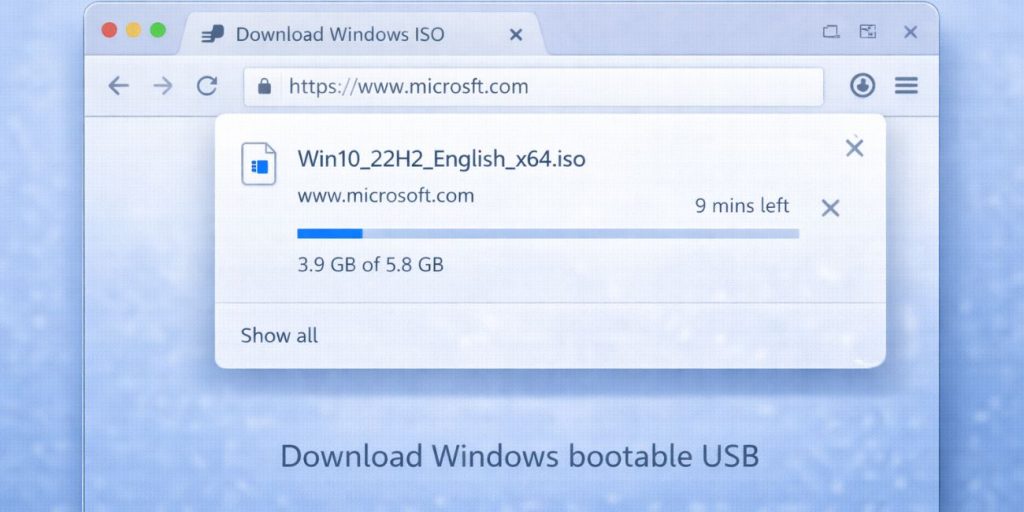
Using a corrupt or modified ISO file is a common cause of error 0x80070570. Third‑party ISOs are often incomplete, outdated, or corrupted, which can cause file-copy failures during installation. Always download the Windows ISO directly from Microsoft’s official website to make sure the files are intact. If possible, verify the ISO checksum (e.g., SHA-256) to confirm the download isn’t corrupted. Avoid torrents, unofficial mirrors, or old ISO files saved from previous installs. For best results, create new installation media each time you install a major Windows version.
Prevention Tips Before Reinstalling
Avoid seeing this error again with these tips:
- Use new or high-quality USB drives
- Always check ISOs before burning
- Avoid using scratched or reused DVDs
- Run CHKDSK and Memory Test before reinstalling
- Match BIOS boot mode with your media
- Remove all extra USB devices before starting setup
- Keep your motherboard BIOS updated
A little prep goes a long way in stopping future install failures.
Conclusion
Error 0x80070570 usually means Windows Setup couldn’t read or copy a file during installation. The file might be corrupt, unreadable, or blocked by hardware problems.
Most of the time, it’s caused by:
- A corrupt ISO
- Bad USB or DVD
- Failing RAM or hard drive
- Wrong BIOS settings
You can fix it by following the steps above: rebuild your media, then test your RAM and disk. If nothing works, try installing on another device to isolate the problem.
Once fixed, Windows should install normally with no errors.
If this guide helped, share it. Still stuck? Drop a comment with your setup, others might help you figure it out.