



You open Netflix, click on a movie, and instead of playing, a message appears. It says something went wrong and shows error code M7361 or sometimes M7361-1253.
At that moment, it feels frustrating. Everything else works; the internet is fine, and the account is fine, but the video still refuses to play.
This error usually comes from your browser, not your account. Something is blocking Netflix from processing the request properly. It could be stored data, an extension, or a small system issue.
The good part is this error is common and fixable.
What Is Netflix Error Code M7361?
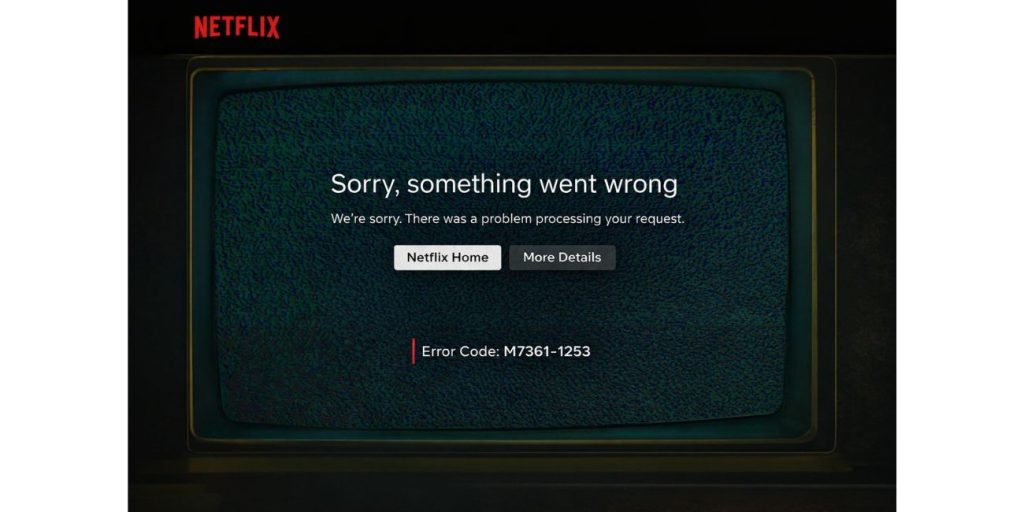

Netflix error M7361 is a playback problem. It appears when the browser fails to load or process the video request.
When you press play, Netflix sends a request through your browser. That request includes video data, permissions, and DRM checks.
If any part of that process fails, the video stops and this error appears.
The message may look simple, but behind it there is a connection problem between your browser and Netflix playback system.
Why Netflix Shows Error Code M7361
This error does not happen randomly. It usually comes from a few known causes.
- Browser cache or cookies are corrupted
- Extensions block or interfere with playback
- Widevine DRM is not working correctly
- Browser is outdated
- Temporary session or network issue
Sometimes even one small extension can break video playback without showing clear signs.
How to Fix Netflix Error Code M7361
If you are facing this error on Netflix, go step by step. Try one fix, then test again before moving to the next.
1. Refresh the Page and Try Again
Start with the simplest step. Refresh the page and click play again.
Sometimes the request fails once due to a small delay. A fresh reload sends a new request and fixes the issue instantly.
2. Clear Browser Cache and Cookies
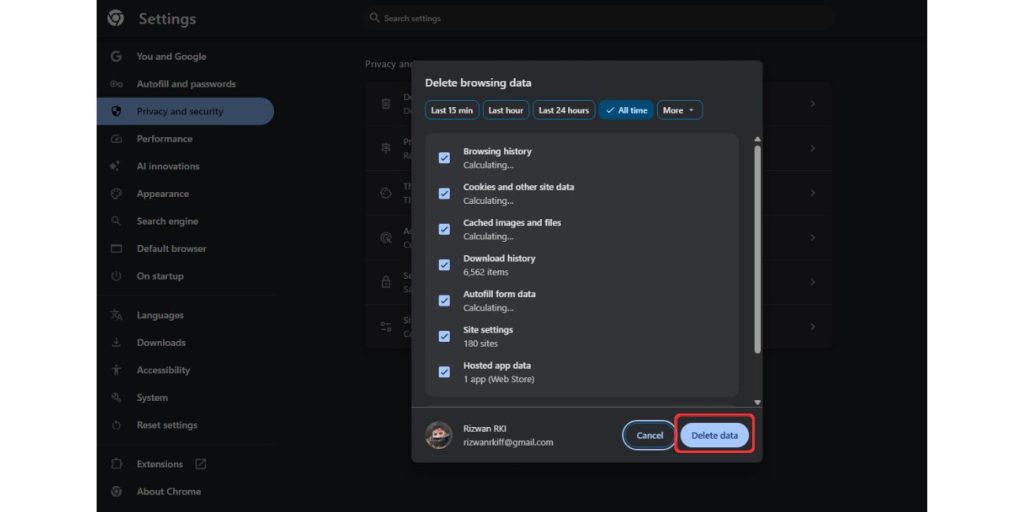
Over time your browser stores data from websites. This helps speed things up, but sometimes that stored data becomes outdated.
When that happens, Netflix may receive incorrect session data which leads to playback errors.
Here is how to fix it:
- Open browser settings
- Go to privacy or security section
- Choose clear browsing data
- Select cookies and cached files
- Clear data and restart browser
After that, log in again and try playing the video.
3. Disable Browser Extensions
Extensions can interfere with streaming without you noticing. Ad blockers, privacy tools, or script blockers can stop Netflix from loading content properly.
Instead of guessing which one is causing the problem, disable them and test.
Steps:
- Open browser extensions page
- Turn off all extensions
- Restart the browser
- Open Netflix and try again
If it works, you can enable extensions one by one to find the problem.
4. Use Incognito Mode
Incognito mode runs your browser without stored data and most extensions. It creates a clean environment.
Open an incognito window, log into Netflix, and try playing a video.
If it works there, the issue is likely related to your normal browser setup.
5. Update Your Browser
An outdated browser can cause compatibility issues with streaming services. Netflix depends on modern features and security systems.
Check for updates in your browser settings and install the latest version. Then restart your browser and try again.
6. Check Widevine DRM Settings
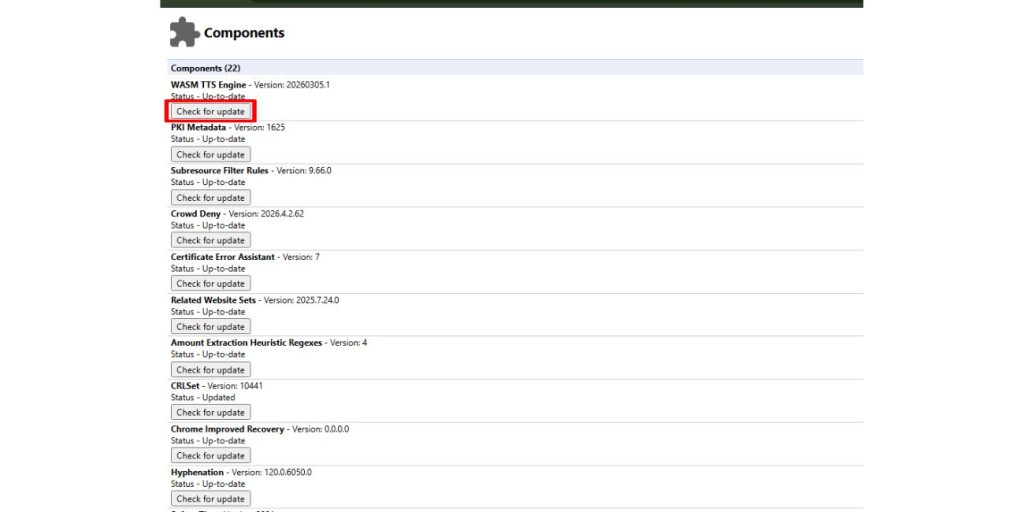
Widevine is a system that protects video content. It allows Netflix to stream securely.
If Widevine is disabled or broken, videos will not play.
You can check it like this:
- Type chrome://components in Chrome
- Find Widevine Content Decryption Module
- Click check for update
Make sure it is updated and working.
7. Try Another Browser
Sometimes the issue is limited to one browser only.
If you are using Chrome, try Edge or Firefox. If the video works there, then your original browser has a configuration problem.
This step helps you confirm where the issue is coming from.
8. Restart Your Device
It sounds simple, but it works more often than people expect.
Restarting clears temporary processes and resets system connections. After restarting, open your browser and try Netflix again.
What Is Widevine DRM and Why It Matters
Widevine DRM is a security system used by Netflix and other platforms. It protects video content from being copied or misused.
When you play a video, Widevine checks permissions and allows playback only if everything is correct.
If this system fails, Netflix blocks the video completely. That is why errors like M7361 appear.
Is This Error From Browser or Netflix
Most of the time this error comes from your browser. Issues like cache, extensions, or outdated software are the main cause.
In rare cases it can be a temporary Netflix issue, but that usually affects many users at once.
So if the problem is only on your device, it is likely a local issue.
How to Prevent Netflix Error M7361
You can reduce the chances of this error by keeping things clean and updated.
- Clear browser data from time to time
- Avoid too many extensions
- Keep your browser updated
- Use a stable internet connection
- Restart your system occasionally
These small steps help keep streaming smooth.
Final Thoughts
Netflix error M7361 may look confusing at first, but it is usually a small browser issue.
Fix the stored data, check extensions, and update your browser. That is enough in most cases.
If this guide helped you, share it with others. And if you are still stuck, tell me your browser and device. We will solve it step by step.