


If you see Failed to Authorize in IPTV Smarters it can be annoying. Sometimes your login looks fine but still you get this error. Usually the app can’t check your account with the server or it can’t connect to the host properly.
This problem can happen for many reasons like wrong login info, server URL mistake, expired subscription, app cache, network issues or sometimes the provider has a problem. Here I will explain why you get this error and how you can fix it step by step.
Quick Answer
If IPTV Smarters says “Authorization Failed for above host,” re-enter your username, password, and server URL carefully. Then restart the app, clear cache, check if your subscription is active, switch networks, and update or reinstall the app if the error stays.
What Does “Failed to Authorize” Mean on IPTV Smarters?
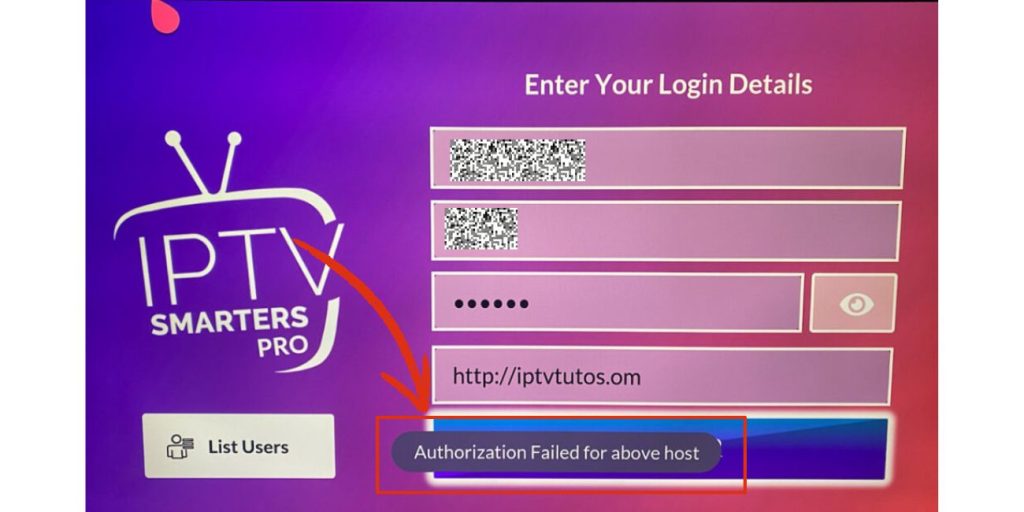

This message shows IPTV Smarters can’t confirm your login with the provider server. Maybe the app is not accepting your details or it’s not connecting to the host right.
Sometimes it’s just a simple thing like a wrong password or maybe you missed part of the URL. But sometimes the server is down or your account is not active or maybe the connection is blocked.
Why Does IPTV Smarters Fail to Authorize?
This error usually appears when the app cannot complete the login check with the provider host. The cause may be the login details, the app, your internet connection, or the provider account.
Main causes include:
- Wrong Username or Password
- Incorrect Server URL
- Expired or Inactive Subscription
- Provider Server Downtime
- Corrupted App Cache or Data
- VPN or Network Block
- Wrong HTTP or HTTPS Format
- Wrong Port Number
- Outdated IPTV Smarters App
How to Fix IPTV Smarters Failed to Authorize
Start by checking the fixes below in order from simplest to most complex. If the issue remains, move on to the more significant corrections.
1. Re-enter Your Login Details Carefully
Small typing mistakes are one of the most common reasons for this error. A wrong letter, number, symbol, or space can stop the app from logging in.
Check these fields closely:
- Username
- Password
- Server URL
- Port Number if Your Provider Uses One
Make sure you enter the details exactly as your provider sent them.
2. Check the Server URL Format
The host address must be correct. If the URL is wrong, incomplete, or uses the wrong format, IPTV Smarters may fail to authorize even when the username and password are correct.
Look for these common problems:
- Missing http:// or https://
- Wrong domain name
- Missing port
- Extra slash or space
- Old server address from a past setup
If your provider gave both HTTP and HTTPS options, try the one they recommend first.
3. Make Sure Your Subscription Is Still Active
An expired plan or suspended account can trigger the same authorization error. The app may still open, but the provider server will reject the login.
Check your account status with your provider and confirm that the subscription is active on the same account you are trying to use.
4. Restart IPTV Smarters and Your Device
A short app glitch can break the login session. Restarting the app and the device can clear that problem and force a fresh connection.
Do this in order:
- Close IPTV Smarters Fully
- Restart Your TV, Firestick, Phone, or Tablet
- Open the App Again
- Try Logging In Again
5. Clear IPTV Smarters Cache
Bad cache files can cause repeated login and host errors. Clearing cache helps remove stale session data and forces the app to load fresh information.
If your device allows it, clear the app cache from settings, then open IPTV Smarters again.
Typical steps are:
- Open Device Settings
- Go to Apps
- Select IPTV Smarters
- Open Storage
- Tap Clear Cache
If that does not help, you may also need to clear app data and log in again.
6. Disable VPN and Test Another Network
A VPN can sometimes help with blocked services, but it can also cause authorization problems. Some providers block certain IP ranges, and some networks block IPTV-related traffic.
Try these checks:
- Turn Off Your VPN
- Switch from Wi-Fi to Mobile Data
- Switch from Mobile Data to Wi-Fi
- Try a Mobile Hotspot
- Open the App Again
If the app works on another network, the issue may be tied to your current connection.
7. Update IPTV Smarters
An old app version can cause login problems, API issues, or server compatibility problems. Updating the app can fix known bugs and improve connection support.
Open your app store, check for an update, install it, then try the login again.
8. Reinstall IPTV Smarters
If the app files are damaged, clearing cache may not be enough. A clean reinstall can remove broken data and reset the app.
Use this step if:
- The Error Keeps Coming Back
- The App Freezes or Crashes
- Login Works on Another Device but Not Yours
- Cache Clearing Did Not Help
After reinstalling, enter the login details again carefully.
9. Test the Host Outside the App
This step helps you find out whether the problem is inside IPTV Smarters or on the provider side. If the server or playlist link does not respond outside the app, the provider host may be the issue.
You can test:
- The M3U URL in a Browser
- The Portal URL in a Browser
- The Same Login on Another IPTV Player
If none of those work, the issue is more likely on the provider side.
10. Check Device Date and Time
Wrong date or time settings can sometimes affect secure connections. This can lead to login or authorization problems, especially when the app is trying to connect to a protected server.
Open your device settings and make sure the date, time, and time zone are correct.
11. Try Another Device
This is a useful way to narrow down the problem fast. If the same account works on another phone, Smart TV, or streaming device, the issue is likely with the original device or app setup.
- Test Result – What It Usually Means
- Login Works on Another Device – The Original Device or App Is the Problem
- Login Fails Everywhere – The Provider, Account, or Host Is More Likely the Cause
- Login Works on Mobile but Not TV – The TV App or TV Setup Likely Needs Attention
- Login Works on Wi-Fi but Not Mobile Data – The Network Path May Be Causing the Problem
12. Contact Your IPTV Provider
If you have checked the details, tested the network, cleared cache, and tried another device, the provider may need to fix the account or server.
Send them these details:
- Your Username
- The Server URL You Entered
- Your Device Type
- The Exact Error Message
- A Screenshot of the Login Screen
That makes it easier for support to confirm whether the account is active or the host is down.
How to Prevent IPTV Smarters Authorization Errors
These simple habits can lower the chance of seeing the same problem again.
- Save Login Details Carefully
- Keep IPTV Smarters Updated
- Use the Correct Server URL
- Check Subscription Renewal Dates
- Clear Cache from Time to Time
- Avoid Unstable Internet Connections
- Keep Device Time and Date Correct
- Test New Login Details Before Saving Them
Final Thoughts
The IPTV Smarters failed to authorize error usually means the app cannot verify your account or connect to the provider host the right way. In most cases, the fix comes down to checking the login details, confirming the server URL, clearing app data, and testing the network.
Work through the steps in order and stop when the login starts working again. If nothing helps, your provider is the best next step because they can confirm the account and server status.
Leave a comment and share whether the problem was your login details, your network, or the provider host.