



Many users try to upload an image in Gemini and hit a wall. You tap upload, select a photo, and see an error like “Couldn’t upload.” It happens on mobile apps and in the browser, and it can feel random.
This guide explains what that message means, why image uploads fail in Google Gemini, and how to fix it step by step. You’ll also find simple tips to avoid the issue next time.
What Does It Mean When Gemini Can’t Upload Images?


When Gemini shows “Couldn’t upload,” it means your request reached the service, but the image did not finish processing. The failure can come from the file itself, your network, the app or browser state, or account limits.
Common reasons include:
- Unsupported image format
- Image file too large
- Weak or unstable internet connection
- Missing app permissions for photos or storage
- Temporary Gemini service issue
- Account or region restrictions
This error does not mean your account is broken. It means something blocked the image from being accepted.
Why Gemini Fails to Upload Images
Image uploads depend on several steps working together. The app or browser sends the file, cloud processing validates it, and your account permissions allow the feature.
Failures often come from:
- Mobile app upload limits
- Cloud processing delays
- Region-based feature availability
- Account type limitations
- Network interruptions during upload
Any break in these steps can stop the upload.
How to Fix Gemini Image Upload Error
The right fix depends on the image file, the app or browser state, and your connection. Try the fixes below in order. Stop when the upload works.
Fix #1: Check Image Format and File Size

Gemini supports common formats like JPEG and PNG. Photos saved as HEIC (common on iPhones) may fail, especially if the file is large.
Large images also cause problems. High-resolution photos from modern phones can exceed practical upload limits. When that happens, the upload may start and then fail.
If you suspect this, convert the HEIC to JPEG or PNG and resize it to a lower resolution. Compression often fixes the issue without reducing clarity for analysis.
Fix #2: Check Internet Connection
Image uploads need a stable connection. Weak Wi-Fi or fluctuating mobile data can interrupt the transfer mid-upload.
If you’re on Wi-Fi, switch to mobile data and try again. If you’re on mobile data, connect to a stable Wi-Fi network. Avoid moving between networks while the upload is in progress.
Fix #3: Restart the Gemini App or Browser
Apps and tabs can get stuck with failed upload states. Restarting clears temporary memory and resets the upload flow.
On mobile, close the Gemini app fully and reopen it. In the browser, close the tab or the browser, then open Gemini again and retry the upload.
This simple step fixes many one-off failures.
Fix #4: Allow App Permissions (Mobile Users)
If Gemini does not have access to your photos or storage, uploads will fail.
Here are the steps you can follow:
- Open your device settings
- Go to Apps or Applications
- Select Gemini
- Open Permissions
- Allow Photos and Storage access
- Restart the app
On iOS, make sure photo access is set to allow selected or all photos. On Android, ensure storage access is enabled.
Fix #5: Clear App Cache or Browser Data
Cached data can block uploads after a failed attempt. Clearing it forces a clean retry.
For the mobile app:
- Open app settings
- Clear cache (do not clear data unless needed)
For the browser:
- Open browser settings
- Clear cached files and cookies
- Restart the browser and sign in again
App and browser uploads behave differently, so clearing the right data matters.
Fix #6: Try Uploading a Different Image
Some images fail due to hidden issues. Corrupted files or heavy metadata can break uploads.
Pick a different photo, preferably a simple JPEG or PNG. If that works, the original image likely has a file-level problem. Re-saving or exporting the image usually resolves it.
Fix #7: Check Gemini Service Status
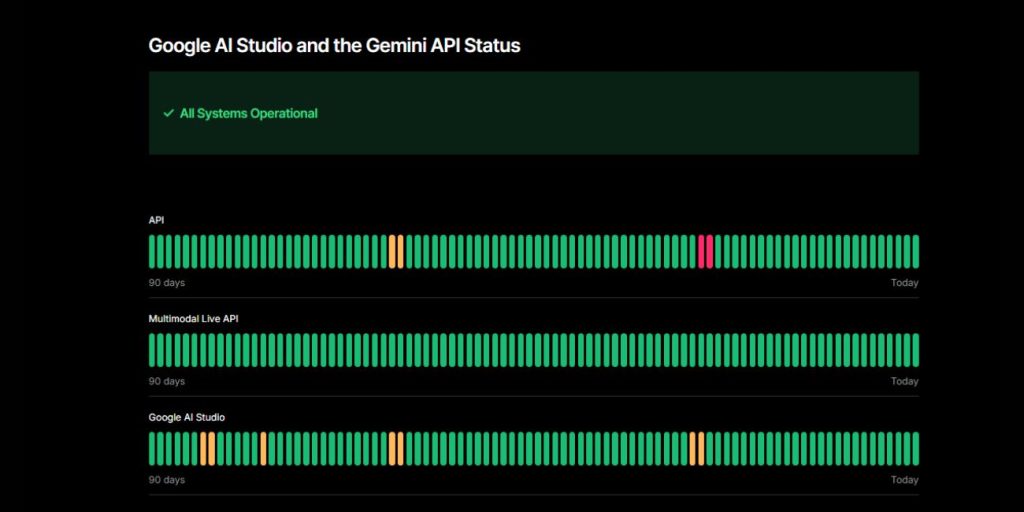
Sometimes the issue is not on your side. Gemini can have temporary service problems that block uploads for everyone.
Check the official status page at aistudio.google.com/status. Look for issues related to uploads or processing.
If there is an outage, waiting is the only option. Uploads usually resume once services stabilize.
Prevention Tips to Avoid Gemini Image Upload Errors
A few habits can reduce future upload problems:
- Use supported image formats like JPEG or PNG
- Keep file sizes reasonable
- Maintain a stable internet connection
- Keep the Gemini app or browser updated
- Avoid switching networks during uploads
These steps keep uploads smooth and predictable.
Conclusion
Gemini image uploads fail for simple reasons like file format, size, permissions, or network issues. In many cases, the fix is quick and safe.
Try the steps one by one and test after each change. If uploads still fail and the service status looks normal, contact Google support for account-level help. If this guide helped, share it and let others know which fix worked for you.