


If Fortnite won’t launch and shows error code 30005, it can be really frustrating. You try to start the game, but it stops before loading.
In this guide, you’ll learn what this error means, why it happens, how to fix it step by step, and how to avoid it in the future.
What Is Fortnite Error Code 30005?
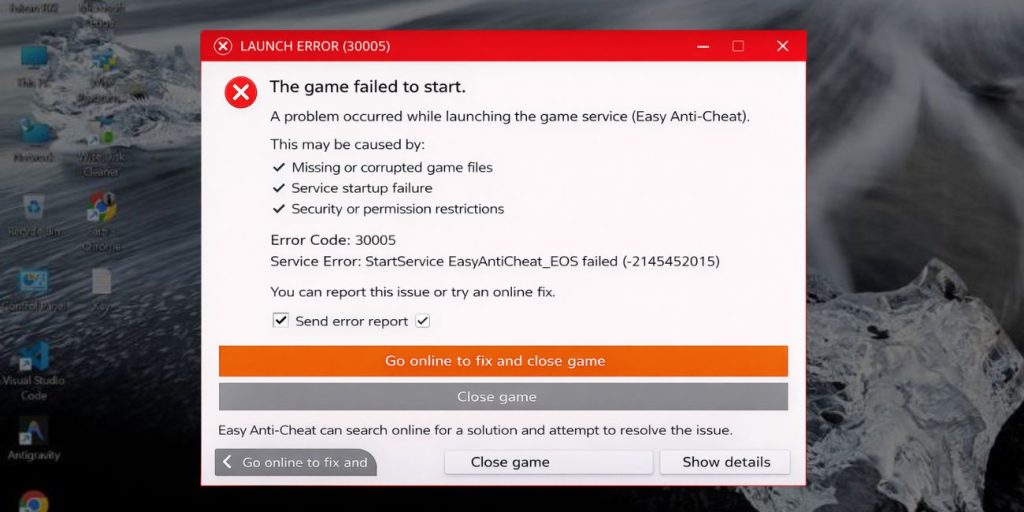

Fortnite error code 30005 is a game launch problem linked to the Easy Anti-Cheat system. This system protects the game from cheating, but sometimes it fails to start correctly. When the anti-cheat service cannot run or verify game files, Fortnite blocks the launch process. This can happen due to missing files, permission issues, or conflicts with system processes.
Because of this failure, the game shows error code 30005 instead of opening normally. It may also connect to antivirus interference or corrupted installation files.
You will usually see this error on the game launch screen, inside the Epic Games Launcher, or as a popup message when starting Fortnite on Windows.
Common Causes of Fortnite Error Code 30005
This error can happen due to several reasons related to game files, system settings, or anti-cheat services. Below are the most common causes.
- Corrupted or missing Easy Anti-Cheat files
- Antivirus blocking the anti-cheat service
- Missing or damaged Fortnite game files
- Lack of administrator permissions
- Conflicting background applications
- Outdated Windows system or drivers
- Easy Anti-Cheat service not running properly
How to Fix Fortnite Error Code 30005?
In most cases, you can fix this error by checking your game files, system services, and permissions. Sometimes a simple step works, so try each fix one by one.
Fix #1: Restart Your PC
This error can appear due to temporary system glitches. Restarting refreshes system processes and clears background conflicts. Once your system restarts, the anti-cheat service may run correctly again.
Follow the steps below to easily restart your PC.
- Click the Start menu
- Select Power option
- Click Restart
- Wait for reboot
- Launch Fortnite again
Fix #2: Run Fortnite as Administrator
Permission issues can stop Easy Anti-Cheat from running. Running the game as administrator gives full access to required system files.
Try these simple steps to quickly run Fortnite as administrator.
- Right-click Fortnite shortcut
- Select Run as administrator
- Confirm prompt
- Launch the game
- Check if error is gone
Fix #3: Repair Easy Anti-Cheat
If anti-cheat files are damaged, the game cannot verify its integrity. Repairing Easy Anti-Cheat restores missing or broken files.
The following steps will show you how to repair Easy Anti-Cheat properly.
- Go to Fortnite installation folder
- Open EasyAntiCheat folder
- Run EasyAntiCheat_Setup.exe
- Click Repair
- Restart your PC
Fix #4: Verify Game Files in Epic Games Launcher
Corrupted game files can stop Fortnite from launching. Verifying files replaces missing or damaged data.
Here’s how you can verify game files in just a few seconds.
- Open Epic Games Launcher
- Go to Library
- Find Fortnite
- Click settings icon
- Select Verify
Fix #5: Disable Antivirus Temporarily
Sometimes antivirus software blocks anti-cheat services. This prevents the game from starting properly.
Temporarily disable your antivirus, launch Fortnite, and then enable protection again after testing.
Fix #6: Close Background Applications
Some apps conflict with Easy Anti-Cheat. Closing them reduces interference and helps the game launch.
Follow these easy instructions to close background apps without any confusion.
- Open Task Manager
- Check running programs
- End unnecessary tasks
- Close overlays or tools
- Restart Fortnite
Fix #7: Update Windows and Drivers
Outdated system files can cause compatibility issues. Updating ensures smooth operation with the game and anti-cheat system.
These are the exact steps you need to follow to update your system successfully.
- Open Settings
- Go to Windows Update
- Check for updates
- Install updates
- Restart your PC
Fix #8: Reinstall Easy Anti-Cheat or Fortnite
If nothing works, reinstalling fixes deep file issues. This installs a clean version of the game and anti-cheat system.
Perform the following steps carefully to reinstall the game or anti-cheat.
- Uninstall Fortnite
- Restart your PC
- Download the game again
- Install it
- Launch and test
Prevention Tips to Avoid Fortnite Error Code 30005
Fixing the issue helps, but preventing it keeps your game running smoothly. A clean system and updated files reduce errors like this. When your anti-cheat service works properly, Fortnite launches without problems.
- Keep Fortnite and system updated
- Avoid blocking anti-cheat in antivirus settings
- Close unnecessary background apps
- Use administrator access when needed
- Maintain system performance
- Verify game files regularly
- Restart your PC occasionally
Conclusion
In short, Fortnite error code 30005 happens when the Easy Anti-Cheat system fails to run due to file issues, permission problems, or software conflicts. It can also appear because of antivirus interference or outdated system settings. Once you understand the cause, fixing it becomes easier.
Try each solution step by step and see what works for you. If the issue still continues, contact Epic Games support for help. And if this guide helped you, share it with others or leave a comment about your experience.