


You open the Battlestate Games Launcher, click Play, and then Escape from Tarkov shows Error 0 instead of loading into the game. It feels confusing because nothing else on your PC seems broken. In most cases, this error means the launcher cannot connect to the Escape from Tarkov servers. It may relate to your network, firewall, DNS settings, or even temporary server downtime.
The good part is that Error 0 is usually fixable with simple steps. In this guide, you will learn what Escape from Tarkov Error 0 means, why it happens, how to fix it, and how to prevent it from returning.
What Is Escape from Tarkov Error 0?
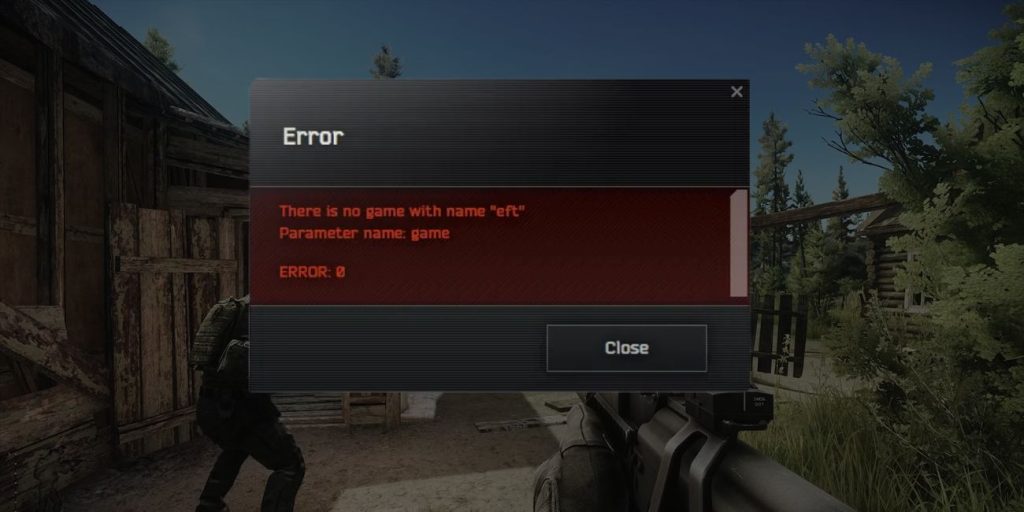

Escape from Tarkov Error 0 usually signals a connection or authentication failure between your PC and the Battlestate Games servers. When the Battlestate Games Launcher tries to verify your account and connect to the game servers, it checks your network route, DNS server response, and firewall permissions. If that communication fails, the launcher shows Error 0 and blocks access. This issue does not normally indicate hardware damage or a broken GPU. Instead, it points to network interruption, blocked traffic, corrupted launcher cache, or unstable ISP routing.
You typically see Error 0 in the Battlestate Games Launcher during login or right before entering the game. The message appears before loading into a raid or reaching the main menu.
Common Causes of Escape from Tarkov Error 0
Error 0 appears when the launcher cannot establish a stable link with the game servers. Escape from Tarkov relies on secure server authentication and stable TCP/IP communication. If your firewall blocks traffic or your DNS server fails to resolve the address correctly, the connection fails. Temporary server downtime from Battlestate Games can also trigger this message.
Here are the most common causes:
- Escape from Tarkov servers temporarily down
- Windows Firewall blocking Battlestate Games Launcher
- Windows Defender or third-party antivirus interference
- Active VPN or proxy server connection
- Incorrect DNS configuration
- Corrupted Battlestate Games Launcher cache
- ISP routing problems or unstable internet connection
How to Fix Escape from Tarkov Error 0?
To fix Error 0, you need to check both server availability and your local network settings. In many cases, the problem relates to firewall rules, DNS resolution, or VPN conflicts. However, corrupted launcher files can also stop proper authentication. Follow each fix carefully and test the game after completing it.
Fix #1: Check Escape from Tarkov Server Status
Sometimes the issue is not on your side. If Battlestate Games servers are down for maintenance or facing overload, the launcher cannot connect.
Visit the official Escape from Tarkov website or check community platforms like Twitter or Reddit for server updates. If servers are offline, you must wait until they restore service.
Fix #2: Restart Your Router and PC
Network sessions can become unstable over time. Restarting your router refreshes your IP address and clears temporary connection errors.
Follow the steps below to easily restart your network:
- Turn off your PC.
- Unplug your router from power.
- Wait at least 2 minutes.
- Plug the router back in.
- Wait until all internet lights stabilize.
- Turn on your PC and launch the game.
A fresh connection often fixes routing issues.
Fix #3: Disable VPN or Proxy
VPN services change your IP address and route traffic through different servers. Because Escape from Tarkov requires stable authentication with Battlestate Games servers, VPN interference can cause Error 0.
Turn off your VPN or proxy server, then reopen the launcher. If the game connects normally, the VPN caused the problem.
Fix #4: Allow Battlestate Games Launcher Through Firewall
Windows Firewall may block outgoing or incoming traffic from the launcher. When this happens, the server handshake fails.
Here are the following steps which help you allow the launcher through firewall:
- Open Control Panel.
- Click Windows Defender Firewall.
- Select Allow an app through firewall.
- Click Change settings.
- Find Battlestate Games Launcher.
- Check both Private and Public boxes.
- Click OK.
Restart the launcher and try again.
Fix #5: Flush DNS and Reset Network Settings
Incorrect DNS resolution can stop your PC from locating Escape from Tarkov servers. Flushing DNS clears old records.
The following steps will show you how to flush DNS properly:
- Press Windows + R.
- Type cmd and press Enter.
- In Command Prompt, type: ipconfig /flushdns
- Press Enter.
- Then type: netsh int ip reset
- Restart your computer.
This resets your network stack and refreshes IP settings.
Fix #6: Clear Battlestate Games Launcher Cache
Corrupted launcher cache files can prevent proper login and server validation.
You can perform the following steps to clear launcher cache:
- Close Battlestate Games Launcher.
- Press Windows + R.
- Type %localappdata% and press Enter.
- Locate Battlestate Games folder.
- Delete the cache folder inside it.
- Restart the launcher.
Clearing cache removes corrupted temporary files.
Fix #7: Reinstall Battlestate Games Launcher
If launcher files are damaged, reinstalling may solve authentication failures.
These are the exact steps you need to follow to reinstall the launcher successfully:
- Open Control Panel.
- Click Programs and Features.
- Uninstall Battlestate Games Launcher.
- Restart your PC.
- Download the latest launcher from the official Escape from Tarkov website.
- Install and log in again.
A fresh installation restores missing components.
Prevention Tips to Avoid Escape from Tarkov Error 0 in Future
Preventing Error 0 saves time and stress. Because Escape from Tarkov depends on stable internet routing and secure authentication, keeping your system updated helps reduce issues. Simple maintenance steps improve connection reliability.
- Keep Windows 10 or Windows 11 updated
- Avoid VPN while playing Escape from Tarkov
- Restart your router once a week
- Allow the launcher in firewall settings
- Use reliable DNS like Google DNS or Cloudflare DNS
- Update network adapter drivers
- Monitor your ISP connection stability
Conclusion
Escape from Tarkov Error 0 usually points to a connection or authentication failure between your PC and Battlestate Games servers. Firewall restrictions, DNS errors, VPN interference, corrupted launcher cache, or unstable ISP routing often cause it. Sometimes the issue relates to temporary server downtime.
Try each fix one by one and test the game after each step. Most players resolve the problem quickly with network resets or firewall adjustments. If Error 0 still appears, contact Battlestate Games support and provide screenshots or network details. If this guide helped you, share it with other players and leave a comment explaining which fix worked for you.