
You try to open Duet Night Abyss on your Windows PC, and instead of loading, a fatal error appears and the game closes. That moment feels bad because the crash blocks everything before you even reach the main screen. In most cases, this fatal error connects to Unreal Engine, missing system files, or outdated GPU drivers. Sometimes it looks serious, but often it links to software conflicts, DirectX problems, or corrupted game files.
The good news is that you can fix it step by step. In this guide, you will learn what the Duet Night Abyss fatal error means, why it happens, and how to stop it from crashing again.
What Is Duet Night Abyss Fatal Error on PC?
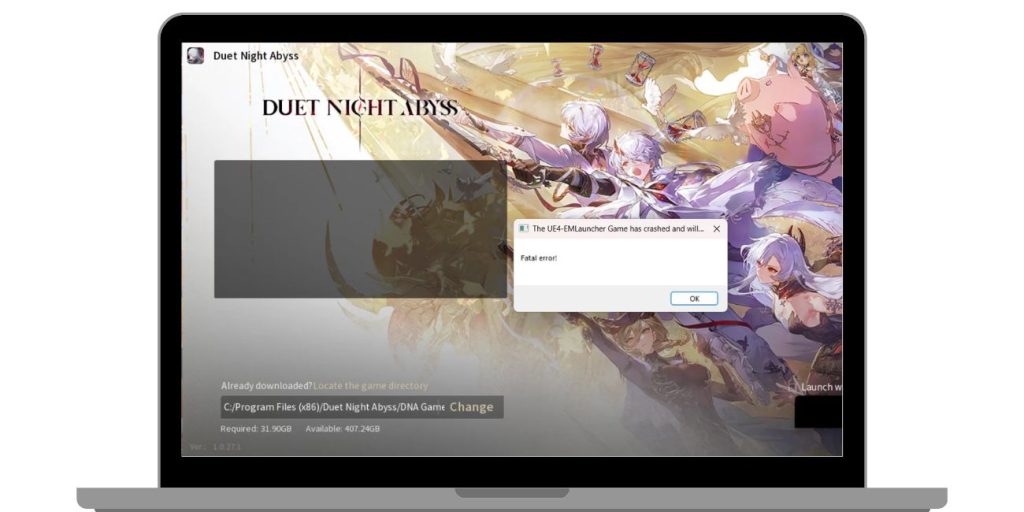
A fatal error in Duet Night Abyss usually means the game engine could not load required system resources. The game runs on Unreal Engine, and that engine depends on DirectX, Microsoft Visual C++ Redistributable, GPU drivers, and stable memory access. When Windows 10 or Windows 11 fails to provide one of these components, Unreal Engine stops running and shows a fatal error message.
This crash often connects to missing runtime libraries, corrupted game files, or driver conflicts with NVIDIA GeForce or AMD Radeon graphics cards. It does not usually mean your hardware is permanently damaged. Instead, it signals a software-level problem that prevents proper engine startup.
You typically see this error during launch. The screen may go black, then a crash window appears showing Unreal Engine fatal error before the game closes.
Common Causes of Duet Night Abyss Fatal Error
Fatal errors happen when the game cannot load core engine files or system dependencies. Duet Night Abyss depends on DirectX libraries, GPU drivers, runtime packages, and enough RAM. If any of these fail or conflict with Windows Defender or background apps, the crash appears.
Here are the most common causes:
- Corrupted Duet Night Abyss game files
- Outdated NVIDIA GeForce or AMD Radeon drivers
- Missing or damaged DirectX components
- Missing Microsoft Visual C++ Redistributable packages
- Insufficient RAM or high memory usage
- Antivirus blocking game files
- Running without administrator permission
- Overclocked GPU or unstable system settings
How to Fix Duet Night Abyss Fatal Error on PC?
To fix this issue, you need to check your game files, graphics drivers, and runtime libraries. In most cases, Unreal Engine crashes because of outdated GPU drivers or missing DirectX files. However, corrupted installations and security software can also cause it.
Follow each fix carefully and test the game after completing each one.
Fix #1: Verify Game Files
Corrupted files often cause Unreal Engine to crash during startup. Verifying the game restores missing or damaged files.
Follow the steps below to easily verify game files:
- Open your game launcher.
- Go to your game library.
- Right-click Duet Night Abyss.
- Select Properties.
- Click Verify or Check file integrity.
- Wait for the scan to finish.
After the process completes, launch the game again.
Fix #2: Update GPU Drivers
Outdated GPU drivers can conflict with Unreal Engine and DirectX rendering.
You can perform the following steps to update your graphics drivers:
- Open NVIDIA GeForce Experience or AMD Adrenalin Software.
- Go to the Drivers section.
- Click Check for updates.
- Download and install the latest version.
- Restart your PC.
Updated drivers improve compatibility and stability.
Fix #3: Reinstall DirectX
DirectX handles graphics rendering and communication between the game and GPU. Missing DirectX components can trigger fatal errors.
The following steps will show you how to reinstall DirectX properly:
- Visit the official Microsoft website.
- Download the DirectX End-User Runtime.
- Run the installer.
- Follow on-screen instructions.
- Restart your computer.
Once installed, test the game again.
Fix #4: Reinstall Microsoft Visual C++ Redistributable
Unreal Engine depends on Microsoft Visual C++ runtime libraries. If these packages are damaged, the game may fail at launch.
Below are the steps that will guide you to reinstall Visual C++:
- Open Control Panel.
- Click Programs and Features.
- Uninstall existing Microsoft Visual C++ packages.
- Download the latest versions from Microsoft official site.
- Install both x64 and x86 versions.
- Restart your PC.
This restores required runtime components.
Fix #5: Run the Game as Administrator
Permission issues can block Unreal Engine from accessing system files.
Here’s how you can run the game as administrator in just a few seconds:
- Right-click the game shortcut.
- Select Properties.
- Open the Compatibility tab.
- Check Run this program as administrator.
- Click Apply and OK.
Launch the game again and check if it loads.
Fix #6: Disable Antivirus Temporarily
Windows Defender or other antivirus tools may block game files incorrectly.
Try these simple steps to quickly test antivirus interference:
- Open Windows Security.
- Click Virus and threat protection.
- Temporarily disable real-time protection.
- Launch Duet Night Abyss.
If the game works, add the game folder as an exclusion.
Fix #7: Close Background Applications
High RAM usage or background apps can conflict with Unreal Engine memory allocation.
Perform the following steps carefully to close unnecessary programs:
- Press Ctrl + Shift + Esc.
- Open Task Manager.
- Check CPU and Memory usage.
- End tasks for heavy applications.
- Leave only essential system processes running.
Then start the game again.
Fix #8: Reinstall Duet Night Abyss
If hidden corrupted files remain, reinstalling the game may solve the issue.
These are the exact steps you need to follow to reinstall the game successfully:
- Open Control Panel or launcher.
- Uninstall Duet Night Abyss.
- Restart your PC.
- Download the latest version from official source.
- Install the game again.
A clean installation removes broken files completely.
Prevention Tips to Avoid Duet Night Abyss Fatal Error
Preventing crashes keeps gameplay smooth. Because Unreal Engine depends on updated drivers and system stability, regular maintenance helps reduce fatal errors. Small system habits protect your PC from sudden crashes.
- Keep Windows 10 or Windows 11 updated
- Update NVIDIA or AMD drivers regularly
- Avoid overclocking GPU or CPU
- Do not interrupt game updates
- Maintain enough free disk space
- Monitor RAM usage during gaming
- Add the game folder to antivirus exclusions
Conclusion
Duet Night Abyss fatal error on PC usually connects to Unreal Engine startup failure, missing DirectX files, outdated GPU drivers, corrupted game data, or runtime conflicts. It rarely means hardware damage. Most crashes happen because the engine cannot access required system components or permissions.
Try each fix one by one and test the game after each step. In many cases, updating drivers or reinstalling DirectX solves the problem quickly. If the crash continues, contact official Duet Night Abyss support and provide crash details. If this guide helped you, share it with other players and leave a comment about which fix worked for you.