
Quick Answer: The Blue Screen of Death means Windows hit a serious problem and had to stop. To fix it, simple restart once and note the stop code. Then unplug extra devices, use Safe Mode if needed and check the updates, drivers, the system files, RAM, storage and overheating.
What Does Blue Screen of Death Mean?
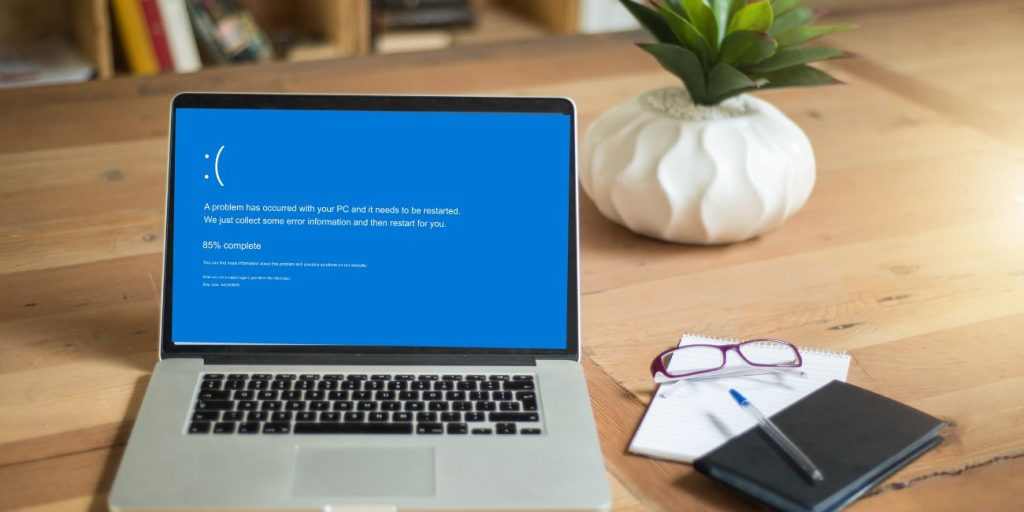
The Blue Screen of Death, also called BSOD, is a Windows stop error. It appears that when Windows runs into a problem it can’t safely handle. So Windows stops instead of letting the computer keep running and maybe damage files or crash even harder.
You might see a stop code on the screen. Sometimes there is also a “what failed” file name. That small detail can help a lot because it may point to a bad driver, graphics issue, security tool or another Windows part. If the screen restarts too fast and you miss it then yeah it’s annoying. It happens. You can still troubleshoot by checking when the crash happens and what changed before it started.
A blue screen can happen once and then never come back. That does not always mean your PC is broken. But if it keeps coming back, shows up before login or starts right after an update or new hardware then you should check it properly.
Why Does Blue Screen of Death Happen?
A Blue Screen of Death usually happens because Windows, a driver or a hardware part fails in a way the system can’t recover from. Sometimes the reason is simple. A bad update. A USB device is acting weird. A driver that does not fit well with Windows. Other times it is more serious like faulty RAM, a failing SSD or a laptop getting too hot during heavy work. The best clue is often what changed right before the problem started.
Common causes include:
- A faulty or outdated device driver
- A recent Windows Update problem
- A bad graphics, network, chipset, VPN, or antivirus driver
- Corrupted Windows system files
- Faulty RAM or a recent RAM upgrade
- SSD or hard drive errors
- Low storage during updates or repairs
- Overheating during gaming or heavy work
- Malware or unwanted software
- External devices like docks, printers, or USB drives
- BIOS or firmware problems after a hardware change
This part can be confusing because two people can see the same blue screen and still have different problems. A gaming laptop may crash because of heat or a GPU driver. A desktop may crash after a Windows update because the update did not install cleanly. A PC that blue screens before login needs recovery steps first. Not normal desktop fixes.
Before You Start: Check These Details First
Before trying fixes, take a minute to collect a few clues. Honestly it saves time. If you just start clicking every repair option then you may fix nothing and make the problem harder to track. If the blue screen appears again, write down the stop code and the “what failed” name if you see one. Also remember what you were doing right before the crash.
Check these details:
- Did the blue screen happen once or many times?
- Does Windows open normally after restarting?
- Does the crash happen before login?
- Did it start after a Windows update?
- Did you install a new driver, app, VPN, antivirus, or game tool?
- Did you connect new hardware, RAM, SSD, printer, or dock?
- Does it happen during gaming, video editing, charging, or heavy work?
- Does the same stop code appear each time?
A simple way to think about it is this. Timing matters a lot. If the BSOD started right after a driver update then check drivers first. If it started after adding RAM then test the memory. If Windows will not boot at all, skip the normal desktop stuff and go to Safe Mode, Startup Repair or System Restore.
How to Fix Blue Screen of Death
Start with the safe fixes first. Restart once. Unplug extra devices. Think about recent changes. These are low-risk steps and sometimes they are enough. After that, you can move into Safe Mode, update rollback, driver fixes, system file repair and hardware testing.
If Windows still opens then most fixes can be done from the desktop. If your PC is stuck in a restart loop then you’ll need Windows Recovery Environment. That is the screen where you see tools like Startup Repair, Safe Mode, System Restore and uninstall updates.
1. Restart Your PC Once and Check If the Error Returns
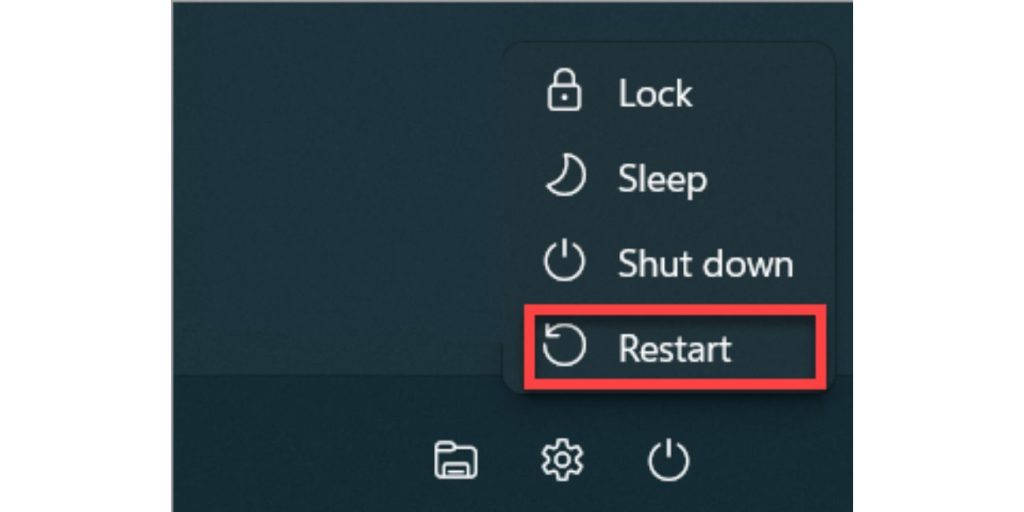
Restart the computer once and see what happens. A one-time Blue Screen of Death can happen because of a temporary driver issue, update problem or system conflict. If the PC restarts and works fine, then don’t jump straight into advanced repairs. Just keep using it and watch for the same stop code.
But don’t ignore it if it keeps happening. If the blue screen comes back, happens during the same task or appears before Windows loads then it’s not just a random glitch. That is when you should move through the fixes below.
2. Disconnect External Devices
External devices can cause blue screen errors when their drivers clash with Windows. This can include printers, scanners, USB drives, external hard drives, docking stations, webcams, controllers and even external monitors. Small thing. But a bad device driver can crash the whole system.
Shut down the PC and unplug anything you don’t need. Keep only the keyboard, mouse, monitor and power cable connected. Then start the computer again and use it for a while. If the BSOD stops, reconnect one device at a time until the crash comes back. That device, cable, port or driver may be the problem.
For laptops, docking stations and USB-C hubs deserve extra attention. They often handle display, charging, storage and network connections at the same time. When something goes wrong there, Windows may crash instead of giving a normal warning.
3. Start Windows in Safe Mode
Safe Mode starts Windows with only basic drivers and services. It’s useful when a bad driver, startup app or third-party tool keeps crashing the PC. If Windows works in Safe Mode but crashes in normal mode, that tells you something outside the basic Windows setup may be causing the problem.
If Windows opens normally, you can try this path:
- Open Settings.
- Go to System.
- Choose Recovery.
- Select Advanced startup.
- Click Restart now.
- After restart, choose Troubleshoot.
- Open Advanced options.
- Choose Startup Settings.
- Restart again.
- Press the key for Safe Mode or Safe Mode with Networking.
If Windows won’t open, force the PC into recovery mode. Turn it on then hold the power button when Windows starts loading. Do this a few times and Windows should open Automatic Repair. From there, go to Troubleshoot, then Advanced options, then Startup Settings.
Once you’re in Safe Mode, you can remove recent apps, roll back drivers, uninstall updates or run repair tools. Don’t treat Safe Mode like the final fix. It’s more like a safe place where you can fix what is breaking normal startup.
4. Run Startup Repair If Windows Will Not Boot
If the Blue Screen of Death appears before login or your PC keeps restarting, try Startup Repair. This tool checks boot files and startup settings. It will not fix every BSOD. Still, it’s a good early step when Windows can’t even reach the desktop.
To run it, open the Windows Recovery Environment. Choose Troubleshoot, then Advanced options, then Startup Repair. Pick your account if Windows asks. Then let the tool check the startup problem.
Startup Repair may restart the PC more than once. Let it finish. If it says it couldn’t repair your PC then don’t assume everything is broken. It just means the issue may be a driver, update, system file or hardware problem. After that, try Safe Mode, uninstall recent updates or use System Restore.
5. Uninstall Recent Windows Updates
If the BSOD started after a Windows Update, remove the latest update. Updates are usually helpful. But sometimes a quality update, driver update or feature update causes trouble on some devices. This is more likely if the blue screen started right after the update installed.
If Windows opens, go to Settings, then Windows Update, then Update history. Look for the option to uninstall updates. Remove the most recent update that matches the time the crash started. Restart the computer and check if the blue screen comes back.
If Windows does not open, use the recovery screen instead. Go to Troubleshoot, then Advanced options, then Uninstall Updates. You may see an option to uninstall the latest quality update or the latest feature update. Start with the latest quality update if the problem began after a normal monthly update.
Don’t turn off Windows Update forever. That’s not a good long-term fix. The point is to remove one bad recent change and then update again later when the issue is fixed.
6. Roll Back or Update Device Drivers
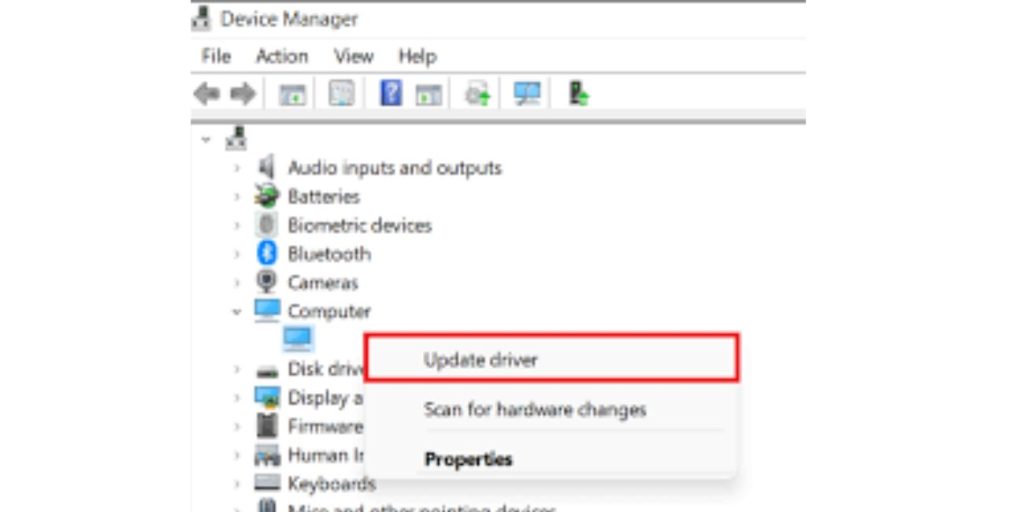
Drivers are a common reason for BSOD errors. A driver helps Windows talk to hardware like your graphics card, Wi-Fi adapter, SSD, printer, audio device, or even the chipset. If that driver is broken, too old or not working well with Windows then it can cause a stop error.
Start with what changed recently. If the blue screen began after updating your graphics driver, roll it back. If the PC is older and the drivers have not been updated in a long time then update them from the device maker’s website. Avoid random driver updater tools. Honestly, they often create more mess than they fix.
To roll back a driver:
- Right-click Start.
- Open Device Manager.
- Find the device you suspect.
- Right-click it and choose Properties.
- Open the Driver tab.
- Choose Roll Back Driver if the option is available.
Pay attention to graphics, network, chipset, storage, Bluetooth, VPN, antivirus and docking station drivers. GPU drivers are a big one especially if the crash happens while gaming, editing video or using more than one monitor. VPN and security software drivers can also be sneaky because they run deep inside Windows.
7. Remove Recently Installed Apps, VPNs, or Security Tools
Some apps install background services or low-level drivers. That can be fine when everything works. But if one of those tools conflicts with Windows then it can cause a blue screen. VPN apps, antivirus programs, firewalls, game anti-cheat tools, driver updaters and system cleaners are worth checking.
Think about what you installed shortly before the BSOD started. Remove one suspicious app at a time, restart and test the PC. Don’t remove ten apps at once if you can avoid it. If the crash stops, you will not know which one caused it.
Check these app types first:
- VPN apps
- Antivirus or firewall tools
- Driver updater programs
- PC cleaner or optimizer tools
- Game launchers and anti-cheat software
- Hardware control apps for RGB, fans, GPU, or mouse settings
- Newly installed backup or disk tools
If you remove antivirus software for testing, don’t leave the PC unprotected. Use Windows Security or reinstall a trusted security tool after testing. The goal is to find a conflict. Not make your computer easier to infect.
8. Run DISM and SFC to Repair Windows Files
Corrupted system files can cause crashes, failed updates and strange Windows behavior. DISM and SFC are built-in Windows repair tools. DISM checks and repairs the Windows image. SFC scans protected system files and tries to fix them.
Open Command Prompt as administrator. You can also use Windows Terminal or PowerShell as admin. Run these commands one at a time and wait for each one to finish:
DISM /Online /Cleanup-Image /RestoreHealth
Then run:
sfc /scannow
The scan can take a while so don’t close the window halfway through. After both commands finish, restart the PC and see if the BSOD returns.
If Windows crashes too fast for you to run these tools, try Safe Mode with Networking. It may give you enough time to open Command Prompt and repair the system. If the commands say they fixed files then yes it works. But still watch the computer for a while because the crash may come back if another issue is causing it.
9. Check Your Drive for Errors
A failing SSD or hard drive can cause blue screens, freezing, slow startup, missing files and failed updates. Storage problems can also damage system files. Then those damaged files cause more crashes. Low free space can make update and repair problems worse too, so don’t ignore storage.
Before running repair tools, back up your important files if you can. This matters because a drive that is already failing may get worse when you run heavy scans. Copy your documents, photos, work files and anything you can’t replace to an external drive or cloud storage.
You can start with Windows’ built-in drive check. Open File Explorer, right-click the system drive, choose Properties, open Tools and run Error checking. You can also use your PC maker’s storage health tool if one is available.
Some users run CHKDSK from Command Prompt for a deeper file system check. Be careful with this. If the drive is clicking, disappearing from Windows, or causing constant freezes, then back up first. Replacing the drive may be smarter than pushing it harder.
10. Test Your RAM
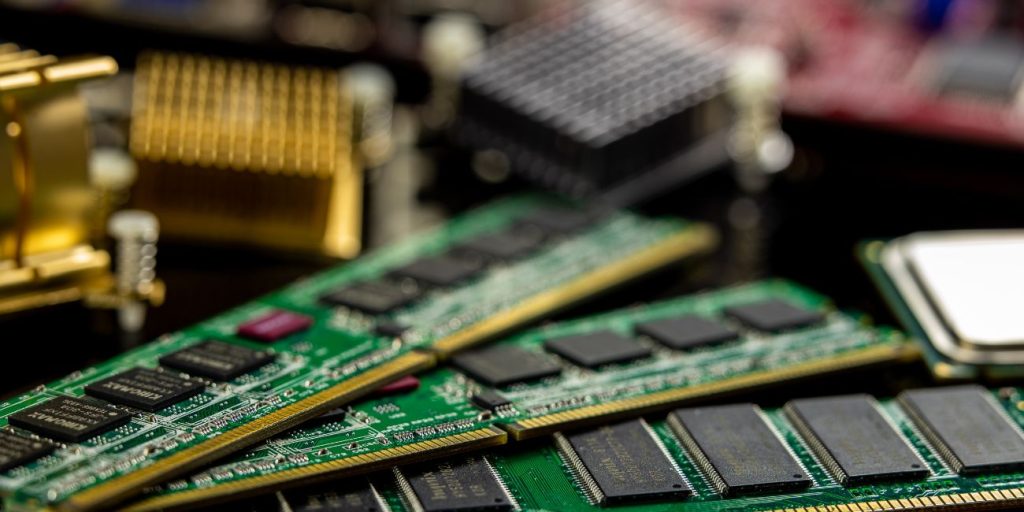
Faulty RAM can cause random blue screen errors. The crash may happen while gaming, browsing, editing video or even when the computer is doing almost nothing. It feels random because memory errors may only show up when Windows touches a bad part of the RAM.
Use Windows Memory Diagnostic to check for memory problems. Press Start, search for Windows Memory Diagnostic, then choose the option to restart and check for problems. The PC will restart and run the test before Windows loads again.
If the test finds memory errors, the fix is usually hardware-related. You may need to reseat the RAM, remove a new stick, stop overclocking or replace bad memory. On a laptop, this can be harder because some memory is built into the motherboard.
Also, think about what happened before the crashes started. Did you add RAM? Did you enable XMP or memory overclocking? Did the PC get moved around recently? Those small details can point you in the right direction.
11. Check for Overheating
Overheating can trigger blue screen crashes, especially during gaming, streaming, rendering or charging a laptop while doing heavy work. Heat can affect the CPU, GPU, storage and power parts. Sometimes the PC shuts down. Sometimes Windows crashes with a BSOD.
Look for these signs:
- Fans are running all the time loudly
- The laptop feels very hot near the keyboard or vents
- Crashes happen during games or heavy apps
- PC works fine when idle but fails under load
- Vents are blocked by dust, bedding, or a soft surface
- Desktop case has poor airflow
- GPU temperature rises fast during gaming
For a laptop, use it on a hard flat surface. Don’t block the vents with a blanket, pillow or your lap for long sessions. For a desktop, check that fans are spinning and dust is not packed inside the case. If opening the PC feels risky, don’t force it. A repair shop can clean it and check cooling safely.
Overheating is easy to miss because the computer may still turn on and look normal. But if heat is the cause then software fixes won’t hold for long. The crash will probably come back when the system gets hot again.
12. Scan for Malware
Malware is not the most common cause of a Blue Screen of Death, but it can still mess with Windows. Bad software can damage files, change startup settings, install unsafe drivers or fight with security tools. If the BSOD came with popups, strange apps, browser redirects or sudden slowdowns then scan the PC.
Open Windows Security and run a full scan. If you think something deeper is hiding, run an offline scan too. An offline scan checks the computer before Windows fully loads. That can help catch threats that are harder to remove while Windows is running.
Don’t install a bunch of antivirus tools at the same time. That can cause conflicts and slow everything down. Use one trusted security tool, remove suspicious apps and restart after the scan finishes.
13. Use System Restore
System Restore can roll Windows back to an earlier working state. It can undo some driver, update, app and settings changes. It usually does not delete your personal files. But it may remove apps or drivers installed after the restore point.
Use this when the BSOD started after a clear recent change and simpler fixes didn’t help. Open the Windows Recovery Environment or search for System Restore from inside Windows. Choose a restore point from before the blue screen started.
Read the restore details before you continue. Windows may show affected programs and drivers. After the restore finishes, use the PC normally for a while and check if the crash stops. If it does then the issue was likely tied to a recent system change.
System Restore is not always available. Some PCs don’t have restore points saved. If that happens, just move to the next repair option instead of spending too much time trying to force it.
14. Reset Windows as a Last Resort
Resetting Windows is a bigger step. It can help when the system is badly damaged, full of software conflicts or still crashing after driver, update and repair tool fixes. But it should not be the first thing you try.
Before resetting, back up important files. Even when you choose “Keep my files,” apps and settings may be removed. If you choose “Remove everything,” the reset is much more aggressive and can wipe personal data from the Windows drive.
You’ll usually see two main choices:
| Reset Option | What It Means |
|---|---|
| Keep my files | Reinstalls Windows while trying to keep personal files |
| Remove everything | Reinstalls Windows and removes files, apps, and settings |
A reset may not fix bad RAM, a failing SSD, overheating, GPU failure or motherboard problems. If hardware is the real cause, Windows can be fresh and still crash. For work or school PCs, check with IT first because BitLocker, admin rules or company tools may affect recovery.
What If Blue Screen of Death Keeps Coming Back?
If the BSOD keeps coming back, stop treating it like a random crash. Look for a pattern. A repeated blue screen usually leaves clues, even if they are not obvious at first.
Use this quick guide:
| Crash Pattern | Likely Area to Check |
|---|---|
| Happens after Windows update | Uninstall update, check drivers, use System Restore |
| Happens during gaming | GPU driver, overheating, RAM, power supply |
| Happens before login | Startup Repair, Safe Mode, recent update, system files |
| Happens after plugging in a device | USB device, dock, printer, external drive, driver conflict |
| Happens when idle | Power settings, drivers, RAM, storage health |
| Happens with one app | App conflict, GPU use, security tool, app driver |
| Shows different stop codes often | RAM, storage, motherboard, deeper hardware issue |
You can also check Reliability Monitor. Search for it in Windows and open the reliability history. It shows crashes, failed updates, app failures and hardware errors on a timeline. Event Viewer can show more technical logs, but yeah, it can feel messy if you’re not used to it.
If you see memory errors, drive health warnings, repeated hardware errors or crashes even after resetting Windows then it may be time for repair support. That’s not a bad thing. It just means the problem may be outside normal software fixes.
How to Prevent Blue Screen of Death in the Future
You can’t fully promise a PC will never blue screen again. But you can lower the chances. Keep Windows updated but don’t rush every optional driver update unless you need it. Keep enough free storage, avoid random driver updater tools and back up your files before big changes.
Good habits help:
- Keep Windows Update turned on
- Update graphics and chipset drivers from trusted sources
- Avoid installing unknown system cleaner tools
- Keep at least some free space on your system drive
- Back up important files often
- Clean dust from vents and fans when needed
- Watch for laptop overheating
- Scan for malware if the PC acts strange
- Create a restore point before big driver or hardware changes
- Don’t ignore repeated stop codes
The main thing is simple. If BSOD happens once, watch it. If it happens again, don’t keep guessing forever. Check the stop code, recent changes, drivers, updates and hardware signs before the problem gets worse.
Frequently Asked Questions (Faqs)
What is the Blue Screen of Death?
The Blue Screen of Death is a Windows stop error. It appears when Windows runs into a serious system problem and has to stop. The screen usually shows a stop code that can help you find the cause.
What causes Blue Screen of Death?
BSOD can be caused by drivers, Windows updates, corrupted system files, bad RAM, failing storage, overheating, malware or external devices. The best clue is often what changed right before the crash started.
How do I fix Blue Screen of Death?
Start by restarting the PC, noting the stop code and unplugging extra devices. If it keeps happening, use Safe Mode, uninstall recent updates, roll back drivers, repair system files and test RAM or storage.
How do I fix Blue Screen of Death on a laptop?
For a laptop, check overheating, drivers, recent updates, RAM, SSD health and connected devices like USB hubs or docks. Also use the laptop maker’s diagnostic tool if you have one. If the laptop is under warranty, avoid risky hardware repairs yourself.
Can Blue Screen of Death fix itself?
A one-time BSOD may not return after a restart. But if it happens again, it needs troubleshooting. Repeated blue screens usually point to a driver, update, system file or hardware problem.
Is BSOD caused by hardware or software?
It can be either. Software causes include drivers, updates, apps and corrupted files. Hardware causes include bad RAM, a failing SSD, overheating, power issues or a faulty graphics card.
Does resetting Windows fix BSOD?
Resetting Windows can fix BSOD caused by damaged system files, bad settings or software conflicts. It will not fix failing hardware. If RAM, storage or overheating is the problem then the blue screen may come back after the reset.
Can VPN or antivirus cause BSOD?
Yes, sometimes. VPNs, antivirus tools, firewalls and security apps can install drivers that run deep in Windows. If one of those drivers conflicts with the system, it may trigger a blue screen.
Can low storage cause Blue Screen of Death?
Low storage by itself may not always cause BSOD. But it can make Windows unstable. It can also cause failed updates, repair problems and file corruption. Keep enough free space on the system drive.
Should I worry if BSOD happened once?
Not always. If it happened once and the PC works normally after restart, just note the stop code and watch it. If it happens again, starts after an update or appears during startup then troubleshoot it properly.
Final Thoughts
The Blue Screen of Death looks scary, but it’s easier to handle when you follow a clear order. Start with the simple stuff. Restart once, note the stop code, unplug extra devices and think about what changed recently. Then move into Safe Mode, updates, drivers, system file repair, RAM, storage and overheating checks.
If the blue screen keeps returning, don’t guess forever. Back up your files, look for a pattern and get hardware checked if memory, drive or heat problems show up. Sometimes it is software. Sometimes it’s hardware. The pattern usually tells you where to look.
Have you seen a specific stop code on your blue screen, or does it restart too fast to read it?