
A well-maintained computer is easier to trust, faster to use, and less likely to suffer from avoidable errors. Over time, Windows PCs collect temporary files, outdated caches, broken shortcuts, unused startup items, and old driver versions that can affect performance or stability. A serious, easy-to-use PC cleaner and driver updater can help you manage these issues in one place, provided it is designed with safety, transparency, and user control in mind.
TLDR: A reliable PC cleaner and driver updater helps remove unnecessary files, manage startup entries, and keep hardware drivers current. The best tools are not aggressive or mysterious; they clearly show what will be changed and allow backups or restore points before updates. Used carefully, this type of software can improve everyday performance, reduce driver-related issues, and make PC maintenance simpler. It should be part of a sensible maintenance routine, not a substitute for good security habits or regular backups.
Why PC Cleaning Still Matters
Modern computers are powerful, but they are not immune to clutter. Every installed application, browser session, software update, and system process can leave behind files that are no longer needed. Individually, these files may seem harmless. Collectively, they can take up gigabytes of space and make it harder to identify what is actually important on your device.
A trustworthy PC cleaner focuses on practical maintenance rather than exaggerated promises. It should help you identify temporary files, browser caches, recycle bin contents, old logs, leftover installer files, and unnecessary application data. Removing these items can free storage space and may improve responsiveness, especially on systems with limited disk capacity.
Cleaning is not only about speed. It is also about organization. When a computer is overloaded with old files and unused programs, troubleshooting becomes more difficult. A cleaner, more controlled system is easier to update, back up, and secure.
The Role of Drivers in System Stability
Drivers are the software components that allow Windows to communicate with hardware such as graphics cards, audio devices, network adapters, printers, chipsets, storage controllers, and Bluetooth devices. When drivers are outdated, missing, or corrupted, the results can include poor performance, device errors, unstable connections, distorted audio, display issues, or even system crashes.
A driver updater helps identify installed hardware and compare current driver versions with available updates from reliable sources. This is useful because many users do not know which exact hardware components are inside their PC, and manually searching for compatible drivers can be time-consuming and risky.
That said, driver updates should be handled carefully. The newest version is not always necessary for every system. A serious driver updater should offer clear information, version details, driver dates, backup options, and the ability to skip updates that are not relevant. The goal is not to update everything blindly; the goal is to keep essential hardware working reliably.
What Makes a PC Cleaner and Driver Updater Trustworthy?
Not all maintenance software is equal. Some programs use alarming language, inflated warnings, or unclear recommendations to pressure users into action. A trustworthy tool behaves differently. It presents facts, explains risks, and gives the user control.
When evaluating a PC cleaner and driver updater, look for the following qualities:
- Clear scan results: The software should show what it found, where it was found, and why it may be safe to remove or update.
- Backup and restore options: Before driver updates or deeper system changes, the tool should support backups or Windows restore points.
- Selective cleanup: Users should be able to review categories and uncheck anything they want to keep.
- Verified driver sources: Driver recommendations should come from reputable databases and match the correct hardware identifiers.
- No exaggerated claims: Serious software avoids unrealistic promises such as making an old PC “brand new” with one click.
- Privacy awareness: The tool should clearly explain what data it scans, stores, or transmits.
- Simple design: Ease of use matters, but simplicity should not come at the cost of transparency.
The best experience combines automation with informed choice. A one-click scan can be helpful, but users should still be able to review the results before applying changes.
Key PC Cleaning Features to Look For
An effective PC cleaner should cover common maintenance areas without interfering with essential system files. The following features are especially valuable for everyday users and small business environments:
- Temporary file cleanup: Removes files created by Windows and applications that are no longer needed.
- Browser cleanup: Clears cached files, cookies, history, and download records based on user preference.
- Startup manager: Helps disable unnecessary programs that launch when Windows starts.
- Application cleanup: Identifies leftover data from uninstalled or rarely used applications.
- Large file finder: Shows files consuming significant storage space so users can decide what to delete.
- Duplicate file detection: Helps locate duplicate documents, media files, or downloads, preferably with careful review before deletion.
These features should be used thoughtfully. For example, browser cleanup can improve privacy and free space, but it may also sign you out of websites if cookies are removed. A dependable cleaner makes such consequences clear before action is taken.
Driver Updating Without Unnecessary Risk
Driver updates can solve real problems, but they can also create issues if the wrong driver is installed. This is why a responsible driver updater should prioritize compatibility over speed. It should identify hardware using precise device IDs rather than broad names alone. For example, two laptops may both have “Intel graphics,” but they may require different driver packages depending on model, generation, and manufacturer customization.
Before applying driver updates, a good tool should allow you to:
- Create a restore point or driver backup.
- View the current and proposed driver versions.
- Update one driver at a time if desired.
- Ignore or postpone updates for devices that are working correctly.
- Roll back a driver if a new version causes trouble.
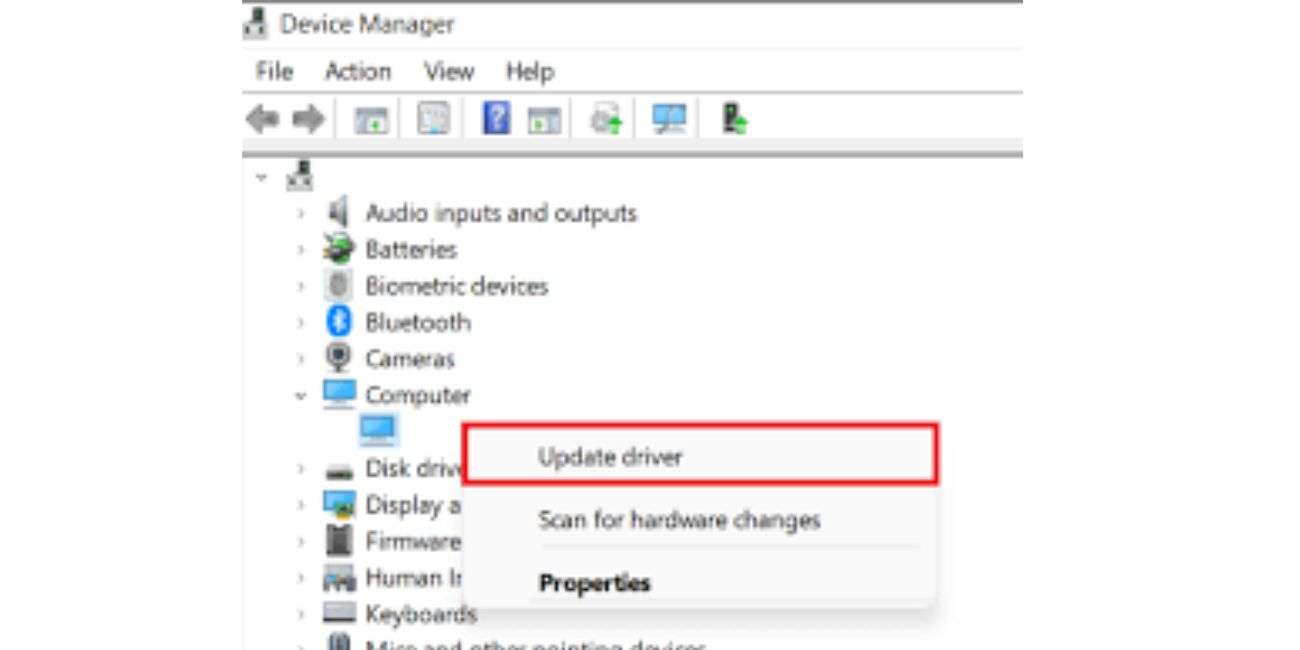
This cautious approach is especially important for graphics, network, audio, and chipset drivers. These components can directly affect daily usability. Updating them through a structured tool can be convenient, but the process should never feel hidden or irreversible.
How an Easy-to-Use Tool Improves Maintenance
Many users delay PC maintenance because it feels technical, risky, or time-consuming. An easy-to-use cleaner and driver updater reduces that friction. A clean dashboard, plain explanations, and well-organized categories make it possible to understand what is happening without needing advanced technical knowledge.
A practical workflow might look like this:
- Scan the system for junk files, startup items, and outdated drivers.
- Review the findings by category rather than accepting every recommendation automatically.
- Back up drivers or create a restore point before applying driver changes.
- Clean temporary files and other selected items.
- Update essential drivers, preferably starting with the updates most relevant to current problems.
- Restart the PC and confirm everything works normally.
This process is simple, but it is also disciplined. The purpose of a powerful tool is not to encourage careless clicks. It is to make responsible maintenance easier and more efficient.
Performance Benefits You Can Realistically Expect
A PC cleaner and driver updater can provide noticeable benefits, but expectations should remain realistic. If a computer is slow because it has very little memory, failing hardware, malware, or an old mechanical hard drive, cleanup alone will not fully resolve the problem. However, maintenance software can still help by reducing unnecessary load and improving system organization.
Common benefits may include:
- More free storage space after removing temporary files and old caches.
- Faster startup when unnecessary startup programs are disabled.
- Fewer hardware errors when outdated or missing drivers are corrected.
- Improved network, audio, or graphics behavior when appropriate driver updates are installed.
- Easier troubleshooting because the system is cleaner and better documented.
These improvements are often most visible on older PCs, laptops with limited storage, or systems that have not been maintained for a long time. For newer computers, the benefit may be more about prevention and stability than dramatic speed increases.
Safety Practices Before Cleaning or Updating
Even with reliable software, basic precautions are important. Serious PC maintenance should never ignore data protection. Before performing major cleanup or driver updates, confirm that important documents, photos, work files, and settings are backed up.
Follow these practical safety steps:
- Keep a recent backup of important files on an external drive or trusted cloud service.
- Create a Windows restore point before driver updates.
- Read scan results carefully, especially before deleting duplicate files.
- Avoid cleaning categories you do not understand unless the software clearly explains them.
- Restart after driver updates to allow Windows to complete configuration.
- Do not install multiple driver updater tools at the same time, as overlapping recommendations can create confusion.
Who Should Use a PC Cleaner and Driver Updater?
This type of tool is useful for home users, students, remote workers, gamers, office teams, and anyone responsible for keeping a Windows PC running dependably. It is especially helpful for people who want a guided approach instead of manually searching through system folders, Device Manager, startup settings, and manufacturer websites.
For business users, consistency matters. Maintaining drivers and reducing clutter can lower the number of avoidable support issues. For home users, the value is convenience: fewer confusing errors, better storage management, and a clearer understanding of what is happening on the computer.
Final Thoughts
A powerful PC cleaner and driver updater can be a valuable part of responsible computer maintenance when it is built around clarity, safety, and user control. The right tool helps remove unnecessary files, manage startup behavior, identify outdated drivers, and apply updates with proper safeguards. It should make maintenance easier without hiding important details or pressuring users into unnecessary changes.
The most reliable approach is balanced: clean regularly, update drivers carefully, back up important data, and review recommendations before applying them. With that mindset, an easy-to-use PC cleaner and driver updater can help keep your computer more organized, stable, and ready for everyday work.