


Playnite is a powerful game library manager. It helps you bring games from Steam, Epic, GOG, and more into one clean place. But sometimes, a game refuses to launch. It may look blocked. You might see an error. Or nothing happens at all. So what gives? Can you unblock games in Playnite? Let’s break it down in a simple and fun way.
TLDR: Yes, you can unblock games in Playnite, but Playnite itself usually isn’t the one blocking them. Most problems come from Windows security, antivirus software, firewalls, or parental controls. Fixing the issue means finding the real blocker and adjusting its settings. This guide walks you through every common cause and solution.
Does Playnite Block Games?
Here’s the simple truth: Playnite does not block games by itself.
Playnite is a launcher. It gathers your games and starts them. That’s it. It does not add copy protection. It does not restrict files. It does not lock games.
If a game feels blocked, something else is usually doing the blocking.
Common suspects include:
- Windows Defender
- Third-party antivirus software
- Windows Firewall
- Parental controls
- Corrupted game files
- Game platform login issues
Let’s look at each one step by step.
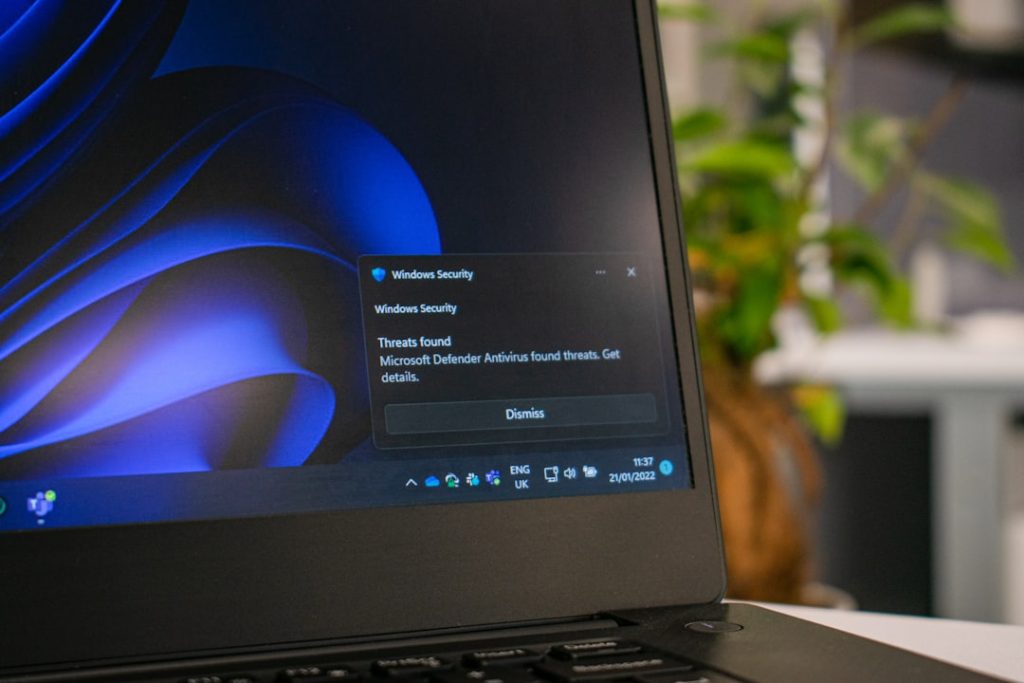
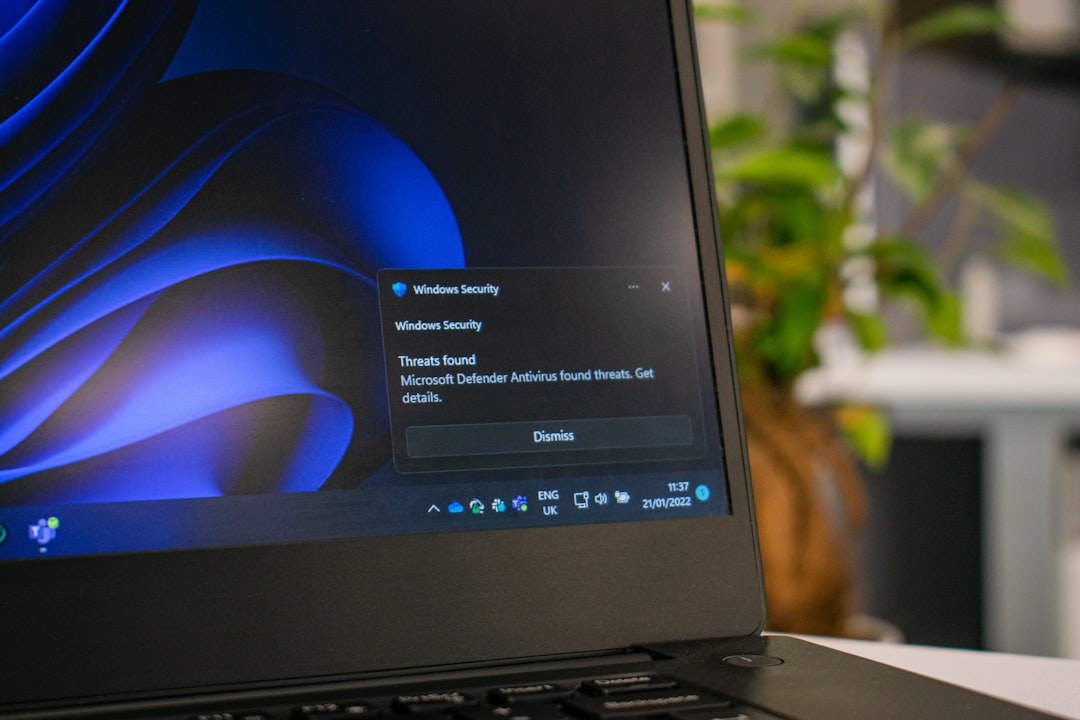
1. Windows Defender Is Blocking the Game
Windows Defender is very protective. Sometimes too protective.
If it thinks a game file looks suspicious, it may quarantine it. That means the file gets locked away. The game will not launch.
How to check:
- Open Windows Security.
- Click Virus & Threat Protection.
- Click Protection History.
- Look for blocked or quarantined files.
If you see your game listed, you can restore it.
To unblock:
- Select the file.
- Click Restore.
- Add it to Exclusions so it doesn’t get blocked again.
After that, try launching the game from Playnite again.

2. Antivirus Software Is Interfering
If you use programs like Avast, Norton, AVG, or Bitdefender, they may block games.
This is common with:
- Indie games
- Older games
- Modded games
- Games installed outside Program Files
What to do:
- Open your antivirus program.
- Check the quarantine or blocked files section.
- Restore the game file if needed.
- Add the game folder as an exception.
Keep protection on. Just whitelist the specific game folder.
3. Windows Firewall Is Blocking Online Features
If your game launches but cannot connect online, the firewall may be blocking it.
You might see:
- Connection errors
- Multiplayer not working
- Login failures
How to allow the game:
- Open Control Panel.
- Click Windows Defender Firewall.
- Select Allow an app or feature.
- Find your game in the list.
- Check both Private and Public.
If it’s not listed, click Add another app.
4. The Game Platform Is the Problem
Remember, Playnite often launches games through another platform.
For example:
- Steam
- Epic Games
- GOG Galaxy
- Origin
- Ubisoft Connect
If you are logged out of Steam, your Steam game will not start. Even from Playnite.
Fix:
- Open the original launcher manually.
- Make sure you are logged in.
- Update the platform.
- Try launching the game from there first.
If it works there but not in Playnite, try refreshing your Playnite library.
5. Check Playnite Game Settings
Sometimes, the launch path is wrong.
Maybe you moved the game folder. Maybe you reinstalled it.
To check:
- Right-click the game in Playnite.
- Select Edit.
- Go to the Installation tab.
- Check the ROM path or Executable path.
If the file location is incorrect, browse and fix it.
Save changes. Try again.
6. Parental Controls or Family Settings
If this is a shared PC, parental controls could be active.
Microsoft Family Safety can block apps and games.
Check by:
- Going to Microsoft Family Safety online.
- Reviewing content restrictions.
- Allowing the specific game.
This is common on kids’ accounts.
7. Corrupted Game Files
Sometimes, the problem is simple. The game files are damaged.
This can happen after:
- A sudden shutdown
- A failed update
- Disk errors
If your game is on Steam:
- Open Steam.
- Right-click the game.
- Select Properties.
- Click Verify integrity of game files.
Other launchers have similar options.
Quick Comparison: What Might Be Blocking Your Game?
| Possible Blocker | Symptoms | How to Fix | Difficulty Level |
|---|---|---|---|
| Windows Defender | Game will not launch at all | Restore from Protection History | Easy |
| Antivirus Software | Game file missing or deleted | Add folder to exceptions | Easy |
| Firewall | Multiplayer not working | Allow app through firewall | Medium |
| Game Launcher Login | Nothing happens when launching | Log into Steam or other platform | Very Easy |
| Wrong File Path | Error message in Playnite | Edit game settings | Medium |
| Parental Controls | Access denied message | Adjust family settings | Medium |
How to Refresh or Reimport Games in Playnite
Sometimes, Playnite just needs a refresh.
To refresh:
- Click the menu icon.
- Select Library.
- Choose Update Game Library.
You can also remove and reimport a game.
This fixes:
- Missing metadata
- Broken launch commands
- Plugin sync issues
Advanced Fix: Run Playnite as Administrator
In rare cases, Windows permission settings block access.
Try this:
- Close Playnite.
- Right-click the Playnite icon.
- Select Run as administrator.
If this fixes the problem, you may need to adjust folder permissions.
What If the Game Is Truly Restricted?
There are rare cases where a game is license-restricted.
This happens if:
- The game was refunded.
- Your subscription expired.
- Your account was banned.
Playnite cannot override that.
It can only launch what your account owns and has access to.
Best Practices to Avoid Blocked Games in the Future
Here are some simple habits:
- Install games in standard folders.
- Keep Windows updated.
- Keep launchers updated.
- Add trusted game folders to antivirus exclusions.
- Do not move game files manually.
These small steps prevent big headaches.
When Should You Reinstall?
If nothing works, reinstalling may help.
But do this last.
Try:
- Reinstalling the game first.
- Then reinstalling Playnite if needed.
Most of the time, the issue is security software. Not Playnite.

Final Thoughts
So, can you unblock games in Playnite?
Yes. But you usually unblock them in Windows or your security software, not inside Playnite itself.
Playnite is just the messenger. It launches your games. It does not jail them.
If a game does not start, stay calm. Check Defender. Check antivirus. Check firewall. Check login status. Then verify files.
Follow the steps in this guide. Work through them one by one. Most issues are fixed in under 10 minutes.
Now go ahead. Open Playnite. Launch your favorite game. And enjoy.