


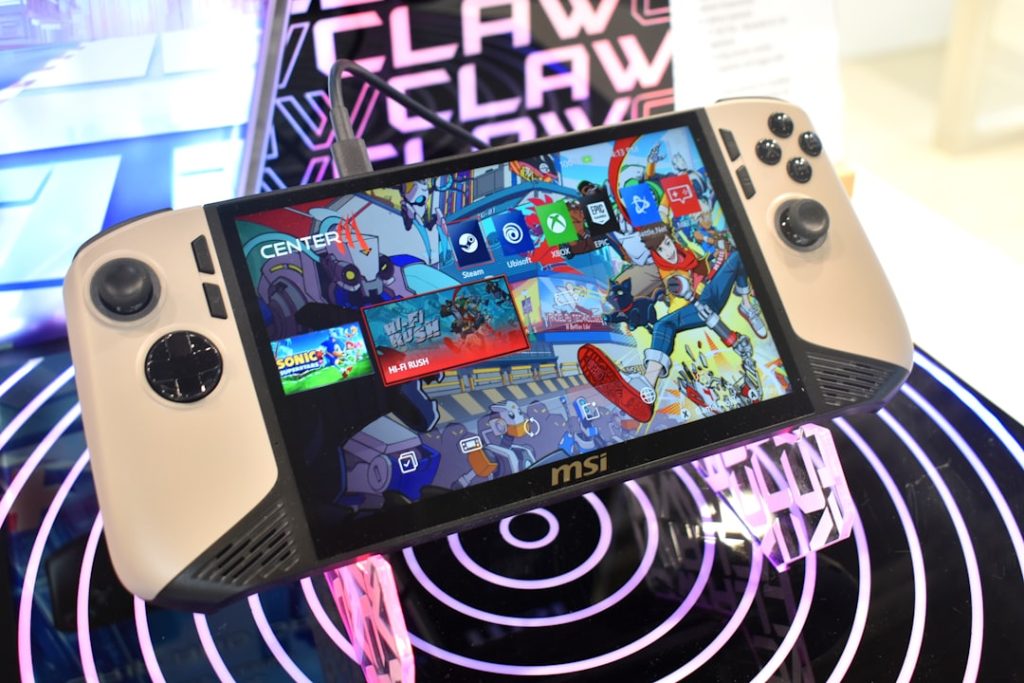
Gaming on Android has evolved significantly in recent years, and for those looking to bring their PC gaming library on the go, Steam on Android through tools like GameHub is a powerful solution. GameHub acts as a bridge, providing enhanced configuration, controller support, and performance customization when streaming or running games via Steam on mobile devices.
TL;DR
To get the best experience using Steam with GameHub on Android, focus on optimizing video quality, performance, and controller mapping. Important settings to adjust include resolution scaling, bitrate limits, and choosing the best streaming protocol. Additionally, configuring touch controls or using a Bluetooth controller can greatly improve gameplay. By tweaking these settings, you can enjoy smooth gaming even on relatively modest hardware.
Why Use GameHub for Steam Streaming on Android?
GameHub enhances the way you stream games from your PC to your Android phone or tablet. While Steam Link is the official app, GameHub offers more customization for resolution, input, and performance. It’s particularly beneficial for users with non-standard devices or those who want more granular control over their mobile gaming environment.
Initial Setup: What You Need
Before diving into settings, make sure you’re equipped with the following:
- A Windows or Linux PC with Steam installed.
- The GameHub app for Android (available via F-Droid or GitHub).
- A steady home Wi-Fi network (5 GHz is ideal for low latency).
- A Bluetooth controller or touchscreen-compatible games.
With everything connected and your PC and Android device on the same network, launch GameHub and log into your Steam account to begin setting things up.
Best GameHub Settings for Steam Streaming
Getting the most out of GameHub involves fine-tuning a variety of settings tailored to your device’s capability and the type of games you want to play. Let’s break down the most important ones:
1. Video Settings
Video settings determine the quality and performance of the streamed content on your Android device:
- Resolution: Set this to 720p or 1080p, depending on your device’s screen size and performance. 720p is smoother on budget phones, while 1080p gives better clarity on higher-end devices.
- Frame Rate: 60 FPS is ideal for fast-action games like shooters or racing games. For narrative-heavy games, 30 FPS may be sufficient and conserve bandwidth.
- Bitrate Limit: Keep it between 10 Mbps and 30 Mbps based on your local network bandwidth. Higher settings provide crisper visuals but may introduce lag if your network can’t keep up.
Experiment with resolution and bitrate to strike the right balance between quality and latency.

2. Streaming Protocol
GameHub supports different streaming protocols depending on your backend configuration. The two most common ones are:
- Moonlight (NVIDIA Gamestream): The best option for users with NVIDIA GPUs. It’s ultra-fast and low latency, optimized for Android.
- Steam Remote Play: If you’re sticking to vanilla Steam setups, this is your route. Not as fast as Moonlight, but more universal.
Choose the protocol that best suits your PC hardware and your familiarity with setup. Moonlight may require some additional configuration via installed GeForce Experience tools.
3. Controller and Input Settings
How you control the game can make or break your experience. Fortunately, GameHub supports both physical controllers and touchscreen overlays:
- Bluetooth Controllers: Pair an Xbox, PlayStation, or third-party Bluetooth controller with your device. GameHub will automatically detect and configure most major brands.
- Touchscreen Layout: For games that don’t require fast reflexes (e.g. RPGs or strategy titles), customize the touchscreen overlays in the Input settings tab. You can resize and reposition buttons as needed.
Make sure to test different button mapping profiles. Some users prefer using community-created layouts, which can often be downloaded or imported directly in GameHub.
4. Network Optimization
Your streaming performance heavily depends on your network connection. Within GameHub:
- Enable Adaptive Bitrate: This automatically adjusts video quality based on current connection strength, reducing the likelihood of lag spikes.
- Use 5 GHz Wi-Fi: It’s far superior to 2.4 GHz for game streaming due to reduced interference and higher bandwidth.
- LAN vs Online: For best performance, stream over the same local network. Online streaming is possible but only recommended with high-speed internet (minimum 25 Mbps upload and download).
If your mobile device supports Ethernet via USB-C docking, that provides the most stable connection for streaming.
5. Audio Settings
Game audio dramatically affects immersion. GameHub lets you tweak audio bitrate and sync options:
- Set Audio Bitrate to 128 kbps or higher for stereo sound, particularly in music-focused games or those with rich sound design.
- Enable Audio Sync: Some games, especially rhythm-based ones, may suffer from audio lag. Adjust audio delay manually in the settings if you notice desynchronization.
A good pair of Bluetooth headphones will further enhance the soundstage and reduce latency compared to phone speakers.
Recommended Configurations Based on Game Types
Here are some quick setup profiles you can follow depending on what kind of game you are playing:
Action or FPS Games
- Resolution: 720p
- Frame Rate: 60 FPS
- Bitrate: 20 Mbps
- Input: Physical Controller
Strategy or RPG Games
- Resolution: 1080p
- Frame Rate: 30 FPS
- Bitrate: 15 Mbps
- Input: Touchscreen or Controller
Indie or Puzzle Games
- Resolution: 720p
- Frame Rate: 30 FPS
- Bitrate: 10 Mbps
- Input: Touchscreen
Bonus Tips and Tricks
- Use performance overlays to monitor FPS, latency, and temperature. These are available from within GameHub’s settings and help with debugging issues.
- Enable Dark Mode: Not performance-related, but makes the app easier on the eyes during night sessions.
- Keep PC Steam Updated: GameHub relies on Steam backend functionality, so ensure your desktop client is up to date.
- Use Task Killers Wisely: Close background apps on your Android to allocate maximum resources for streaming.
Conclusion
GameHub is a powerful tool to bring your Steam library into your pocket. By optimizing video, audio, input, and streaming settings, you can transform your Android device into a capable gaming rig. Whether you’re playing a quick indie title or a graphically intensive shooter, the right settings will make all the difference. With careful adjustment, the boundaries between PC and mobile gaming begin to vanish—wherever you are, your library follows.