
Quick Answer: Awaiting Endpoint means Discord is trying to connect you to a voice server, but the connection is not completing. It can happen because of the internet issues, VPN, firewall, voice region, app cache or Discord voice server problem. First, leave and rejoin the voice channel, restart Discord and check your internet.
Discord Awaiting Endpoint is frustrating because it appears right when you are trying to join a voice chat. You click the voice channel, Discord tries to connect and then it just keeps showing Awaiting Endpoint. Not a good mood.
The annoying thing is that your mic may be perfectly fine. Your headset may also be fine. But Discord still cannot connect you to the voice server. So the problem is usually not your microphone first. It is mostly a voice connection issue.
This guide will explain what Awaiting Endpoint means on Discord and how to fix it. Start with the simple fixes first. Don’t change all settings at once. Try one fix, test the voice channel and then move to the next.
What Does Awaiting Endpoint Mean on Discord?
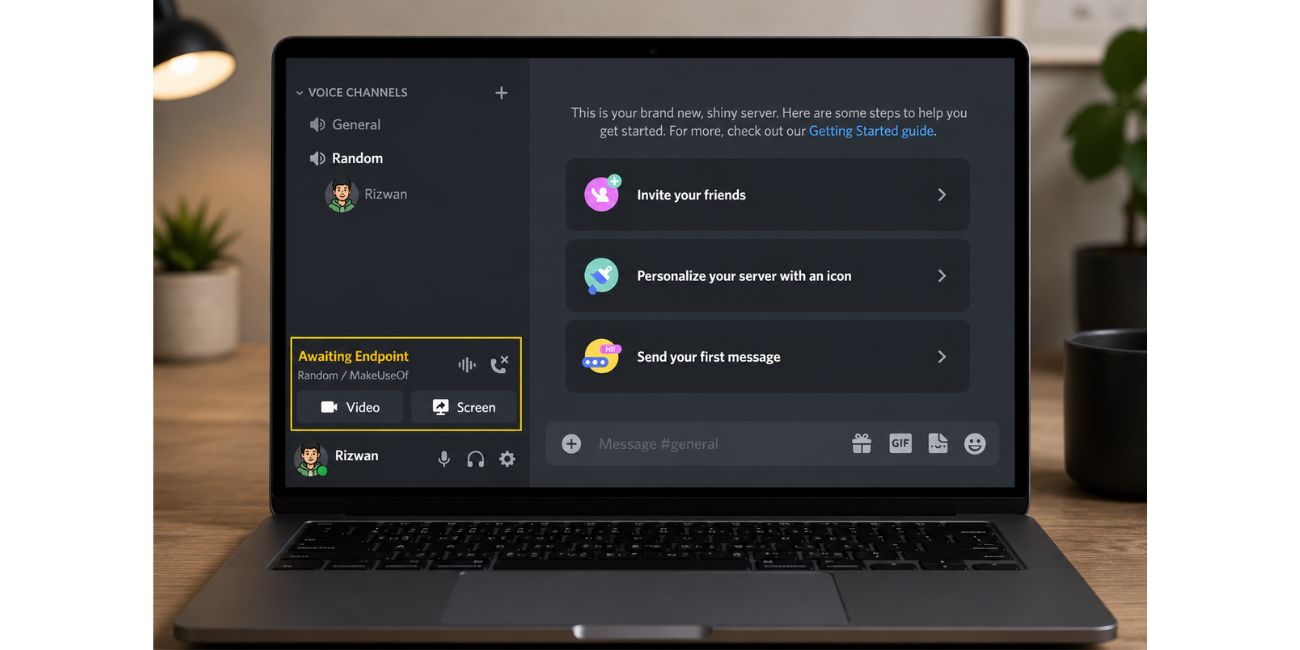
Awaiting Endpoint on Discord means Discord is waiting to connect you to a voice server. The endpoint is basically the voice server connection that Discord needs to let you speak or hear others.
When Discord works normally, this connection happens in a few seconds. You join the voice channel and everything is ready. But when Discord gets stuck on Awaiting Endpoint, it means the voice connection is not finishing properly.
This does not always mean your account is broken. It also does not mean your mic is dead. Most of the time, Discord is just stuck while connecting to the voice server.
Why Is Discord Stuck on Awaiting Endpoint?
Discord can be stuck on Awaiting Endpoint because of different things. Sometimes Discord voice server has a problem. Sometimes your internet is weak. Sometimes VPN, firewall or the router settings block the connection.
Common causes include:
- Discord voice server issue
- Weak or unstable internet connection
- Voice region problem
- VPN or proxy conflict
- Firewall blocking Discord
- Router or DNS problem
- Discord app cache issue
- Outdated Discord app
- School or office Wi-Fi restrictions
- Temporary voice channel bug
The hard part is that Discord does not always tell you the exact reason. It just shows Awaiting Endpoint and leaves you guessing.
1. Check If Discord Voice Is Down
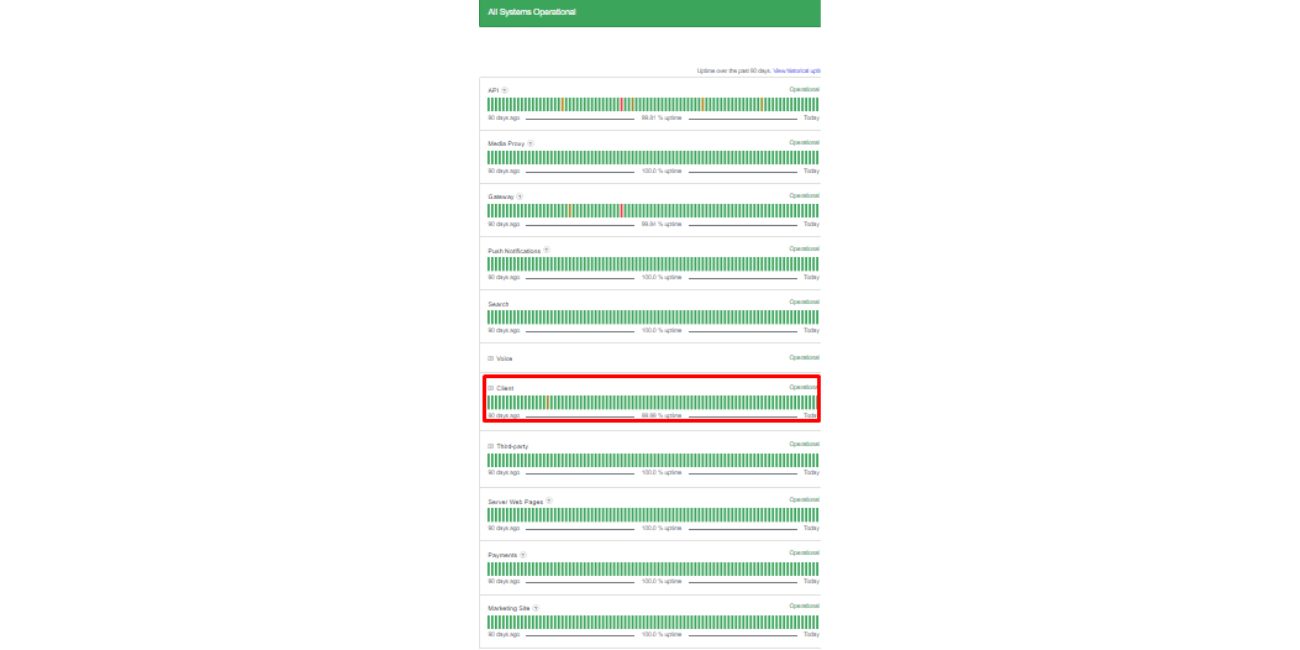
Before fixing your PC or phone, check if Discord itself is having a voice issue. Sometimes the problem is not on your side. Discord voice servers may be down or having some temporary issue.
If many users are facing voice connection problems at the same time, then you may just need to wait. No need to restart your router again and again if Discord itself is having a bad day.
But if Discord is working fine for others and only you are stuck, then continue with the fixes below.
2. Leave and Rejoin the Voice Channel
Start with the easy one. Leave the voice channel and join again. Sometimes the first connection attempt gets stuck and Discord needs a fresh try.
Disconnect from the channel, wait a few seconds and join again. If it still shows Awaiting Endpoint, try another voice channel in the same server.
If another voice channel works, then the first channel may be stuck. If all voice channels show the same issue, then it may be your app, internet or device connection.
3. Restart Discord Completely
Restart Discord properly. Just closing the window is not always enough because Discord can keep running in the background.
On Windows, close Discord from the system tray too. Look near the clock, right-click Discord and choose Quit Discord. Then open Discord again.
On mobile, close Discord from recent apps and reopen it. It is a small fix, but it can clear a stuck voice connection.
4. Change the Voice Region
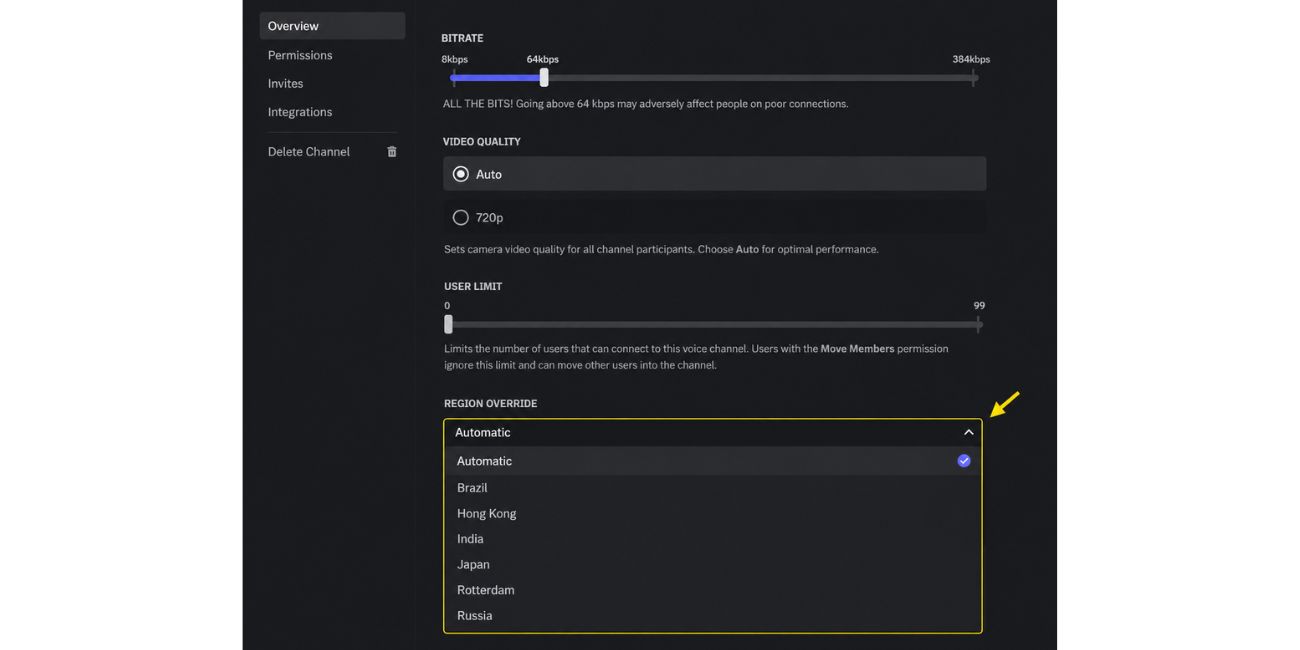
Voice region can cause Awaiting Endpoint if Discord is trying to connect you to a voice server that is slow or not responding well. Changing the region can force Discord to use a different voice route.
If you have permission, do this:
- Open the voice channel settings.
- Find Region Override or voice region.
- Choose another nearby region.
- Save the change.
- Leave and rejoin the voice channel.
If you do not have permission, ask the server admin or moderator to change it. Try a nearby region first. Do not choose a far region unless you are only testing.
5. Check Your Internet Connection

Discord voice needs a stable internet. It may not need super-fast internet, but it needs a connection that does not keep dropping. Your browser may open websites fine, but Discord voice can still fail.
Try using mobile hotspot for a quick test. If Discord works on the hotspot but not on your Wi-Fi, then your Wi-Fi or router may be the issue.
Also, pause downloads, stop heavy streaming and move closer to the router. If you use a computer or laptop and have Ethernet, try that too. A Wired connection is usually better for voice chat.
6. Restart Your Router
Sometimes the router causes weird Discord voice problems. The Internet is working, but not properly. Messages may be sent, but the voice does not connect.
Turn off your router, wait 30 to 60 seconds and turn it back on. Wait until Wi-Fi is fully back before testing Discord.
After that, rejoin the voice channel. If Awaiting Endpoint disappears, the router was probably holding a bad connection.
7. Turn Off VPN or Proxy
A VPN/proxy can interfere with Discord voice connection. It may change your route to Discord voice servers, and that route may be slow, blocked or may be unstable.
Turn off VPN and try joining the voice channel again. If Discord works without VPN, then the VPN was likely the problem.
If you must use VPN, try another VPN server. But for gaming and voice chat, keeping VPN off is usually better.
8. Allow Discord Through Firewall
Windows Firewall or antivirus can block Discord voice traffic. Discord may open and messages may work, but voice can still fail. This is why Awaiting Endpoint can happen even when the app looks normal.
Check firewall settings like this:
- Open Windows Security.
- Go to Firewall & network protection.
- Click Allow an app through firewall.
- Find Discord.
- Allow it on a private network.
- Save changes.
- Restart Discord.
If you use a third-party antivirus, check its firewall settings too. Some antivirus tools are too strict and block voice apps without making it clear.
9. Clear Discord Cache
A bad Discord cache can make the app behave strangely. It can cause loading issues, voice bugs and connection problems. Cache is just temporary app data, so clearing it is safe.
For Windows:
- Close Discord completely.
- Press Windows + R.
- Type %appdata% and press Enter.
- Open the Discord folder.
- Delete the Cache, Code Cache, and GPUCache folders.
- Open Discord again.
Discord will recreate these folders by itself. You are not deleting your account or servers.
On Android, go to Settings > Apps > Discord > Storage > Clear Cache. On iPhone, there is usually no simple clear cache button, so reinstalling Discord works like a stronger reset.
10. Update Discord
If your Discord app is outdated, it can cause voice issues. Desktop Discord usually updates itself, but sometimes it needs a full restart.
Close Discord fully and open it again. If an update is waiting, let it install. Then try joining the voice channel again.
On mobile, open the App Store or Google Play and check for Discord updates. If an update is available, install it and restart the app.
11. Try Discord Web or Desktop App
If Discord desktop app is stuck on Awaiting Endpoint, try Discord web in your browser. If web works, then your desktop app cache or app settings may be the problem.
And if Discord web fails but the desktop app works, then the browser may be the issue. Maybe an extension, cache or browser setting is blocking it.
This is a good test because it tells you where the issue is. App problem or browser problem.
12. Change DNS Settings
DNS can sometimes cause connection problems with Discord. This is not the first fix, but it can help when nothing else works.
You can try public DNS:
- Google DNS: 8.8.8.8 and 8.8.4.4
- Cloudflare DNS: 1.1.1.1 and 1.0.0.1
After changing DNS, restart your device and router. Then open Discord and test the voice channel again.
13. Check School, Office, or Public Wi-Fi
If Discord Awaiting Endpoint only happens on school, office, hotel or public Wi-Fi, the network may be blocking Discord voice. Some networks allow normal websites but block voice traffic.
Try a mobile hotspot. If Discord voice works on the hotspot, then the Wi-Fi network is the problem.
In that case, you may not be able to fix it yourself. The network admin would need to allow Discord voice traffic. Annoying, but common.
Fix Discord Awaiting Endpoint on Mobile
If Awaiting Endpoint appears on mobile, start with app and network checks. Mobile internet can switch between Wi-Fi and data without you noticing.
Try this:
- Close and reopen Discord.
- Switch Wi-Fi to mobile data.
- Turn off VPN.
- Restart your phone.
- Update Discord app.
- Clear cache on Android.
- Reinstall Discord if nothing works.
If it works on mobile data but not Wi-Fi, then your Wi-Fi is probably the issue. If it fails on both, check Discord voice status or reinstall the app.
What If Awaiting Endpoint Still Won’t Go Away?
If the error still keeps showing, find the pattern first. Don’t keep trying random things.
Ask yourself:
- Does it happen on every server?
- Does it happen in one voice channel only?
- Does it happen on PC and mobile both?
- Does it work on another network?
- Can other users join the same voice channel?
- Does it work without VPN?
If it happens only on one server, the server region or channel may be the issue. If it happens everywhere, then it is more likely your internet, firewall, router, Discord app or device.
FAQs About Discord Awaiting Endpoint
What does Awaiting Endpoint mean on Discord?
Awaiting Endpoint means Discord is trying to connect you to a voice server, but the connection has not completed yet.
Is Awaiting Endpoint a Discord server problem?
It can be a Discord server problem. But it can also happen because of your internet, VPN, firewall, router, cache or voice region.
Does changing voice region fix Awaiting Endpoint?
Yes, it can help if the current voice region is not connecting properly. You may need admin permission to change it.
Can VPN cause Discord Awaiting Endpoint?
Yes, VPN or proxy can interfere with Discord voice connection and make it stuck on Awaiting Endpoint.
Why is Discord stuck on Awaiting Endpoint on mobile?
It can happen because of weak Wi-Fi, mobile network issue, VPN, app bug, outdated app or Discord voice server problem.
Final Thoughts
Discord Awaiting Endpoint means Discord cannot finish connecting you to the voice server. Start with simple fixes first. Leave and rejoin the voice channel, restart Discord, check your internet, change voice region, turn off VPN and clear cache.
If it happens only on one server, ask the admin to check the voice region. If it happens everywhere, test another network, firewall, DNS or Discord app.
Did Discord Awaiting Endpoint appear on PC, mobile or only one server? Comment where it happens, because the fix can be different.