

Few things are more frustrating for gamers than being ready to dive into a favorite title—only to be stopped by a login error. Steam Error E20 is one such hiccup that can prevent users from signing into their accounts, often appearing without much explanation. Whether you’re trying to access your game library, chat with friends, or download updates, this error can feel like a major roadblock. Fortunately, there are several proven ways to fix it and get back online quickly.
TLDR: Steam Error E20 is typically caused by connection problems, corrupted cache data, or server-related issues. You can fix it by checking Steam’s server status, clearing the download cache, verifying your internet connection, or reinstalling Steam. In most cases, the error is temporary and easy to resolve with a few troubleshooting steps. Follow the guide below for step-by-step solutions.
What Is Steam Error E20?
Steam Error E20 usually appears during login attempts and prevents access to your account. While Valve hasn’t published a detailed breakdown of every error code, user reports and troubleshooting patterns suggest that E20 is commonly related to:
- Network connectivity problems
- Corrupted Steam cache files
- Firewall or antivirus interference
- Steam server outages
- Outdated client installations
The error may show a simple message indicating a connection issue, even when your internet appears to be working normally. That’s because Steam relies on specific ports and services to authenticate users.

Step 1: Check Steam Server Status
Before making changes on your computer, verify whether the issue is on Steam’s end.
Sometimes, Steam’s authentication servers go offline for maintenance or unexpectedly crash due to heavy traffic. During major sales or game launches, login servers may temporarily struggle.
What to do:
- Visit an online Steam status tracking site.
- Check social media for outage reports.
- Ask friends if they can log in successfully.
If the servers are down, the only fix is patience. Wait until services are restored and try logging in again.
Step 2: Restart Steam and Your Computer
It may sound simple, but restarting often clears temporary glitches.
Close Steam completely through the system tray (not just clicking the X). Then reboot your computer to reset network adapters and background processes.
Why this works:
- Clears active session conflicts
- Resets network handshakes
- Stops background software interference
After restarting, open Steam again and attempt to log in.
Step 3: Clear Steam Download Cache
Corrupted cache files are a common cause of login-related issues.
Follow these steps:
- Open Steam (if possible).
- Click Steam in the top-left corner.
- Select Settings.
- Go to Downloads.
- Click Clear Download Cache.
- Confirm and restart Steam.
You will need to sign in again after clearing the cache.
If you cannot access Steam at all, you may manually delete cache files from the Steam installation folder, but proceed carefully to avoid removing important data.
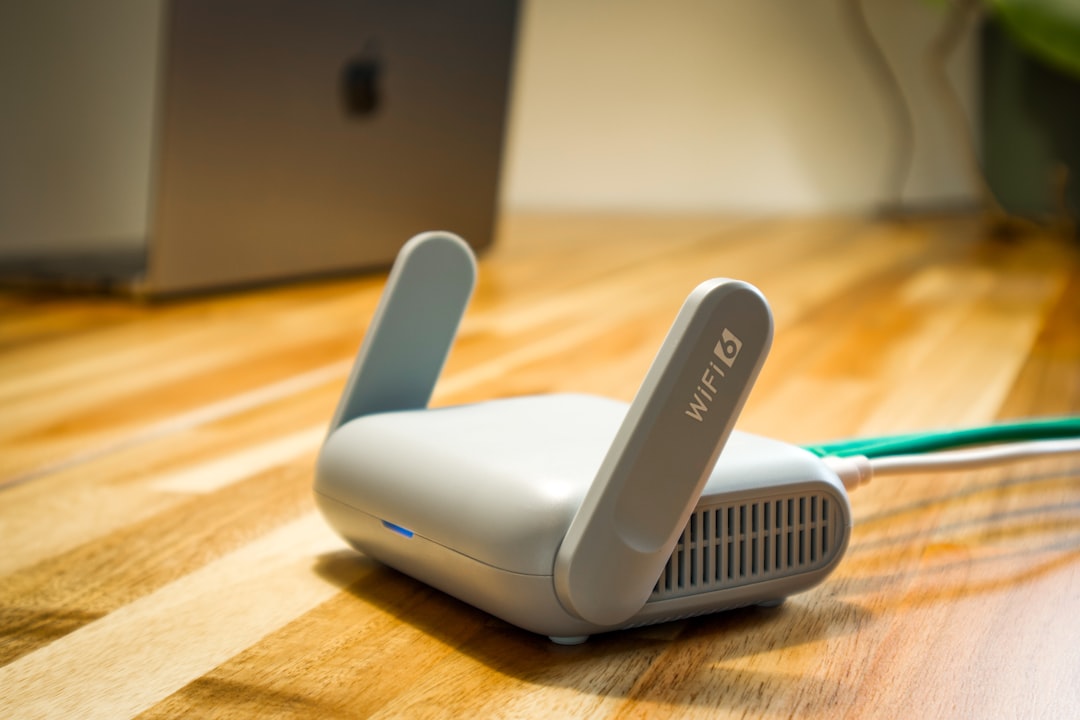
Step 4: Check Your Internet Connection
Even if websites load normally, Steam might still encounter problems due to:
- High packet loss
- DNS issues
- Restricted ports
- Proxy misconfigurations
Troubleshooting tips:
- Restart your router and modem.
- Switch from Wi-Fi to wired Ethernet.
- Disable any active VPN temporarily.
- Flush your DNS cache using Command Prompt.
DNS flush command:
ipconfig /flushdns
Afterward, restart your PC and try logging into Steam again.
Step 5: Disable Firewall and Antivirus Temporarily
Security software sometimes blocks Steam’s connection to authentication servers.
To test this:
- Temporarily disable your antivirus.
- Turn off Windows Defender Firewall.
- Try logging into Steam.
If login succeeds, you’ve found the culprit.
Permanent Fix:
- Add Steam as an exception in your firewall settings.
- Add Steam.exe to your antivirus whitelist.
Important: Re-enable your protection software immediately after testing.
Step 6: Run Steam as Administrator
Permission issues may interfere with certain services.
How to run as admin:
- Right-click Steam’s shortcut.
- Select Run as administrator.
This ensures Steam has the necessary system permissions to connect properly.
Step 7: Reinstall Steam (Last Resort)
If none of the above fixes work, a clean reinstall might resolve deeper corruption.
Before uninstalling:
- Back up your steamapps folder to preserve games.
Then:
- Uninstall Steam from Control Panel.
- Delete leftover Steam installation folders.
- Download the latest version from the official website.
- Reinstall and log in.
This refreshes all core files and can eliminate persistent E20 errors.

Common Causes and Fix Comparison Chart
| Cause | Symptoms | Difficulty Level | Recommended Fix |
|---|---|---|---|
| Steam server outage | Multiple users cannot log in | Easy | Wait for servers to restore |
| Corrupted cache | Login loops or repeated error | Easy | Clear download cache |
| Network issue | Slow load times or disconnects | Moderate | Reset router and flush DNS |
| Firewall blocking | Error disappears when protection disabled | Moderate | Add Steam exception |
| Client corruption | Error persists after other fixes | Advanced | Reinstall Steam |
Advanced Networking Fixes
If you’re still stuck, try these more technical solutions:
- Change DNS Servers: Switch to Google DNS (8.8.8.8 and 8.8.4.4).
- Reset Winsock: Use the command
netsh winsock reset. - Disable Proxy: Ensure your system isn’t routing traffic through a proxy service.
These steps refresh Windows networking components that might interfere with Steam’s authentication process.
Why Steam Error E20 Happens Frequently During Sales
If you’ve encountered E20 during a large Steam sale, you’re not alone.
High traffic events can cause:
- Server authentication queue delays
- Temporary regional server overload
- Session handshake timeouts
During these periods, waiting 10–30 minutes and retrying is often the simplest solution.
Preventing Steam Login Errors in the Future
While E20 can’t always be avoided, you can reduce the risk:
- Keep Steam updated regularly.
- Avoid force-closing the app during updates.
- Maintain stable internet connectivity.
- Whitelist Steam in security software.
- Shut down Steam properly before turning off your PC.
Consistent maintenance prevents corrupted cache buildup and network conflicts.
Final Thoughts
Steam Error E20 may seem alarming at first, but in most cases, it’s a simple connectivity or cache issue that can be fixed in minutes. Start with the basics—checking server status and restarting your system—before moving on to network resets or reinstalling the client. By following the structured troubleshooting steps in this guide, you’ll likely restore access quickly and safely.
Gaming interruptions are never fun, but with the right approach, you’ll be back in your library and launching your favorite titles in no time.