

Playing Delta Force on PS5 is fun. But playing with friends? That’s next level. Whether you want to squad up for tactical missions or just cause chaos together, inviting friends is quick and easy once you know where to look. In this guide, I’ll show you exactly how to do it — step by step.
TLDR: To invite friends on Delta Force PS5, open the game, go to the Social or Friends tab, and select Invite to Party. You can invite PlayStation friends directly or use Activision/Delta Force IDs for crossplay. Make sure crossplay is enabled if you’re adding friends on other platforms. If it doesn’t work, check privacy and online settings.
Before You Start
Let’s make sure everything is ready.
Here’s what you need:
- A stable internet connection
- An active PlayStation Network account
- Delta Force installed and updated
- Your friend added on PSN or their in-game ID
Pro tip: Update your game first. Many invite problems happen because one player is on an older version.
Step 1: Launch Delta Force on PS5
Turn on your PS5.
Open Delta Force from your home screen.
Wait until you reach the main menu.
You should see options like:
- Play
- Weapons
- Operators
- Social
- Settings
This is where the fun begins.
Image not found in postmetaStep 2: Open the Social or Friends Tab
Look for the Social tab.
It’s usually at the top or side of the screen.
Select it using your controller.
Inside, you’ll see:
- Your online friends
- Your recent players
- Party options
- Friend requests
If your friend is already online, their name should appear here.
If you don’t see them, don’t panic. We’ll fix that later.
Step 3: Invite a PlayStation Friend
This is the easiest method.
If your friend is already on your PSN friends list, do this:
- Go to the Friends section inside Social.
- Find your friend’s name.
- Select their profile.
- Choose Invite to Party.
That’s it.
They’ll receive a notification on their PS5. Once they accept, they’ll join your squad.
You are now officially a team.
Step 4: Invite Friends Using Crossplay (Other Platforms)
Want to invite someone on Xbox or PC?
No problem.
Delta Force supports crossplay. But you need to enable it.
Enable Crossplay
- Go to Settings.
- Open the Account or Gameplay tab.
- Turn Crossplay ON.
Now you can add friends from other platforms.
Add a Crossplay Friend
- Go back to Social.
- Select Add Friend.
- Enter their in-game ID (including numbers).
- Send the request.
Once they accept, you can invite them just like a PS5 friend.

Important: Make sure you type their username exactly right. Even one wrong number can fail the search.
Step 5: Create or Join a Party
If you want full control, create your own party first.
- Go to the Social menu.
- Select Create Party.
- Once inside, choose Invite Players.
This keeps you as the party leader.
Being the leader means:
- You choose the game mode.
- You start matchmaking.
- You control squad settings.
Power feels good, right?
Common Problems (And Easy Fixes)
Sometimes invites don’t work.
It happens.
Here’s a quick troubleshooting list:
Problem: Friend not showing online
- Make sure they are actually in Delta Force.
- Check if they appear offline on PSN.
- Restart the game.
Problem: Invite failed
- Check NAT type in PS5 network settings.
- Restart your router.
- Update the game.
Problem: Can’t join party
- Make sure both players enabled crossplay (if different platforms).
- Check party privacy settings.
- Send a new invite.
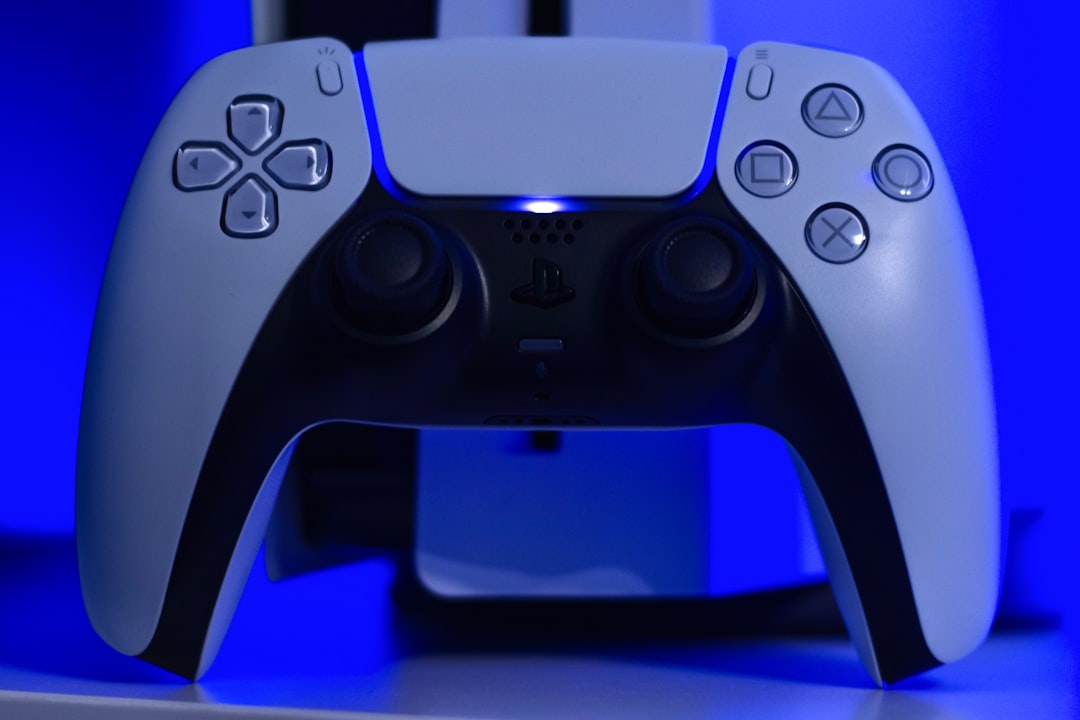
Most issues are fixed with a quick restart.
Yes. The classic “turn it off and on again” still works.
PS5 Invite vs Crossplay Invite (Quick Comparison)
| Feature | PS5 Friend Invite | Crossplay Invite |
|---|---|---|
| Speed | Very fast | Fast |
| Setup Required | PSN friend only | Need in game ID |
| Works Across Platforms | No | Yes |
| Extra Settings Needed | No | Crossplay must be ON |
If both of you are on PS5, stick with the simple PSN invite.
If not, crossplay is your best friend.
How To Accept an Invite
If you’re the one receiving the invite, here’s what to do:
- Press the PS button when the notification pops up.
- Select the invitation.
- Choose Join.
You can also accept invites directly inside the Social tab.
Once joined, your friend’s name will appear in your squad list.
Now you’re ready to deploy together.
Best Tips For Smooth Squad Play
Want a better experience? Follow these simple tips:
- Use voice chat for coordination.
- Choose operators that complement each other.
- Stick together during matches.
- Communicate before starting matchmaking.
Delta Force rewards teamwork.
Lone wolves don’t survive long.
Privacy Settings You Should Check
If invites aren’t coming through, check this:
- Go to PS5 Settings.
- Select Users and Accounts.
- Open Privacy.
- Adjust who can invite you to games.
Make sure it’s not set to “No One.”
Sometimes the solution is hiding in plain sight.
Can You Invite Mid-Game?
Yes — but with limits.
In some modes, you can invite friends while in the main lobby but not during an active match.
If you’re already in a match:
- Finish the round.
- Return to lobby.
- Send the invite.
Quick and simple.
Final Thoughts
Inviting friends on Delta Force PS5 is easy once you know where to click.
Here’s the short version again:
- Open the game.
- Go to Social.
- Invite your PSN friend or add a crossplay friend.
- Create a party.
- Start matchmaking.
That’s it.
No complicated steps. No secret tricks. Just a few clicks.
Gaming is always better with friends. Especially in tactical shooters like Delta Force where teamwork wins matches.
Now grab your squad. Load in. And dominate the battlefield together.