
Windows 11 users sometimes see KB5053656 get stuck at “Downloading,” “Installing,” or “Pending restart.” Some also get error codes, failed installs, or looping messages. This update is a cumulative release for Windows 11 24H2, and like many large updates, it can run into issues with the update cache, system files, or network problems. This guide explains what KB5053656 is and how to fix common install errors in simple steps.
What is KB5053656?
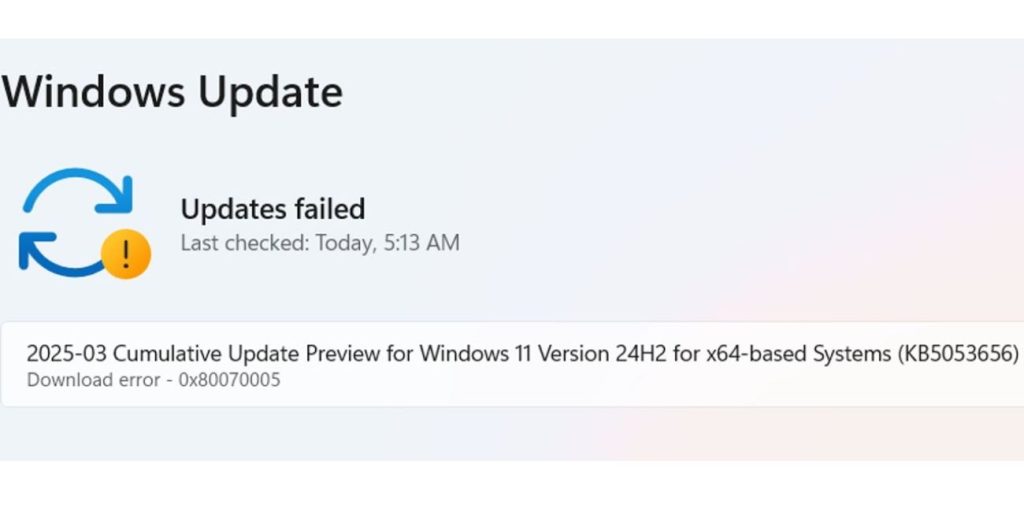
KB5053656 is a cumulative update for Windows 11 version 24H2. Cumulative updates include many fixes from the past months grouped into one single package. They improve performance, patch security issues, and update core system files. Windows installs these updates to keep your device stable and safe.
This update is sent through Windows Update, but you can also download it manually if needed.
What’s Included in KB5053656
Here are common improvements found in cumulative updates like KB5053656:
- security patches
- stability fixes
- performance improvements
- fixes for system crashes
- updates to Windows components
- small design or behavior adjustments
These updates help Windows run better and prevent security problems.
Why KB5053656 Fails to Install?
There are a few reasons this update may fail. Some users see freeze points at 0%, 30%, or 95%. Others get error codes or restarts that don’t complete. Common causes include:
- damaged update cache
- weak or unstable internet connection
- VPN blocking update servers
- not enough storage space
- corrupted system files
- outdated drivers
- antivirus tools blocking the install
Many of these problems are easy to fix once you know where to look.
Common Error Codes for KB5053656
Users report several error codes connected to this update. These include:
- 0x800f0922
- 0x800f0988
- 0x80070002
- 0x8007000d
- 0x8024a205
Most of these codes point to update cache issues or missing system files.
Quick Fixes to Try First
Start with simple steps. These often solve the problem right away:
- Restart the PC
- Turn off any VPN
- Check your Wi-Fi or wired connection
- free up extra storage
- pause updates, wait a few seconds, then resume
- Disable third-party antivirus temporarily
These fixes help Windows reconnect to update servers and rebuild the install process.
Reset Windows Update Components
If the update cache is broken, KB5053656 may fail every time. You can reset update components by clearing the SoftwareDistribution and Catroot2 folders.
Steps:
- Open Command Prompt as admin.
- Stop update services with basic commands (Windows Update and BITS).
- Delete the SoftwareDistribution and Catroot2 folders.
- Restart the services.
- Check for updates again.
This forces Windows to download the update from scratch.
Run SFC and DISM
System file damage can block updates. Windows includes tools that repair this.
Commands to run in order:
- SFC to scan and repair system files
- DISM to rebuild Windows image components
Running these commands helps fix broken files and makes the update install smoother afterward.
Install KB5053656 Manually
If Windows Update refuses to install this update, manual install is a good option.
Steps:
- Go to the Microsoft Update Catalog
- search for KB5053656
- Download the x64 package for Windows 11 24H2
- open the file and install it manually
Manual updates skip some of the problems caused by cache or connection issues.
Use an In-Place Upgrade Repair (When Nothing Works)
If all methods fail, you can repair Windows without losing your files. This method reinstalls system components while keeping apps and data.
An in-place upgrade:
- refreshes Windows files
- repairs update components
- keeps your personal files
- resets broken update parts
This option is usually the final fix and works for most stubborn update failures.
Final Notes
Windows 11 KB5053656 brings important fixes, but some devices struggle to install it due to cached files, broken system components, or network issues. Following the steps above usually resolves the issue quickly. If you want help with a specific error code or need steps for another update, feel free to ask and share the message you see on your screen.